| expand content | forums | advertise |

Home > Articles > Maximizing BitTorrent Speeds with uTorrent

Maximizing BitTorrent Speeds with uTorrent (Guide / Tutorial)
Version 1.145 (Updated October 2009)

utorrent logo - image from productWiki http://www.productwiki.com/utorrent/This article explains how to get up and running with utorrent Bit Torrent efficiently. It shows how to battle ISP's throttling bittorrent speed, optimize download speed and other ways to speed up utorrent and increase utorrent download speed.

Disclaimer

Proceed at your own risk! The information here is accurate to the best of our knowledge. I will not be held responsible if this document causes your computer to explode or burst into flames. In real serious terms, if any corruption of data, hardware damage or any other kind of damage/losses/etc. arises from the use of this document, I will not be responsible for it. If you don't like this, please don't read any further.

Introduction

This is a tutorial step by step guide on how to speed up uTorrent's configuration. It details all the steps from downloading to optimizing your utorrent and Windows settings. Many people have used and think they are running with optimized settings, even then, it is advised to read through this guide and see what you may have missed to get the best configuration settings.

Make sure you are viewing the latest version at this URL!
http://www.bootstrike.com/Articles/BitTorrentGuide/

Translate the language of this guide to German / Italian / etc:


Translate

You can also print this guide. All pages of Bootstrike.Com utilize a print friendly CSS, so go to Print Preview in your browser to instantly see how the page will print without the borders and comments.

Starting off with Bittorrent

Our top recommended BitTorrent client software, in order of preference is as follows

  1. µTorrent ( http://www.uTorrent.com/ ) (the number one choice)
  2. Azureus aka Vuze ( http://azureus.sourceforge.net/ ) (java based, but very popular too)

This guide will focus on the top most client, uTorrent. A quick rundown of its major features and we're talking SPEED here

  1. Peer Exchange
    Obtains more peers for your downloading torrent in addition to trackers. Peer exchange
    checks with other peers to see if they know of any other peers. More Peers = More Speed! (provided the peers are seeds and are not choked)
  2. Protocol Encryption, Half-Open Connections and uTP UDP Packet Protocol
    This is the major speed booster if your Internet Service Provider (ISP) throttles BitTorrent traffic, allowing bypassing of ISP throttling. It can do wonders on torrents with high seeds and can give high speeds especially if your peers are using the top 3 clients I mentioned above, as those are the popular ones that support this standard.

    A list of commonly known ISPs who throttle BitTorrent can be found here. You can even do an online test to verify if your ISP throttles BitTorrent connections.
  3. Capping Upload Speed
    Uploading data to other peers at full throttle will severely limit your download rate. This is one key element we have to adjust for a good download / upload ratio. Unless you are purely seeding and not using your computer for other tasks, limit your upload to 80% of full bandwidth.
  4. Distributed Hash Table (DHT)
    Similar to Peer Exchange, it also obtains more peers for you to download from. If the tracker is down, and the torrent is not private, you can depend on DHT to continue downloading!
  5. Local Peer Discovery
    Searches for peers with the same Internet Service Provider (ISP) as you. Connecting to a peer in the same network (or ISP) means you can get the maximum speeds from that peer, assuming he is generous with his uploads.

What We Need

  1. An Internet Connection and its maximum download and upload speed. If you are not sure of your download/upload speeds, visit http://www.speedtest.net/ to run a speed test. Select a download location closest to you, especially if you are outside US. The Recommended Server (golden pyramid) works out most of the time.
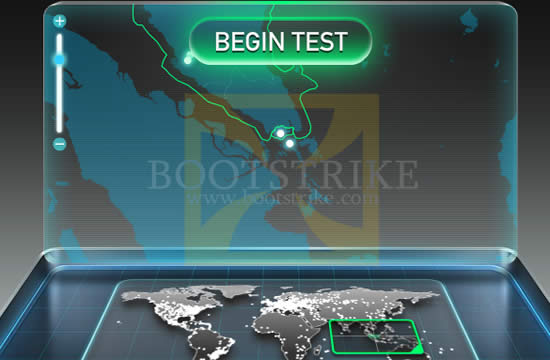
    Click the Gold Pyramid, it works out most of the time
    Partial SpeedTest.net Screen Shot: Clicking the gold pyramid works out most of the time

    Once the test is done, you get the results:
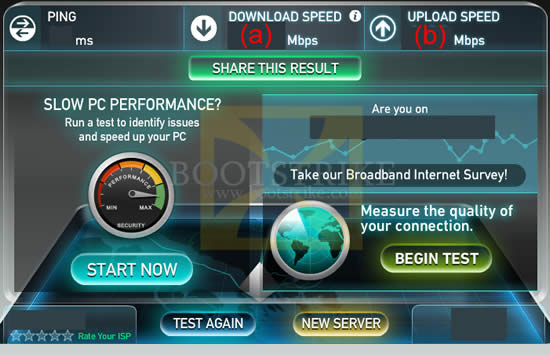
    Results of the speed test
    Results of the speed test

    Note down the numbers under Download and Upload including the unit; in this case, Mbps. You will need them later.
  2. Patched TCPIP.sys to allow more concurrent half-open connections. Windows XP SP2 and Vista limits the number of half-open connections to 10.

    NOTE: This step has been generally found not to make any improvements in Bittorrent speed. In fact, it can even cause problems with certain routers such as auto-restarting and stalling of internet access. Do this only as a last resort.

    To increase the limit, there are two freely available patchers:

    Lvllord Patch - ONLY for Windows XP Users (NOT Vista/Windows 7 users, see next step for Vista/Windows 7 users)
    UPDATE: There has been a recent Automatic Update (MS08-001) released on January 8 2008 that addresses some network security concerns. The below has NOT been tested with the latest TCPIP.SYS (v5.0.2195.7147) file. Update:The patch has been tested with KB941644 (an automatic update) and works perfectly!
    1. Go to this site - http://www.lvllord.de/
    2. Click on Downloads.
    3. Right-click the link and click "Save Target As".
    4. Save it in your Desktop.
    5. Open the file and run the program located inside the archive, agreeing to the security warning.
    6. Some text should scroll by in a MS-DOS window, after it ends, type C.
    7. Enter 100 for the number of concurrent half-open connections and press Enter.
    8. Type Y and the file should be patched. Cancel any Windows XP warnings that should appear, it is part of Microsoft's way of ensuring its files are not tampered with (the utility tampers with them on purpose to change the limit).
    Half-Open Patch - For Windows VISTA / Windows XP / Windows 7 users
    This patcher works for both 32 and 64 bit Vista and XP versions.
    1. Go to this site - http://half-open.com/download_en.htm.
    2. Download the ZIP file in the link titled Half-open limit fix 3.6 (as of Feb 2009)
    3. Extract all files to one folder in your desktop
    4. Open the folder and run the Half-open_limit_fix_3.6.exe file
    5. Click English
    6. Under 'New value', set it to 100 (if it is not already set)
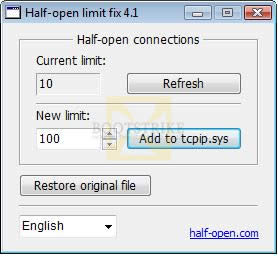
      Vista max half open connection limit
      Set the new value to 100
    7. Click 'Add to tcpip.sys'
    8. Click OK.
    9. Click OK again. Cancel any Windows XP warnings that should appear, it is part of Microsoft's way of ensuring its files are not tampered with (the utility tampers with them on purpose to change the limit).
    10. Restart your computer.
    11. If something is not working right (e.g. Internet access does not work anymore) and you want to undo the changes, run the software again and click "Restore original file".
    NOTE: The patchers above are known to trigger anti-virus alerts. Ignore them. The alerts are triggered due to the patcher making changes to the way Windows works hence the anti-virus software interprets it as suspicious.
  3. A BitTorrent Client - I recommend uTorrent. This guide uses uTorrent for the tutorial.
  4. And finally, some torrents to kick off a download. A sample torrent file will be provided later.

Download

As of October 2009, the latest version is 1.8.4.

Getting to the file:

  1. Click on this download page - http://www.utorrent.com/downloads
  2. Click the big green image that says "Download Now".
  3. A dialog box should pop out. Choose to RUN it.
  4. If any security dialogs appear, click Run as we know this is a safe file.

Configuring uTorrent

The configuration part is where most people mess up. Most of us will just click through the dialogs accepting the default values. This may apply to some of us, but not the majority. The below installation guide uses uTorrent Version 1.8.3. Older versions may have some steps missing.

  1. Run the program. Ignore the security warning if any appears (Click Run) - we know perfectly well that the file is legitimate.
  2. You get the welcome screen when it runs:
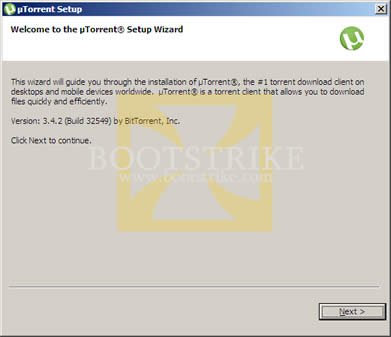
    utorrent wizard welcome screen
    Welcome screen (note: version number may be different if you have a newer/older version)

    Click Next. A scam warning will appear due to many people being tricked into paying for utorrent which is supposed to be free.

    Anyway, click Next.
  3. New to utorrent version 1.8.3 - a license agreement! This used to be as a link in the Install location.
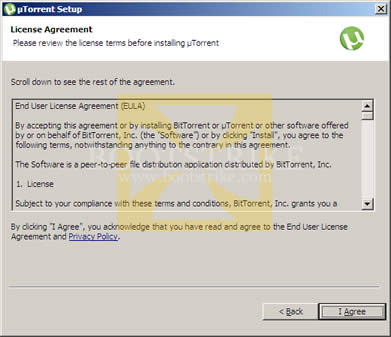
    utorrent license agreement
    License Agreement

    Read the mambo jambo. You must click I Agree to continue if not the installation will not continue.
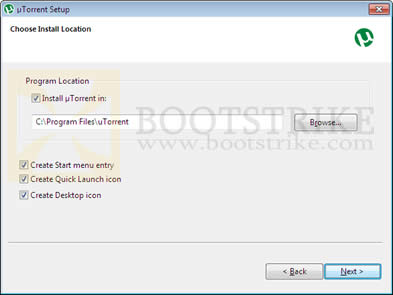
  4. It will give the following dialog:

    install utorrent wizard
    Choose Install Location

    You want the program to be easily accessible, don't you? Click Next > and the shortcut will be created in your desktop, quick launch and start menu, as well as installing it to a permanent location.
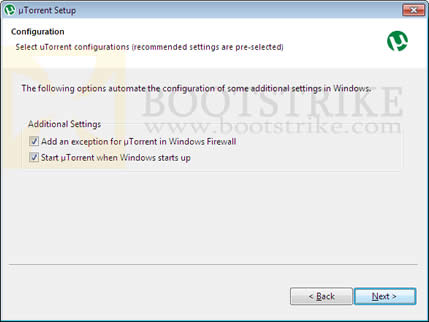
  5. uTorrent Setup asks your permission to associate with files:

    uTorrent Setup Configuration
    Configuration

    All are fine except for the last one - 'Start utorrent when Windows starts up'. This used to be optional but with version 1.8.3 onwards, utorrent is set by default to start along when Windows starts. This may irk some users, especially if you pay for Internet Access by the megabyte. How? If you close uTorrent after you are done with it without deleting the torrent and restart your computer, utorrent starts in the background and continues leeching and seeding the torrents.

    Bottom line? If your Internet Access is unlimited, leave the checkbox checked. Otherwise, uncheck the last box.
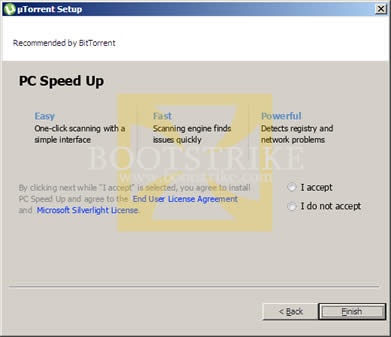
  6. The latest releases of uTorrent now come bundled with Ask.Com Toolbar:

    uTorrent Ask Toolbar
    Ask Toolbar

    This is NOT required, 100% optional and will NOT affect your download/upload speeds. Installing this will insert a Ask.Com Toolbar in Internet Explorer and Firefox (if you have it).

    So why is uTorrent including Ask.com Toolbar? Because it gets paid for every installation and is a means of some revenue for the company. So it is entirely up to you whether you want it. If you find that you don't like it later on, you can remove the toolbar from Add/Remove programs later on without affecting uTorrent.

    Make your desired checkmarks and click Install
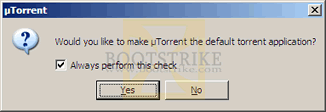
  7. This step only applies for versions older than utorrent v1.8.2. It ensures that utorrent is set to handle all torrent files automatically.

    make utorretn default torrent application
    Making uTorrent the default application for torrent files

    Click Yes. On current versions of uTorrent, this is done automatically.
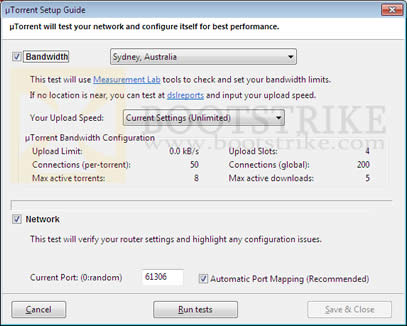
  8. And the next dialog box is the most important step

    utorrent Network Wizard
    uTorrent Speed Guide

    Now the value that we are interested in right now is the Upload Limit in kB/s (also known as 'KBps'). If you have trouble understanding your speed, consider this: Internet Explorer shows download speed as KBps when you download a file.

    There is a big difference between 5Kbps and 5KBps. Make sure you got the right values in KBps (not kbps, the cAsE of 'b' matters) . Use Google Calculator if you need help with conversions.
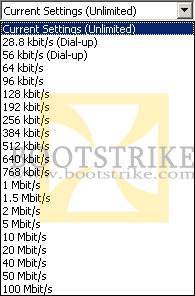
  9. Click the (Current Settings) drop down

    Speed Settings
    Preset Speed Settings on clicking Current Settings

    The authors of uTorrent have been very helpful in providing a list of predefined values. Your connection should be near to one of the above categories. "xx/384k" means that your download is unlimited and your upload is limited to 384kbps (which is 48KBps by Google Calculator).

    With your results of the speed test you did above, select the closest upload speed from the list. uTorrent immediately adjusts the "Affected Settings" area with recommended values for your upload speed. We're not finished yet.

    Note: The default download speed in utorrent is Unlimited. Even if your download is limited in some way, it is always better to leave it at unlimited to get maximum download speeds. However, if you need to limit your download speeds, right-click the utorrent icon on the system tray (bottom right), click Download Limit and set accordingly. You can also set this in the Preferences dialog.

    Note: uTorrent randomly generates a port number in Current Port. This guide assumes the port number to be 55641 - but you can substitute it with the number uTorrent shows.
  10. Port forwarding is also important. Click on "Test if port is forwarded properly" to run the test. If you have trouble running the test, it could be due to one or more of the following reasons:

    1. Home Router
      If you are running a router (sometimes called wireless access point) at home, you will have to configure it to route all TCP / UDP BitTorrent traffic to port 55641 to your computer. If so, visit this page for a guide on how to port forward. Click the router you are using and follow instructions. When following the guide and the router asks for a range of ports to forward, simply specify 55641 to 55641 (remember to substitute it with the actual port number you are using).
    2. Personal Firewall
      If you are running a firewall software such as Norton Internet Security, Norton 360, Kaspersky, ZoneAlarm, etc, then configure your firewall such that uTorrent has access to port 55641. This is normally accomplished by starting up utorrent. The firewall should spring up an access alert. Simply select the option to "Always Allow" to allow the program to access the Internet. Messages such as "utorrent wants to act as a server" or "utorrent is attempting to listen for connections" must be allowed as well. In fact, if the program in question is utorrent, you should always check "Allow" no matter what request it is.

      Windows Firewall Users
      uTorrent will automatically configure Windows Firewall for you so there is no action needed from you.
    3. Corporate Firewall
      Are you running this software in a corporate network? Bad news - you have to inform the admin that you want the port to be directed to your computer. The good news - you can still go by without port forwarding, but speeds will not be optimal.
    4. Utorrent.Com Port Forward Checking Website has a problem
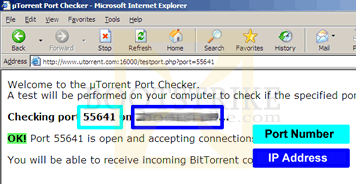
      Yes, especially if you are accessing the Internet through a transparent proxy that your ISP forces you to use. This simply means that the website is checking for open ports at the wrong computer. To verify if this is the case, uTorrent port checker runs an alternative port checker at port 16000, which you can access by using the form below:

      uTorrent Port Checker

      Enter the port number in this box: and click .

      Sometimes the utorrent port checker server may be down - you may get 'page cannot be displayed' or a blank page 'unable to connect' if this is so. If this is the case, the only way to check is to run the actual torrent.

    Having done all the above, if the website still says that it has problems accessing the port, the ultimate test will be when we do a test file downloading. For now, let's click on Use Selected Settings.

    1. Now you see the full uTorrent window in full glamour.

Starting a simple torrent

We need to start a simple download, and the one that will be using is a 650MB file of Ubuntu! It is a perfectly legal and free file to download. We will be downloading this file purely for testing and delete it later on (as it is of no use to us)

  1. Minimize uTorrent for now. Notice that it resides on the system tray (bottom right) automatically.
  2. Click to http://torrent.ubuntu.com:6969/.
  3. Look at the column labeled "complete". Find the row with the largest value. A quick way is to scroll down and scan for a 3 digit figure in that column.
  4. Now download the torrent - click the link in the 2nd column of that row
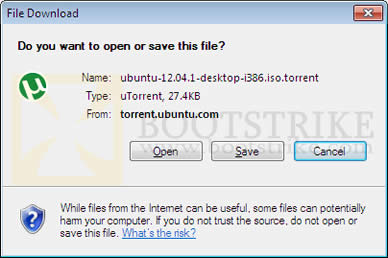
  5. You should get this dialog:

    Opening a torrent file
    The IE6 "Save As" Box for torrent files

    This is the metadata file, it contains information on the file you want to download eventually. That is why the file size is so small. We want uTorrent to automatically start downloading it, so click Open.

    NOTE: The "Name and Type" may differ on your system. This is normal, as Ubuntu is frequently updated

    NOTE: If the Open button does not appear, save the file in your desktop. Then start utorrent, File > Open torrent and open the torrent you saved. Delete the torrent file in the desktop as uTorrent automatically makes a copy of it.
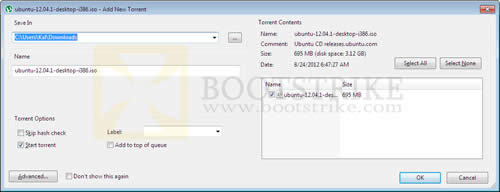
  6. The file opens with uTorrent which automatically pops up this dialog

    Add new torrent
    Add New Torrent dialog box

    All values are automatically filled in for you. Here is also where you select files that you don't want to download - if the download has many files which in this case is not. Remember where the file is stored in "Save As", or save it in a different location that is more convenient for you.

    All looking good, click OK.

Progress of the Download

Click on the Ubuntu torrent (the only item in the list) to view more information on it. You will see all the values at the bottom suddenly burst with activity!
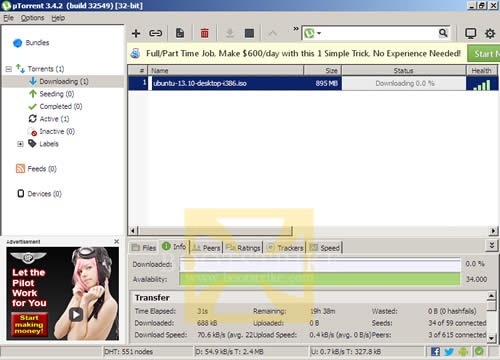
Download torrent status
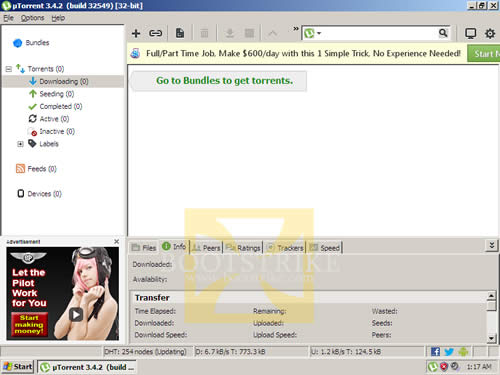
uTorrent with one torrent downloading

Looks like the torrent has a total of 42 seeds and 4 downloaders. 42 seeds is a lot (but some torrents can have 1000+ seeds, depending on popularity) and it means you should get the full file in no time! A seed is a term used to refer to peers who have downloaded and are sharing the complete file.

However, after running for 5 minutes, the speed refuses to go above 20 KB/s, which is not possible for a highly seeded torrent. Could it be our ISP throttling?

Enabling Protocol Encryption, uTP (UDP Packets) and Increasing Speed Via Max Half Open Connections

uTorrent by default disables protocol encryption. We need to enable this so that the ISP's packet shaping hardware will detect our BitTorrent traffic as normal traffic and hopefully let it pass.

  1. Click on Options, Preferences.
  2. Click on BitTorrent.
  3. You should get a dialog similar to one below
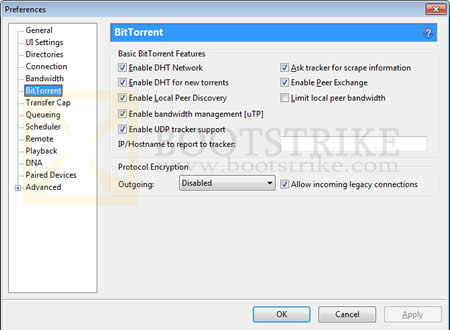
    Preferences Network Options
    Bittorrent Preferences Dialog Box
  4. The one we are concerned about is Protocol Encryption. Set the Outgoing to Enabled.
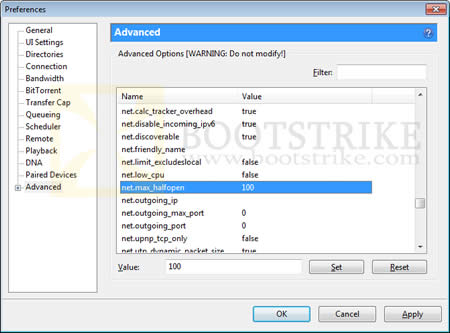
  5. Click on Advanced on the left column.
  6. If you did NOT patch your TCPIP.sys to allow more concurrent half-open connections above, SKIP this step.

    Preferences Advanced options
    Advanced Settings Dialog Box

    Change "net.max_halfopen" value to 50 by selecting the line, modifying the value at the bottom to 50 and clicking Set.

    NOTE: It is normal for a asterisk(*) to appear. This is to indicate that the value has been changed from the default value.

From uTorrent version 1.8.3 onwards, a new UDP protocol named uTP was introduced which sends UDP packets as well as TCP packets. The main benefit is that it provides a new avenue of bypassing ISP throttling limits resulting in a more efficient torrent swarm.

  1. At the same Advanced screen, Change "bt.transp_disposition" value to 255 by selecting the line, modifying the value at the bottom to 255 and clicking Set.
  2. Click OK. Stop all torrents (red stop button on toolbar on top), wait 10 seconds, and Start the torrent (green play button on toolbar). Now let's watch the speeds.

Hopefully, the above changes will improve speeds. Ultimately, it depends on the number of seeders and peers with high upload rate. Remember, you must upload to enjoy good download rates, but not so high that it affects download speed. Experiment.
Bonus Tip!

This part only applies for public torrents. It is useless for private torrents as they specifically prohibit sharing with other trackers.

The tip: Look for more public tracker servers that have the file. However, this tip does not work for torrents that are private i.e. the DHT Status field shows 'not allowed' for the torrent.

Before:

Only one tracker
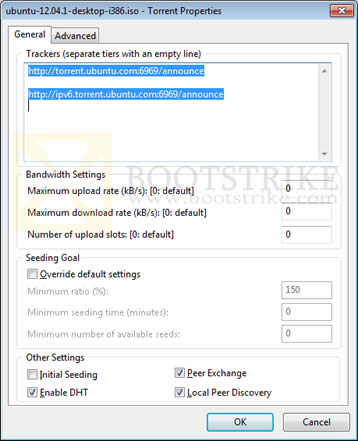
Only one tracker under Trackers

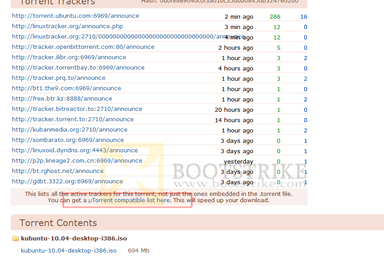
After getting the same torrent from ISOHunt.com (a site that consolidates multiple trackers into one torrent file)

Many tracker servers!

Needless to say, the speed increased tenfold!

How do I find similar torrents?

The easiest way is

  1. Highlight the row of the torrent by clicking on the torrent name
  2. Click on the General tab below
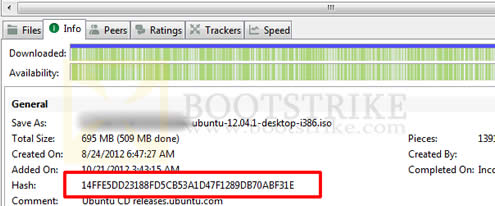
  3. There should be a field labeled Hash near to the bottom with a string of 40 alphanumeric characters. Right-click the value of this and click Copy.

    Hash value of a torrent
    Hash value of a torrent
  4. Go to ISOHunt.com
  5. Paste the value into the search box. To paste the value, right-click the search box, and click Paste. Click Search.
  6. There should only be one result. Click that result and download the torrent.
  7. You should get the box below. If not, you are downloading a wrong or different torrent. The torrent must be exactly the same except for the tracker servers.

    Torrent already in the list of torrents
    uTorrent warns you when you are adding the same torrent. Just click Yes to load the trackers from it

You can also search Google with the torrent hash and download similar torrents.

Bonus Tip 2!

Optimize your TCP settings. Speedguide.net provides a free utility to make this step as easy as cake. We also have a mirror of the file.

WINDOWS VISTA USERS: Windows Vista / Windows 7 is not listed to be compatible with this as of May 2009. However, there are many reports on the net that it works and that it will need to be combined with the Disable Auto Tuning to make the registry changes effective. Personally, I recommend against using this if you are a Windows Vista user.

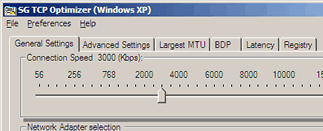
TCP Optimizer main window
TCP Optimizer Main Window

Steps to optimize your internet connection.

  1. First, download and extract the files to any folder.
  2. Double-click on the TCPOptimizer application in the folder to launch it
  3. At the bottom of the window, click "Optimal Settings"
  4. At the top of the window, select your connection speed. If you are not sure, run the speed test. Use the value that you get for the Download field (which is in kb/s) and set the slider to it.
  5. If you are using ADSL, check with your Internet Service Provider whether it is based on PPPoE or PPPoA. You may also be able to obtain the information via your router's homepage.
  6. Click 'Apply Changes' at the bottom of the window.
  7. Ensure that 'Backup' is checked and click OK at the next confirmation box that appears.
  8. Once the changes are done, reboot your system.

Further Tips You Can Try For Optimum Speed

Pointers 3 - 7, 9 and 14 below have the potential to affect your speeds **negatively**. Experiment.

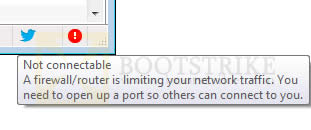
  1. There should be a green tick at the bottom, not a exclamation mark as below.

    Exclamation Mark - No Incoming Connections
    Unconnectable situation

    If uTorrent keeps showing this even after 5 minutes, check the possible causes.
  2. To get more peers, right-click the entry on the list, and click Update Tracker (disabled, grayed out and throttled in utorrent 1.8 - you need to wait for some time). Do this especially if you are on a private tracker before you exit the application, so that your ratio is maintained.
  3. Setting a high upload can sometimes slow down a fast torrent. For example, in our ADSL connection, if I do upload at 10KB/s I can get up to 350KB/s. If I upload at 30KB/s, the download speed gets limited to 200KB/s. The total upload available to me is 60KB/s.

    This is where you have to experiment by setting a low upload rate (from 10 at Options > Preferences > Bandwidth > Maximum upload rate) and watching if the speeds increase for 5 minutes, especially if the torrent is heavily seeded.

    But remember, you must upload in order for peers to share their downloaded data with you. It is possible to set a very low upload, but the chance of peers sending you their data will decrease, pulling down your download speed.
  4. Some people have reported speed increases by setting the peer.lazy_bitfield setting to false in Options > Preferences > Advanced. However, in our case, it lowered the speeds.
  5. Change the Options > Preferences > Bittorrent > Protocol Encryption to Forced. This will force encryption on all outgoing packets and will not fallback to un-encrypted mode if the peer refuses to co-operate. Good to connect to only encryption-enabled peers. Avoid doing this for torrents with low peers/seeds.
  6. Remove the check for Options > Preferences > Bittorrent > Protocol Encryption > Allow Incoming Legacy Connections. This will make all your outgoing and incoming packets fully encrypted, except for tracker communications. Peers who are using a torrent software that doesn't support encryption are dropped. Avoid doing this for torrents with low peers/seeds.
  7. Private trackers, especially those that specifically tell utorrent to disable DHT (effectively disabling Peer Exchange and Local Peer Discovery too), can affect speeds negatively. You can tell if the torrent is private by selecting the torrent and looking at the DHT value. If it says "disabled", it is a private torrent.

    That said, the main reason private trackers exist is because they enforce sharing rules that tries to prevent a person from downloading a torrent and running off without uploading back the same amount of data he downloaded.

    For new and popular torrents on such trackers, you may be able to get good speeds as everyone will be trying to increase their upload/download ratio. Again, experiment. The key point here is the seeds/leechers ratio and the popularity of them in public and private trackers.
  8. Check the Availability column for the torrent. If it is less than 1, chances are that the torrent is new and the original uploader is still uploading. However, if it remains at a value less than 1 (eg, 0.98) for more than a day, either the torrent does not have seeds or it is fake. (Thanks TTbarDJ)
  9. Some people have reported speed increases using an older version of utorrent, specifically utorrent version 1.6. You can download it and try it instead.
  10. Reset your internet connection by switching off and on the modem and router (if applicable).
  11. Download the latest network driver, uninstall the current one and install back the latest network driver you downloaded by using Device Manager in Start > Control Panel > System > Hardware > Device Manager.
  12. Make sure you did not set a download limit accidentally! Many people unknowingly set the download limit when they actually intended to set the upload limit in the right-click menu of the tray icon. To check, Options > Preferences > Bandwidth > Maximum download rate > Set to "0" > OK
  13. Some people use software such as Peer Guardian or Protowall to 'protect' from spy computers. At last check, Peer Guardian blocks about 773,125,915 out of 4,294,967,296 possible IPv4 addresses. That is about 18% of the whole Internet World Wide Web! Which means lesser peers and that means lower speeds! For the protection it claims to offer, speed is a compromise.
  14. Increase the number of connections in Options > Preferences > Bandwidth > Number of Connections. Experiment by increasing the number of global/max connections in steps of 25.
  15. Windows Vista users! Disabling TCP/IP Auto Tuning helped improve speeds for some people
    1. Click Start.
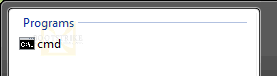
    2. In the box at the bottom, type CMD and do NOT press Enter. You should see CMD come up on the list as shown below:

      CMD shows when you type CMD in the box below
      CMD shows when you type CMD in the box below
    3. RIGHT-click the icon and click "Run As Administrator"
    4. A "User Account Control" box should spring up. Click Continue
    5. Type this into the prompt: netsh int tcp set global autotuninglevel=disable
    6. You should get a "Ok." response.
    7. Restart your system.
  16. If you have a proxy server such as a local ISP one, using it has helped many people improve their speeds. Go to Options > Preferences > Connection. Under 'Proxy Server', select the Type as HTTP and specify your proxy and port. Check the box 'Use proxy server for peer-to-peer connections'. Press OK and restart uTorrent.

Good luck! It all boils down to Experimenting.
Readers' Suggestions for Improving Speed

The following tips were posted in the comments below and found to be useful for some readers. You can try them out too.

  1. Jen says: If Utorrent is really slow on Vista (on my computer everything was really slow... I.E, Outlook) try disabling IPv6. Go to Control Panel > Network and Sharing Centre. Click on view Status for your connection, then properties and uncheck Internet Protocol Version 6 (TCP/IPv6) then OK it etc. I didn't need to restart Utorrent or do anything else. The download I was on jumped from 5k right up to 200.
  2. Jen says: Another one and it's really simple! I spent many an evening trying like hell to get my torrents to run faster and wasn't getting anywhere. a couple of weeks ago my ex was trying to download at 8pm and he was getting DL speeds like a 512 connection trouble is he's on an 8mb line. We couldn't figure it out and quite randomly whilst trying to figure it I checked the TOC for his ISP it turned out they restrict bandwidth at certain times, in his case 6pm to 9pm. Obviously I checked my ISP and mine is set 7pm to 10pm.
  3. Geeman says: I noticed drastic increased speed by increasing the disk cache size (Options > Preferences > Advanced > Disk Cache > Override automatic cache size > (set to higher number)
  4. Masterkio says: Change the following in the Advanced tab of uTorrent preferences peer. disconnect_inactive_interval from 300 to 600. You should be able to get a little bit more speed by doing this.
  5. ColdBurn says: Download only a single torrent at one time. At uTorrent > Options > Preferences > Bandwidth, set 'Global maximum number of connections' and 'Maximum number of connected peers per torrent' to 375.

Frequently Asked Questions (FAQ)

1) What are the good/best ports to open for uTorrent?
There's no "best port" or good ports . All ports are suitable for use with uTorrent, unless you are running a program that is using the port.

However, feel free to change the default port of it by going to Options > Preferences > Connection and adjusting the "Port used for incoming connections" as necessary. Remember to re-adjust your port forwarding settings in your firewall and router too.
2) I have tried all the above and my speeds are still slow! In fact, it got worse! What can I do?
Try downloading a different torrent. A high ratio of seeds to leechers (Eg 2000 seeds to 10 leechers) will make a big difference in speeds. Make sure there is a green light at the bottom or check the possible causes.

Verify your speed by running a speed test from different locations to ensure your connection is fast to the major locations in the world. For example, if you are downloading Chinese torrents, you should select a download location from China (or somewhere nearby) in the speed test.

Finally, try enabling Forced encryption and performing the extra things outlined here. If speeds still do not improve, we are also not aware of the cause. Perhaps your ISP has managed to break encryption in BitTorrent traffic and is limiting bittorrent connections (e.g. Comcast), especially if they are in this list of Bad ISPs. Or your ISP is limiting your connection speeds (Try a speed test to a local server to verify this). Do let us know in the comments if you have found a way to solve your problems even with the suggestions above.

One more thing - it has been reported that reinstalling the network driver has made speed differences for many people. To reinstall, go to Control Panel, Network Connections and locate your network connection - most of the time it should be "Local Area Connection 1". Right-click the icon, Properties and note down the name under "Connect Using". There are two ways to update drivers:

AUTOMATICALLY: Click Configure > Driver > Update Driver. Allow the system to connect to Microsoft Online to check for drivers. Only manufacturers who send their drivers for WHQL certification can be updated using this method.

MANUALLY: Locate the latest driver for this device by going to the official site and downloading and installing it. Blizzard also has a nice guide here. WARNING: Installing an incorrect driver can cut off your internet! If unsure, call the technical helpdesk (e.g. Dell / HP / Acer ) and request for assistance on updating network card drivers.

3) How do I reset utorrent settings?
Note that this will delete all saved torrents and settings. Go to your C:\Documents and Settings\<username>\Application Data folder and delete the utorrent folder. To reset the max half open connections, run the lvllord utility again (for XP) or run the undopatch.bat (for yaronmaor Vista patcher) or run the half-open software and click "Restore original file" (for Vista half-open patcher). For enabling auto tuning back, the command is: netsh interface tcp set global autotuninglevel=normal
4) Does this guide apply for the BitTorrent application as well?
Yes - the application has just a name change so it is safe to use this guide. If you compare utorrent vs BitTorrent, both are almost the same in features with the differences being the naming, branding, icons and some additional links. There may be additional 'features', but all features from utorrent are there.
5) I am unable to surf the Internet or my Internet gets cut off when uTorrent is downloading?
First, try reducing the upload speed. Next, reduce the number of connections in Options > Preferences > > Global maximum number of connections in steps of 25 and see if it helps. Finally, impose a download speed limit at Options > Preferences > Connection.
6) Do I still need to port forward if I am on a wired connection to the router? Wireless?
Yes. You do need to configure port forward if you are connected to a router via wired or wireless. But if you are connected directly to a modem (and not a router), you don't need to port forward as the modem automatically forwards all packets to one computer.
7) How do I undo the TCP Optimizer changes?
Open TCP Optimizer > File > Restore Backup Settings.
8) Is there any way of finding an open port in my system besides port forwarding?
If your system is behind a router, absolutely no port will be forwarded to you unless your router supports UPnP or the router is configured to port forward.

However, if you are connected to an ISP that blocks incoming connections, you can try GRC's Shield's UP (thanks Sonic_fanrs) to find open ports that your ISP allows. Click 'Proceed' and then 'Common Ports'. This requires to disable your firewall and enable DMZ mode if you are using a router, which can be very *very* risky and I would not recommend this especially if your system is not updated with the latest patches.
9)

My internet got cut out / restarted / disconnected, and when it was restored, why did the speed get so slow?
First, restart utorrent. Right-click the tray icon on the bottom right and click Exit. Start uTorrent again.

Everytime you restart utorrent, it reconnects to the DHT network and obtains a new set of peers from the tracker and DHT. Although utorrent caches the peer list in your computer, there is a possibility that it may drop good speed peers. There's a way around this.

When you are experiencing good download speeds with a torrent, locate the good upload peer by clicking the torrent row, and clicking on the Peer tab. You will now see a list of peers that you are connected to. Look for the row whose Down speed is extremely high that the majority. Right-click that row and click 'Copy selected hosts'. Paste this good peer in some notepad file.

When utorrent needs to restore, click the torrent row again, click on the Peers tab, right-click any row and click "Add Peer..." and paste your good peer here. uTorrent will then attempt to establish connection to that good peer provided it has free upload slots (not choked).

10)

My port forwarding still does not work! uTorrent still shows a yellow/red icon at the bottom. Help!
For users from Singapore, I can help you configure port forwarding. See our computer service site. For international users, you can contact me through e-mail, letting me know your Skype account and time range you are available. Rate will be US$30.

Change Log

Probably a little late to start a change log, but better late than never

  1. August 2009: Added ColdBurn's tips, Added proxy tips
  2. July 2009: Added utorrent UTP UDP packet optimization tips. Added Bittorrent test tool link

Errors? Omissions? Need Help? Know something? Post your queries in the comments below. If the guide has helped you, consider donating (left column). No amount is too small.

This document is Copyright(©) 2006-2009 by G.Ganesh. COPYING: This guide is *FREQUENTLY* updated! So if possible, simply link to this web page - http://www.bootstrike.com/Articles/BitTorrentGuide/ - rather than copying everything..

However, if you must copy, please LINK to the original guide somewhere so that people can view the latest version. And don't charge for it - you got it free in the first place, and I am not charging you for it.

Related: Creating [Private] Torrents using uTorrent

Please do not post unsuccessful incidents in the Comments below. If it does not work, I am sorry, I tried my best. I have provided the instructions to undo everything above (in FAQ #3). If you found out how to workaround it, let us know below and I will include it in the guide crediting you as well.

Bookmark this page!

432 Comments

Add your comment! (No registration required)

Page: Prev 1 2 3 ... 21 22 23 Next Show All

Anonymous - 1 day ago - Reply - Permanent Link
Thx alot this really helped, i did everything upto the bonus suggestions and my connection was still slow, but the instant i set 'Maximum number of connected peers per torrent' to 1000. from my speed jumped 4 times higher, i found playing with my upload speed eventually got the speed to double again, thx alot. =)
Anonymous - 4 days ago - Reply - Permanent Link
Having problems with ISP blocking like every port, got into 23...this tripled the download rate thanks
Anonymous - 5 days ago - Reply - Permanent Link
Amazing man. I was getig 120kBs now i get 26kbs. DUDE THANK YOU VERY F@*&^!$ MUCH
Anonymous - 6 days ago - Reply - Permanent Link
If you are trying to find more trackers for torrents i suggest this place:
http://btreannouncer.net/

It allows you to upload any torrent file (up to 250kb) and find all trackers with the hash.
Anonymous - 7 days ago - Reply - Permanent Link
Well done! An excellent guide to bit torrents
I hope readers of this will gain a lot of insight into how it all works
Saphira - 1 week ago - Reply - Permanent Link
I have tried everything u said and i still cannot get my speeds up!!!! i had top speeds of 400 the other n ight, and now am down to under 15 again and showing no signs of getting higher! my isp is talktalk in the UK.(i hear you all groan) lol, and i have always had problems downloading thru utorrent.If anyone else has any advice pls pass it on as im at tearing out hair stage right now!! thanks
Clint - 1 week ago - Reply - Permanent Link
Firstly what fantastic instructions. Im in Malaysia and I went from 2.5k speeds to 90k speeds!!!

My question is probably silly, but in utorrent I want to say download 6 episodes of a show so I add them to utorrent no problem but I only want it to download 1 show at a time rather than utorrent trying to download all 6 at one time. So I want it to download the first show in the list to completion and only then move onto the second and third and so on.

Does that make sense? How do I do that?

Thanks in advance
Admin (Administrator) - 4 days ago - Reply - Permanent Link
utorrent > options > preferences > queueing > maximum number of active torrents > 0
Anonymous - 1 week ago - Reply - Permanent Link
AMAZING Information. The thing that really helped me was this

" If Utorrent is really slow on Vista (on my computer everything was really slow... I.E, Outlook) try disabling IPv6. Go to Control Panel > Network and Sharing Centre. Click on view Status for your connection, then properties and uncheck Internet Protocol Version 6 (TCP/IPv6) then OK it etc. I didn't need to restart Utorrent or do anything else. The download I was on jumped from 5k right up to 200."

Once I did that. I went from 100kbs to 1 MB per sec. THANKS JEN!
Anonymous - 1 week ago - Reply - Permanent Link
i tried isohunt with my hash, but it says no results found. what do i do?
Admin (Administrator) - 4 days ago - Reply - Permanent Link
that means there are no results :( try finding a similar torrent by using keywords.
Anonymous - 2 weeks ago - Reply - Permanent Link
Unbelievable! Was getting around 8-14kbs and now around 450-800kbs WOW
A file I was downloading took 70% in 48 hrs. I got the rest 30% in less than 30 minutes!!! Again wow!
Thanks!
Wooper95 - 2 weeks ago - Reply - Permanent Link
This guide was useful to optain some information about the settings in my bittorrent software. I had to try out a couple settings before I found one that worked better than the default settings.

My connection is 18145kbps/1250kbps. Silly to have only 10% upload compare to the download. Anyways it's a nice line compare to old fashion 56KB modem. :D :P
I download from 0kb 1200kb depending on seeds/peers.
Right now I got one with 90+ seeds and 3400+ peers. My download is between 30kb and 150kb.
I only get connected to 2 of 90 seeds. Wonder how I connect to the remaining 88? I guess the seeders got a lot to do with all those peers downloading. :D

Thanks again for the information.

Last edited by Wooper95 2 weeks ago.
Anonymous - 2 weeks ago - Reply - Permanent Link
nice info, was looking into a way to boost utorrent up some more, seems i have maxed out the limits now, on average i get up to a 1.2MB download rate, tho i've seen it close to 8 or 9MB total download speed. works for me since my modem only works at 1/100th of my gigabit Ethernet connection. then again what do you expect for paying 25 bucks a month
Anonymous - 3 weeks ago - Reply - Permanent Link
Dude! F!@#$&^% AWESOME! Thank you
Iscariot - 3 weeks ago - Reply - Permanent Link
to the good guy who put all those tips. tnx man! It was a big improvement on my DL after following all those tips I was downloading from 15KB/s but now its over 200KB/s. for two months it was zooming more than I expected....
but now it went back to 15KB/s, what gives? the settings are still the same..
safteer - 4 weeks ago - Reply - Permanent Link
please tell how to get seeds if the seeds value get down to zero.. i already tried isohunt.. give me any other ideas. i tried all the options but still the download speed didnt get increased
Admin (Administrator) - 4 days ago - Reply - Permanent Link
find more trackers, or find another similar torrent.
Anonymous - 4 weeks ago - Reply - Permanent Link
just a heads up for those unable to get your port forwarded...do not panic...I found that my OOMA broadband phone was producing a unique IP address that was in the same range as my wireless Belkin Router thus canceling any outgoing ports. You can trouble shoot this by removing the OOMA out of the signal chain and placing it AFTER the wireless router...So, to recap, the signal path should be like this: THe Internet, your Cable Modem, Your Wireless Router THEn your Broaband Phone (OOMA) Hope this helps...It worked for me.
YT - 1 month ago - Reply - Permanent Link
Hi,
I get really good speed (over 1MB/s) on the ubuntu test torrent suggested in the guide so I figure my settings are ok, but most of my other torrents hover around 20-30kb/s even when there are over 100 seeders. Has anyone encountered this before? Is it fixable or does it just happen with certain torrents? Thanks.
HarshEddy - 1 month ago - Reply - Permanent Link
OMG What a change...i ws getin 15KBps and after doing the changes i changed to Fuckin 215KBps..Amazing Man..Thanks...
Anonymous - 1 month ago - Reply - Permanent Link
people you dont have to follow this step by step, for newbies like myself just try out different things when downloading torrents, what works for someone might not work for someone else, so change a few things, let them settle and see if it makes it faster, some people are emailing me expecting 6gig files to download in ten minutes and this just wont happen. we all wish it would. anyway good luck and do everyone a favour and SEED!!!!!!!!!!!!!!!!!!!!!!!!!!!!
Anonymous - 1 month ago - Reply - Permanent Link
WOW!!!!! I was getting speeds in the area of .1 kB/s maxing out at 1.0 kB/s i am currently running 2 DL's at 130+kB/s Wut an improvment
Anonymous - 1 month ago - Reply - Permanent Link
Configuring uTorrent

in this chapter.
i'm confused from point 8 till 10.
im using internet 512kbps. my result from speedtest.net
0.43Mps
0.25Mbs

How i gonna setup this section? help please...
Anonymous - 1 month ago - Reply - Permanent Link
you cant. your connection is horrible man. get some faster broadband.
Anonymous - 2 months ago - Reply - Permanent Link
Wow...works! Thanks so much!
bkgraham85 - 2 months ago - Reply - Permanent Link
oh man i went from about 100 kB/s to arount 600 kB/s when downloading OSx86 10.5.6 Universal PPF5 Final Release. BEST GUIDE FOR TWEAKS EVER FOR uTORRENT.
Anonymous - 2 months ago - Reply - Permanent Link
Great tips for people who don't know much about computers. I increased my speed about 15 to 20 percent using the two tips I didn't know about. Thanks a bunch.
Girish Nair - 2 months ago - Reply - Permanent Link
How to set the firewall and routers for utorrent.I'm using 24 online ISP and my speed is 32kbps unlimited.Is it required to set the above even if I'm using cable net?Can changing the firewall settings provide access to intruders or is it completely safe to use?Help I'm new to this and I found your work intersting and helpful though I'm wary to use utorrent still.
Admin (Administrator) - 2 months ago - Reply - Permanent Link
As long as you are using a router, you need to port forward. if you are using a software firewall, you don't need to port forward. as long as you forward the correct port, it is safe unless utorrent has some security holes
Mal Hare - 2 months ago - Reply - Permanent Link
After months of trying various tweaks i now have up to 250 kBps. The problem i now have is upload speeds, around 25-30 kBps. this means seeding takes 10 times as long. fast downloads are great but if you need to seed for a day it seems a bit pointless, Any ideas on upload tweaks? cheers
Admin (Administrator) - 2 months ago - Reply - Permanent Link
increase your upload rate by right-clicking the utorrent icon on the bottom right. Otherwise the torrent may have too many seeders vs leechers ratio.
Mal Hare - 2 months ago - Reply - Permanent Link
i have my upload limit set to 100 kBps but am only getting 20-30. am i being throttled by my isp? i thought throttling was on download as well as upload. i was so pleased with increase in download from 60 to 400 kBps but as i said earlier it does defeat the object if upload is taking ten times as long.cheers
Admin (Administrator) - 2 months ago - Reply - Permanent Link
it is either your upload is being throttled, or the torrent has too many seeders
Mal Hare - 2 months ago - Reply - Permanent Link
can i be throttled purely on upload and not download?
ratio of sseds and peers was never a big issue but seems to be now i have a much better download speed.i may as well have download at 100 instead of 300 kBps and at least get my upload out of the way a bit sooner. i always seed 1 to 1... its tempting to stop my upload so i can get on downloading. sorry for the bitch but it seems i am at stalemate.
Anonymous - 2 months ago - Reply - Permanent Link
was @ 150kb/s peaking at 200kb/p but after tweaking flew up to 580kb/s - 600kbps thanks (y)
GIR - 2 months ago - Reply - Permanent Link
1). FAQ 6 is not clear . Is that mean port forwarding is for only wireless.

2) i am using UTStarcom (UT-300R2U ) USB modem & there is no such thing called " Virtual Server menu" in my router's web interface, how should i proceed further..


3) Do we need to set up port forwarding technique everytime computer restarts.


4) Does port forwarding softwares work accurately ..
If any,then please mention the best one.
Admin (Administrator) - 2 months ago - Reply - Permanent Link
1) port forwarding is needed if you are connected to a router, whether wireless or wired. faq reworded
2) you do not need to port forward in your USB modem, if you are using only a modem and no router, no forwarding is needed
3) No
4) never tried it, but from what you say so far, you seem to only have a modem, no port forwarding is needed
Anonymous - 2 months ago - Reply - Permanent Link
Regarding the UTSTARCOM UT300R2U, it is BSNL's modem, it doesn't have portforward, even if its there, it does not exist for the given firmware of the modem. All you need to do is re-config the modem to run in PPPOE (use dialer to connect) right now it will be 'always on'. That will force open all the ports to be forwared. Port Forward should be done only once, not every restart. And i dont recommend softwares.
Anonymous - 2 months ago - Reply - Permanent Link
THANK U VERY MUCH..

I AM REGISTERED TO 512Kbps AND I AM GETTING 30Kbps.

AND IF I USE A ROUTER WITH A SINGLE FROM IT .THEN IT CAN BE PORT FORWARDED RITE.
Anonymous - 2 months ago - Reply - Permanent Link
Wow
Anonymous - 2 months ago - Reply - Permanent Link
Hi
Can I choose which specific peers I upload to? I am often uploading heavily to people who are giving me nothing, and giving nothing to people who are uploading to me. I just want to make it more fair.
Admin (Administrator) - 2 months ago - Reply - Permanent Link
This is normal. You should not ban peers just because they are not uploading to you, they may be uploading to others. If everyone does that, it will affect the performance of the swarm heavily.
Anonymous - 2 months ago - Reply - Permanent Link
This is one hell of a good tutorial. I've searched all over the internet; either bad descriptioned or non differences in the downloadspeed. A very grateful thanks!

Thumbs up!
Anonymous - 2 months ago - Reply - Permanent Link
tis freakin works just dont use the half-open patch (my speed is now 300kB/s
Anonymous - 2 months ago - Reply - Permanent Link
hey that COLDBURN's ideas are really bad ! it really dropped my speeds steadily ! would advise others not to use it !
ColdBurn - 2 months ago - Reply - Permanent Link
Maybe posting your settings would give an idea on why it affected your speed.
Anonymous - 2 months ago - Reply - Permanent Link
Hey, i just had a doubt, i dont think you have covered it here, in Vista SP2 the limit on half open connections has be disabled, so does that mean we have to change the half open value in utorrent, although we haven't applied that patch, yet we have no limit on it ?? And i wanted to know why we patch for 100 connections(patch applied), although we use only 50 connection in utorrent ??
Darshan - 2 months ago - Reply - Permanent Link
hi. it seems it is working for many. but not for me. the downloading speed was before 25-30kbps its still the same. i have done every thing with great care. what can be the problem? pls tell me the solution because i am very frustrated to my download speed. and also tell me how can i undo all the changes i have recently made.
Anonymous - 2 months ago - Reply - Permanent Link
Regarding Coldburn's suggestion. it doesn't work for me. gradually slow down my connection from 100kB going down. but when i used the default setting im back at speed. :) anyways. it might work for others.
ColdBurn - 2 months ago - Reply - Permanent Link
just shared my findings. i realize that the settings may be too finetuned to good torrent with high seed/peers values.
Lady GaGa - 2 months ago - Reply - Permanent Link
I really love this guide man! My Poker Face surprisingly speed up! Thanks for this wonderful post! Mamamama!
Heavenly Poker - 3 months ago - Reply - Permanent Link
An excellent Utorrent guide on the earth! The guide does work well on Singnet BB - It is indeed true case! However to confirm if StarHub BB is really throttling badly, I went over to friends' houses to test while following up on the guide. Amazingly, their StarHub BB speeds still crawling slowly no matter most recommended alternatives are used. Again, I tested on friends who use Singnet BB and I am truly convinced enough. Singnet BB really loves this guide? Friends are amazingly shocked and "curse" towards StarHub. Deciding to switch over to Singnet BB later. Anyone with StarHub got no issues with this guide?
just a lucky bastrd - 3 months ago - Reply - Permanent Link
all i can say is wow!.. it might take me a while to retrace my steps but somewhere between an hour of tinkering and reading this i took a speed of 30kbs to 715kbs! im not sure who to thank so ill just give thanks all around!
Anonymous - 3 months ago - Reply - Permanent Link
You should post your settings so we can all test it out!! Im having a prob getting my setting rite. I was downloading at 250kb until i took my laptop to a friends house and ever since then i cant get past 30kb. Sucks
chrisdenzel - 3 months ago - Reply - Permanent Link
utorrent doesn't work with my notopia adsl modem router(3347 02 20ENT). i use "telnet 192.168.1.1" to log for settings.i tried many settings found on the web but nothing. so i urgently need your help. thank you!!!
VASDNA - 3 months ago - Reply - Permanent Link
actually i m still unable to port forward.. at times i get the green tick in the torrent client(mu torrent).. at times it shows port is closed or watever.. i use a modem and not a router.. i m on a EVDO connection and almost always on a grouped or shared IP.. i dont know wat to do.. I m from india and use BSNL EVDO on ZTE AC8700 800M instrument.. can sumone help??
VASDNA - 3 months ago - Reply - Permanent Link
Wow.. its great this tut.. it helped me.. now my torrent speed is around 80KB/s.. not too good... i know! but still better than a previous speed of 2Kb/s.. :-)
Sharky - 3 months ago - Reply - Permanent Link
Hi there,I am in desperate trouble,I have tried every which way but UTorrent keeps dumping me out as so many others,BUT, I have put it on my daughters laptop & it all works fine . we are going through the same router I am hard wired she is wireless . Any ideas .
Admin (Administrator) - 3 months ago - Reply - Permanent Link
unfortunately, this can be caused by many issues such as bad wireless signal, firewall settings, network settings or cpu intensive processes. it is hard to diagnose this and would be better asking in a forum such as microsoft newsgroups [ http://www.microsoft.com/communities/ne ... &exp=1 ]. hope it helps
Umar - 4 months ago - Reply - Permanent Link
Oh My God......I Don't Believe My Eyes My Speed Which Was Stuck At 11.5kb/s Suddenly Started Increasing And I reached To 200kb/s.......Thanx A Lot DUDE........Thanx
Patrick - 4 months ago - Reply - Permanent Link
how do you undo the command prompt thing? i tried doing the dame except with enable instead of disable but it didn't work. it dropped my download rate by 20kbs
(which is pretty bad considering i only have 25kbs to begin with)
Admin (Administrator) - 3 months ago - Reply - Permanent Link
how did it 'not work'? If "Ok." comes out, the feature has been turned on and is working as it should. Speeds are not constant and depends on your connections to the seeds and peers
justAgirl - 4 months ago - Reply - Permanent Link
Oh! I LOVE YOU!!!

I am running Windows 7 (installed yesterday) and i was really trying to make uTorrent work like in Win MCE. It didn't. Started good, and after few minutes goes down to 15-20kB/s. ( My dl is around 6000 kbps, technically i signed for 8000.. Up is 512)

while using Win MCE I was so proud to say I was downloading between 200 and 400. Now... guess what?? 700 (seven hundred) in the first 10 seconds. 5 minutes after no change!

THANK YOU so very much!

P.S. Will you marry me? hehe!
Pedro - 4 months ago - Reply - Permanent Link
Well. You definitely know your way around uTorrent haha. I'm pushing 1.2 MegaBYTES per second downloading. I did all of what you said but instead of keeping the default upload settings, I reduced my upload to 1/3 of what it's capable of.
Pirate Wizard - 4 months ago - Reply - Permanent Link
Two things I would like to point out before I comment that I hope might show the creator of this guide a little more appreciation. First, I rarely ever post comments. Maybe 3 times a year at best. Second, I have been torrenting and reading guides for the better part of 5 years. This being said, this is hands down the best, most complete guide I have come across. Please keep up your excellent work. Thank you.
Esther - 4 months ago - Reply - Permanent Link
thz a million!

After a tried the bonus tip 2 & reduced the upload speed, my download increased from 5kB/s to 118kB/s
Kris - 4 months ago - Reply - Permanent Link
I don't know what to say. I had been having problems with my download and had tried several suggestions on YouTube to speed up my download but nothing helped. But after trying out the above my downloads skyrocketed right away! And all this happened when I hit 'Install' only - I didn't even get the chance to carry out the rest of the instructions from uTorrent Speed Guide settings onwards. Don't know if continuing with them will even see a greater speed in the download!?

Man! This is awesome. Thanks!

Last edited by Kris 4 months ago.
Chuck - 4 months ago - Reply - Permanent Link
Thanks to the author. The guide is extremely helpful and boosted my torrent downloads from a measly 20 kB/s to speds of over 100 kB/s. The uTP tip is extremely useful and so is the half open connections. Thanks a lot!
DJ - 4 months ago - Reply - Permanent Link
i did everything and nothing worked
Anonymoose - 4 months ago - Reply - Permanent Link
DJ, you probably have a bogus torrent or your connection is FUBAR. Try other torrents and if none of them work then consider tweaking how you connect.
Jake - 4 months ago - Reply - Permanent Link
Ah yes, that famous term originated in Tequila Sunrise!
Great - 4 months ago - Reply - Permanent Link
i have everything OK... and yes i always get low speeds... but when i start the ubuntu´s torrent .. dam!! it goes to full Download SPEED !!!!!... i realize that. the torrent i was trying is a crapy one

Thanks!

pd. my english is crapy to XD
ColdBurn - 4 months ago - Reply - Permanent Link
Excelent tutorial. Tried all tips on my Win 7 7229 flavour system and reached some very personal conclusions.

Gone from 50kB to 400~500 KB/s on a single torrent. Keep reading.

TCP/IP Auto Tuning, Bonus Tip 2 didn't helped. I reverted them.

The uTP tip helped a lot.
Done the tcpip patch to 100 and utorrent to 50.

peer.disconnect_inactive_interval user tip got inconclusive results.

Findings of some things that i red in the several pages of this forum:

Nº 1 - Number of torrents downloading

It's better to have only one torrent at a given time because the connections won't be divided by all torrents that you have.

Does uTorrent have the capacity to start a torrent (in a queue style) when a single torrent finishes downloading?

Nº2 - Connections

I played a bit with the connections limit and i got a soft spot that works for me:

global connections: 375
max connections per torrent: 375

I know it's kinda odd setting this parameters equally and some may find them rather low (me too, by the way), but downloading a single torrent it works really well because you get a very high number of seeds and peers.

Nº 3 - Tcpip

There is also a registry setting to guarantee that the tcpip limit is disabled for Vista/Win7.

See this link:
http://deepxw.blogspot.com/2009/05/say- ... tions.html

I applied the patch anyway and got better.

Cold_Burn

Last edited by ColdBurn 4 months ago. Reason: corrections
Aru - 4 months ago - Reply - Permanent Link
dude.. you're help on the global and max thingy helped drastically.. thanks mate
ColdBurn - 4 months ago - Reply - Permanent Link
Great! Maybe the Admin can add it to the tips if there are some more users confirming.

Thanks for the reply.
Admin (Administrator) - 4 months ago - Reply - Permanent Link
Nº 1 - Number of torrents downloading
Does uTorrent have the capacity to start a torrent (in a queue style) when a single torrent finishes downloading? yes, set the maximum number of torrents to 1 in Prefs under queueing section

Nº2 - Connections
Already mentioned in #14

Nº 3 - Tcpip
to make the guide short, I prefer to conver a general way that covers all major operating systems. but thanks for sharing
ColdBurn - 4 months ago - Reply - Permanent Link
#14 refers to a general tip that actually can degrade performance if there are more connections than your SO and network hardware can handle.

The tip i refer joins the best of three worlds for good torrents and goes beyond #14:
1- Single torrent download, to assure that seeds/peers wont be divided by several torrents,hence getting more seed/peers and greater download rates.
2- uTP tip active to avoid traffic shaping.
3- global connections: 375
max connections per torrent: 375

From my tests this connections definition maximize download rates performance.
adimenta - 4 months ago - Reply - Permanent Link
The Global/Max tip is AMAZING!!!
from 20 to 450 in 30 seconds!
Wow dude thanks!
ColdBurn - 4 months ago - Reply - Permanent Link
Good to know. Glad i could help.

Thanks for the reply.
Crystal Angel - 5 months ago - Reply - Permanent Link
Thanks a lot dude, it work well ! Excellent tweaks !!!!
jitu18 - 5 months ago - Reply - Permanent Link
thnx bro...your guide very meticulous and an absolute self-help tool.
LiLa - 5 months ago - Reply - Permanent Link
i have no idea .. ive tried all this but the speed still stuck at 5-10kB/s
Pedro - 4 months ago - Reply - Permanent Link
Like he said, May not work for some. Or you did it wrong. If your ISP blocks all these tricks, it won't do shit.
harsh - 5 months ago - Reply - Permanent Link
thank u boss
u r suggestions work rightly for us
varun - 6 months ago - Reply - Permanent Link
hey man my modem name is not in port forwarding
its name is "sterlite sam300 ax adsl2 "
can u pls tell me what shoud i do
Abhisheklohia - 5 months ago - Reply - Permanent Link
varu go to 192.168.1.1
type ur username and apssword (admin in both cases)
the go to advanced setups,
sub tab NAT
the click on virtual server
then enter
Utorrent as the application

and your port as the are in preferences>connections
say ur port is 12345 then you can set the next value as 12348 etc...
try this.. will help
Kim - 6 months ago - Reply - Permanent Link
Thank you sooo much! This and the bonus tip 2 moved my speeds from 10-20 kBps to 230-275 kBps. And that's on a garbage 1.5 connection at 7pm! You're my hero!
LlamaMan - 7 months ago - Reply - Permanent Link
Awesome guide. Took 5-10 mins to carry this out. My ISP throttled my torrent downloads severely until midnight and I only ever got 5-10KB/s. It pissed me off. Restarted utorrent after doing these changes and now I get 700-800KB/s any time of the day. This is a lifesaver.
Matt Liu - 6 months ago - Reply - Permanent Link
Is your ISP Comcast? I heard they have those packet killers that kill your bandwidth if you download too much?
woody j - 7 months ago - Reply - Permanent Link
was getting crappy speeds about 78kBs now getting 180-250 kBs so nice tips there people and thanks for the help
Tobias Ripper - 7 months ago - Reply - Permanent Link
LOL

IT WORKS - AFTER GOING THROUGH ALL THE STEPS AND ALSO "Bonus Tip 2" MY download increased from

9kb/s to 30kb/s
chris - 7 months ago - Reply - Permanent Link
i was running a download for utorrent when i did this the second i installed the patch the time went from 2 years to 1 day!
somebody - 7 months ago - Reply - Permanent Link
If a seeder sends too many bad blocks, it gets banned by you. To unban seeders, select all current torrents, right-click on any one, click "Advanced" and then "Reset Bans".
Kurosan - 8 months ago - Reply - Permanent Link
thnkx for the info been hekpful everytie something goes wring (like when installing utorrent 1.9)}now on step How do I reset utorrent settings?
Note that this will delete all saved torrents and settings. Go to your C:\Documents and Settings\<username>\Application Data folder and delete the utorrent folder.
dont delete the one that says resume.dat and your info will stay but alll settings reset.......XP
none - 8 months ago - Reply - Permanent Link
chears!!
by increasing the seed limit and peer limit, the treshold increases also (might) so, invites some extra seeders..
by right clicking a file->bandwidth allocation->High,
it seems to give some extra KB 2.
last,
it seems at rush hours (depends on location ofcourse..), download speed decreases drastically so mind u'r selfs that.
also, stoping a download at its midst adopt the same affect.
play with it a little,
every computer/connection,
might have its own configuration.
G luck.
none - 8 months ago - Reply - Permanent Link
edit:
actually, playing with the bandwidth allocation is confusing due to dynamic feature of torrents.
so,
don't count on it, it might just be giving an extended privilege to the modified one (while downloading more than one application).
kathy025 - 8 months ago - Reply - Permanent Link
This guide did everything it said it would! \m/
mudulus - 8 months ago - Reply - Permanent Link
how do you reverse Disabling TCP/IP Auto Tuning, for vista users?
Admin (Administrator) - 8 months ago - Reply - Permanent Link
thanks, faq #3 has been updated to reflect this
medic16956 - 8 months ago - Reply - Permanent Link
yup, i'm using port # 55641 before, & now changed to # 45682 (i did several searches on these popular numbers including # 16881) just make sure you configure the changes in your router & windows firewall TCP & UDP ports too. i saw a slight increase & more stable download speed of upto 10%, way to go!
Meister - 8 months ago - Reply - Permanent Link
Thank you for the very clearly written guide. I now have a much better understanding of how uTorrent functions. Great job!

I have found on my system using DSL that certain ports seem to work better than others. I swapped from one that was running at about 40kB/sec to another that absolutely crawled at under 20kB/sec. Another change and I was up in the 80kB/sec range with spikes at over 100, which is close to my maximum capacity.

There are still a few tweaks for me to try.

Thanks again.
xaldin - 8 months ago - Reply - Permanent Link
wow!!
dats great..
it really works on me..
akram - 8 months ago - Reply - Permanent Link
Thanks man I had most of the tweaks mentioned here, but my upload speed was way off..much too high..followed your advice and know I'm hitting download speeds of 400 kbps..thanks again. To the detractors dont bother with them..
BUORMAN - 9 months ago - Reply - Permanent Link
Thx man! It went up to 2.3MB/s. uTorrent 1.6 built474 is still the best for me. For the download go to http://filehippo.com/download_utorrent/1258/

Gr. Tinus.
Knobstar - 9 months ago - Reply - Permanent Link
Dude, I got like a massive boner for this tut. My seeding was the problem and you my friend were the cure. If you are ever in Brisbane, Australia I would ...(censored).... Thanks heaps

Last edited by Admin 9 months ago. Reason: censored
RightFrou - 9 months ago - Reply - Permanent Link
Wrong link. This is very strange :))
If you click this link you will go to utorrent.com.

"Go to this site - http://half-open.com/download_en.htm.&quot;
Admin (Administrator) - 9 months ago - Reply - Permanent Link
Fixed. thanks for the heads-up :)
sothye - 9 months ago - Reply - Permanent Link
dude, u rocks!

done tweaks here and there with your one-off-compilation and I'm getting improvement.. keep this up !
Pete - 9 months ago - Reply - Permanent Link
More optimization: After learning how to set my maximum allowed upload speed (see previous comment) I found that Comcast is also limiting my steady state download speed. If I exceed their maximum, they reduce my download speed and I cannot use other programs on my computer that require downloading, even to surf the web using Internet Explorer.. Using the same technique described for adjusting my uploading limit, I set my download limit to 800 k/B.sec. A really good torrent will run my downloading speed right on 800. If I set my limit higher, Comcast software will reduce my download speed to arround 700 kB/sec and I'll lose functionality of other programs that are running on my computer. If I leave my downloading limit at 800 kB/sec, I have enough room to do quick downloads that would drive me over the Comcast limit. Use the "speed" button on the u-torrent screen to activate the speed chart so you can see how you are doing during downloads. Set your download limit in Options/Preferences/Bandwith. Challenge your service provider to find their steady state speed limits and then adjust u-torrent to stay just under them.

Typical response to increasing a limit is that your computer will race over the threshold but within about 30 seconds or so, your I.S.P. will rein it in and keep it well below the threshold for the rest of the download. During this time you are running at a maximum allowed speed and no increase is allowed for any reason. If you set a limit just under the threshold, you are allowed to exceed it up to the 30 second time limit (or whatever the time limit is). In this mode other programs on your computer will work.

Setting a downloading limit is a little harder to do because a lot of torrents won't get you to your I.S.P. limit unless you have a high speed connection. Then you may have to find some movie torrents with 2000 to 3000 seeds that can rev up u-torrent fast enough to trigger them.
Bonnie de Boo - 9 months ago - Reply - Permanent Link
Hey my internet speed is 256 kbps and µtorrent dloads at speed of 35-39 KBps. I did all the changes as per the guide but speed is still the same. Is 35-38 KBps ok or it shld go above it?
Admin (Administrator) - 9 months ago - Reply - Permanent Link
you are getting much better speed
http://www.google.com.sg/search?hl=en&a ... ps+to+KBps
Justin - 9 months ago - Reply - Permanent Link
For the person with the 256 kbs connection only getting 35kBs or so down speed....... your going about as fast as you can go! There 8 bits (small b) in a Byte (Big B)....so 35 kBs is 280 kbs...
George - 10 months ago - Reply - Permanent Link
Thanks man this made my torrents speed 3 x faster, still not as fast as I would really like though, I download at an average of 85 kbps, might it be my router which is a Linksys WRT54G ver 6.0? because I have friends with slower internet than me and with no changes to there comp they download at 400kbps
falGun - 10 months ago - Reply - Permanent Link
Thanks Buddy.
it's works. It increse my download speed.
thanks
anonym - 10 months ago - Reply - Permanent Link
Thx alot it 3x my dwnload speed!
Gazstar106 - 10 months ago - Reply - Permanent Link
massively helped me I was getting max 125KBps now am getting 300KBps on certain torrents

Thank you!

I have vista 32 SP1
DexAry - 10 months ago - Reply - Permanent Link
Thanks a lot, the steps not only fixed my torrent speed (which I had ignorantly messed up several weeks back) but also the info on this page enlightened me much more about torrents.

Thanks again ;-)
Anon never forgives - 10 months ago - Reply - Permanent Link
i did everything stated above. speed didn't increase but instead decreased. thank you very much.
Iris - 10 months ago - Reply - Permanent Link
Thanks man but, should I download the file that I got from this link? http://torrent.ubuntu.com:6969/.

and about the trackers, can't I just download a trackers's list and add 'em with the other torrent's tracker?
Admin (Administrator) - 10 months ago - Reply - Permanent Link
http://torrent.ubuntu.com:6969/ is just a test torrent to find the best speeds you can get and to allow you to play with your upload speed to see whether it affects your download speed (as the case for ADSL connections)

yes, you can add a pre-defined list of public trackers to all torrents but this way, you will be hitting trackers which may not have the original torrent registered in it (means no additional seeders).
Ricardo from Portugal - 10 months ago - Reply - Permanent Link
Congratulations, great guide!
My download speed increased a little but it would probably increase even more if I could follow all your instructions.. I have a Xavi router model x7868r+ and I'm not being able to configure the 'port forward'. Can you help me on that? Thank's a lot!
Admin (Administrator) - 10 months ago - Reply - Permanent Link
check out page 97 of the manual to port forward http://www.telefonicaonline.com/on/io/e ... Ingles.pdf

if you still have problems, contact me through the contact us form
jilla - 10 months ago - Reply - Permanent Link
I downed the patch at http://www.lvllord.de/ but when i opened it and ignored my virus scanner, a box popped up saying "Cannot open file. You may not have permission to access this file" or sum shit wtf???
Admin (Administrator) - 10 months ago - Reply - Permanent Link
Make sure you are logged in as an administrator and not a limited user account. also try disabling your security software temporarily
Jake - 10 months ago - Reply - Permanent Link
Near tripled my torrent speeds. Much thanks!
Lins - 10 months ago - Reply - Permanent Link
Nice tuitorial.... very much helpful and informative... thanks a lot guys...
Shuvro - 11 months ago - Reply - Permanent Link
This guide is amazing..... keep up the good work guys!!!!
Thanks for putting this together.
Lizzrd - 11 months ago - Reply - Permanent Link
Wow... After working your suggestions I'm finally able to pull decent speeds with torrents! I was eeking by at 10-20kbs (thought that was standard for torrents) and now I bottum out around 150kbs! thanks much
Aadhil - 9 months ago - Reply - Permanent Link
Hi. Cud u tell me exactly what changes u brought. even i can get only 10-20kb/s downloads now n can't seem to change tht.
NeXuSs - 11 months ago - Reply - Permanent Link
very useful post !! increases ma download speed miracally !

Thankss !!
Toffa - 11 months ago - Reply - Permanent Link
Great Guide, reinforced most of what I'd already done and corrected a few bad things I picked up along the way. Now I've got back the speed I thought I should have. That'll teach me to listen to "mates" who got their information from YouTube.

Why not record this as a video and post it on YouTube - something needs to be done about all the nonsense being posted on that site with regard to uTorrent speed......
Rex - 11 months ago - Reply - Permanent Link
Wow it really works, I tried to find solution to speed up my utorrent and having difficulties with other fixes but this step by step direction really helps me a lot it ups my speed from 21kB/s to 88kB/s with this tutorial, thanks
Arielmad - 11 months ago - Reply - Permanent Link
Thanks for the page - my VISTA now downloads as good as XP did! - I wasted a few hours untill I found your page..
Sick of procedures - 11 months ago - Reply - Permanent Link
de best guide! better try it! my speed increased multifolds! thank u loads ppl!!
ShiDi DaS - 11 months ago - Reply - Permanent Link
tks man.. i really got fustrated after formating my machine and got low dwnld rate of less than 2kpbs... -.-

good thing i found this link....

thanks man....
Unknow J - 11 months ago - Reply - Permanent Link
Damn you got me from 100kb/s to 700/800kb/s
you should get a award for thisO:)

thank you
zokzz - 11 months ago - Reply - Permanent Link
omg.. this really works, when I changed net.max_halfopen to 50 it affected me with stuning boost, thx a lot!!!
Q - 11 months ago - Reply - Permanent Link
Nice guide, my previously capped UL limit has now been broken, making me UL much faster!
gleb - 11 months ago - Reply - Permanent Link
i tried ,i had 150kbps download speed , and now it decreased to 10-30kbps!? its too bad.
Hi - 12 months ago - Reply - Permanent Link
if anyone can confirm if this work with Vista Ultimate 64 bit perfectly...
And another question if i use Half open patch ..then i need to use TCPIP patch optimizer too or only need half open patch
Jozef - 12 months ago - Reply - Permanent Link
Thanx men, i did only changed the "net.max_halfopen" value to 50 and added outgoing encryption and that really boosted utorrent. also i had changed maximum opened connections for xp to 100!
T Bomber - 12 months ago - Reply - Permanent Link
This is far and away the most comprehensive and helpful guide to rocketing up my utorrent speeds, mad props to everyone who's contributed-I only wish I'd found it sooner! Get this as much exposure as possible!
cradlerian - 12 months ago - Reply - Permanent Link
I downloaded-EvID4226Patch223d-en.zip, and try run in msdos the whole thing disappear....am running WinXP-SP-2,

So I downloaded the Germany which I dont know the language but desperate for the Patch to work, I just kept pressing Yes, and enter a number of 100.....A Message (taste druecken um zu beenden) appear and just stop there. And I press enter the msdos screen disappear...So tell me now is this good or bad.
Admin (Administrator) - 12 months ago - Reply - Permanent Link
download again, most likely you got a corrupted EXE version of the english file

Alternatively, use the half-open version of the patch.

any further query pls post in the Forums.
kathy025 - 12 months ago - Reply - Permanent Link
I did all the necessary steps in this guide and actually, I don't really care much if it actually sped up my uTorrent downloads, but thanks to this (which happened to link to other guides), I was able to set a Static IP and to portforward (FINALLY).

Thanks.
FangedFreak - 12 months ago - Reply - Permanent Link
Been looking for a good guide for a long time
Most of them were either outdated or didnt make sense
Dramastically increased my download speeds

Nice one =]
Cheers guys
Keir - 12 months ago - Reply - Permanent Link
Awesome page!! I had a download that was gonna take 3 days to complete, even with a fair amount of seeders, after going through this, the download time went right down to only 7 hours!!

Thanks again =D
Nick - 1 year ago - Reply - Permanent Link
Get in there m8
Dave - 1 year ago - Reply - Permanent Link
Go I was struggling for hours at DSL speeds, not it's BLAZING FAST! I can not thank you guys enough.
Lill - 1 year ago - Reply - Permanent Link
Thank you guys. This helped me out a lot.

<3
sam - 1 year ago - Reply - Permanent Link
Very good ! Thx a lot
grimhood - 1 year ago - Reply - Permanent Link
Hello torrent peeps...

I am an avid torrent digger. Like most of us I am also on the search path of how to improve my torrent speed download. My PC setup was in a LAN environment at my office and a wireless ISP environment in my home.

I tried the suggestions above all of them. Although they improved my download speed a little bit but thats not what I expected. I even tried using older utorrent like version 1.6 which to my amazement works fast but still what I have in mind.

There are geeks in the inet who boast that they can dl files about 700 mb in 10 mins. tops. Now that would be a lot of object of envy ain't it?.

So I tried some experimentation like hell. And by unforseen circumstances the i-net god smiled at me and eventually granted what I wished for. That is a download speed about 250++ kb/s. Just imagined what perverted intentions would that bring to everyone. lol

Here's what I did...tada... after trying all of the above I reset my utorrent advance preferences back to its default and original values just hit the reset buttons. And then I tinker with this one line bt.no_connect_to_services_list in the advance preferences tab, it has a value of 25,110 actually I just hit the reset button and surprisingly the value became 25,110,6666,6667 thats all.

I am using utorrent version 1.8 the latest one. Speed is very good 250++kb/s I am very happy now. If it works for me why cant this work for anybody. My pc is P4 winxp service pack 2. Thats all folks. You can email me if this one works for you just let me know. Email is unifiedtheoryofworlddomination@gmail.com
reich gesundheit - 1 year ago - Reply - Permanent Link
wow, that's a new tip, by resetting the bt.no_connect_to_services, thanks!
class101 - 1 year ago - Reply - Permanent Link
today I have enhanced my speed per 2 after TCP Optimizer tips and lowered utorrents to 1.6, awesome guide I love you!
nimsroxz - 1 year ago - Reply - Permanent Link
ure a true rockstar(torentstar
)...dude thnx alot....
aspa - 1 year ago - Reply - Permanent Link
thanks so much for your excellent guide. im getting faster downloads right now thanks.

if i could i would treat u lunch lol!
SHADOW HACKER - 1 year ago - Reply - Permanent Link
VERY NICE SPED UP MY TORRENTZ PERFECTLY
CHEERZ!
Pete - 1 year ago - Reply - Permanent Link
Here is a practical way to tune u-torrent for maximum download speed that works for me. This is the final step after all the other suggestions for setting up u-torrent and adjusting your computer have been followed.

My internet service provider is Comcast who monitors my upload and download speeds and clamps my steady state up-load speed to 120 kb/s. I can increase the upload speed for a few seconds, maybe 5 or 10 seconds, and then it drops back to 120. This is way below what I get by doing a quick free speed test offered on many different web sites. When I am operating at this clamped up-load maximum, my u-torrent download speed drops way down and I lose my Internet Explorer connectivity, because I also lose the short term allowed increase in upload speed that maintains my computer communications.

It is suggested that not all ISPs monitor or limit bandwith, but from the many complaints from u-torrent users, I suspect that many ISPs are doing the same as Comcast..

This is how to tune in u-torrent. On the u-torrent screen, select the speed button to see a graph while you are downloading. There are two red lines and a green line. The green line is download speed. One red line is your u-torrent selected upload maximum allowed speed (Options/Preferences/Bandwith) and the other red line is your actual upload speed. If your u-torrent maximum allowed upload speed is low enough, there will only be one line visible as they will both be on top of each other.

To tune u-torrent first start a torrent with as many seeds and peers as youI can find, or start multiple downloads to get your upload speed as high as you can. Then set the u-torremt maximum allowed upload speed high enough so that you can see the two red lines. If the upload speed goes very high but after a time, drops down and holds at a lower lever, you have a limit on your upload speed. This is the clamped speed that is allowed for a steady state condition. Running at this rate will slow everything else down as the computer can no longer communicate.

When I sellect a maximum allowed upload speed to just under this clamped speed, Immediately my download speed rises up to a high level and everything else works fine. While the torrent is downloading and the limited upload speed is a straight line, u-torrent is actually limiting my upload speed. If there are still two lines, the top line is the limit and the lower line is the actual upload speed.

It is important to challenge your program with a high upload speed so that you can see this limiting occur. Otherwise, you will be operating under your isp imposed limit and you cannot find out what it is. When u-torrent is limiting the upload, the red line will be a straight horizontal line. Also if your ISP is clamping your upload speed your upload speed will show up as a relatively straight horizontal line. If the upload speed line is not straight, the speed is determined by the connected computers, and neither your ISP or u-torrent is limiting the upload speed.

In my case, after I have set my maximum allowed upload speed (u-torrent) to just under my Comcast limited speed, I can raise my u-torrent upload maximum value and immediately for a short time, my upload speed will also increase. This tells me that I will still have good communications for using Internet Explorer etc. so I can set my limit close to the maximum allowed by Comcast. I am running with an upload limit of 115 kb/s and with a good torrent I can get 850 kb/s download speed. It is not a steady rate but if I average 700 kb/s I can download a 900 mb movie in a half hour. After the download, I still have to keep u-torrent running to do my seeding though. It is better to do the seeding before doing another download as u-torrent will divide up the allowed upload speed total between your torrents and the lower upload speed will slow down your download. If your seeding torrent is not asking for uploading (very low upload speed) then go ahead with another download. Hope this helps some of you.
Soma - 1 year ago - Reply - Permanent Link
Thought I had optimized Utorrent, but I went from 100-200kB/s to solidly 500-600kB/s. Thanks a lot!
Amazing results - 1 year ago - Reply - Permanent Link
In Utorrent increasing my disk cache size from Automatic to a set value of 256megs increased my download from 40-50k to 600-900k! AMAZING! Great guide and thanks!
JT - 1 year ago - Reply - Permanent Link
The best tutorial I've found yet on torrent optimization! Still can't get the port forwarding ironed out but speed was much better after doing the suggested "fixes". Thanks
JKR - 1 year ago - Reply - Permanent Link
A hint to increase speed. This might seem obvious to some. Make sure your computer doesn't go to sleep at night. Bittorrent may not run in sleep mode.
KITTOO - 1 year ago - Reply - Permanent Link
YOU ARR NOW A TORRENT WORLD ROCKSTAR DUDE

KEEP UP GOOD WORK :D

Speed up from 4-15 kBps to 30-55 kBps on DSL 256 BSNL.

thats my face from now looks (it vertical horizontally for noobs)

:) :) :) :) :) :) :) :) :) :)

& Also 1 thing
:)
Bassam - 1 year ago - Reply - Permanent Link
Thanks, My speed has gone up!!!
Sean - 1 year ago - Reply - Permanent Link
The Download Half-open limit fix under the Windows Vista/XP Users heading did not make a difference for me.
Nobody of Importance - 1 year ago - Reply - Permanent Link
If internet (web browsing, etc) slows to a crawl while uTorrent is running, disabling DHT can help a lot. Above and beyond connections you specify for torrents (which you should understand and pay attention to), DHT can add a few hundred additional connections and swamp your connection to the internet. In Preferences/BitTorrent there is "Enable DHT network" and "Enable DHT for new torrents". I unchecked both. I've noticed no change in the way uTorrent functions and I can now browse the web while uTorrent is running.
INTERNET Surfer - 1 year ago - Reply - Permanent Link
hey man that was really good...

helped in boosting my speed
but i have a 1mbps connection and i get crappy speeds lit 10kbps
even after this tip my speeds are only upto 20 kbps
REBELX - 1 year ago - Reply - Permanent Link
GREAT GUIDE THANK YOU
Zarius - 1 year ago - Reply - Permanent Link
Wow! All these tips took me from getting 25- 50kb/s max up to 300-325kb/s max!THANK YOU FOR THIS TUTORIAL!! AWESOME JOB!!!
superseeder - 1 year ago - Reply - Permanent Link
you guys helped me to raise from (80kBs -100 seeds) average to an( 800kBs -100 seeds) thanks so much i just made some personalizations butt is all ok .thanks see you on the next tuturial.
cool0guy0chennai - 1 year ago - Reply - Permanent Link
after applying these settings, my speed jumped from avg 30-60kbps to constant 180-190kbps last night. i use bsnl 2mbps plan. does anyone experience speed greater than this. i have again added more tweaks n will see what happens today. c ya.
cool0guy0chennai - 1 year ago - Reply - Permanent Link
**its kB/s not kb/s. want to know prom people in india using bsnl if they could get good speeds
Calvin - 1 year ago - Reply - Permanent Link
hey, thanks for the guide :D my speed is now 50 to 60 kB/s for a 1MB speed :)
KITTOO - 1 year ago - Reply - Permanent Link
it is quite less buddy for 1MBPS cause for me its giving 45kBps on 256 DSL .....
Arvind - 1 year ago - Reply - Permanent Link
Thanks a lot for the guide. It is very structured in explanations and tips.
kae - 1 year ago - Reply - Permanent Link
i have follow the instruction..
but my download speed can't be more than 50 kbps.. WHY
medic16956 - 1 year ago - Reply - Permanent Link
i guessed you only have @ least 512kbps of bandwidth provided by your ISP in which you have subscribed or have been paying for; sad to say that's your maximum speed you can get, unless you upgrade your speed to 1Mbps or higher.
Finger - 1 year ago - Reply - Permanent Link
I used patch from half-open.com for my XP x64 and it`s work great! lvllord`s patch is not work with my Windows.
daya - 1 year ago - Reply - Permanent Link
good one..............
AusA - 1 year ago - Reply - Permanent Link
Very comprehensive and thorough! Thanks!
joglaze - 1 year ago - Reply - Permanent Link
Thank you, thank you, thank you. I had download speeds of .5 to 5. Gave up downloading until I found this tutorial. After going through it several times, speed is greatly increased. 80-90kB/s might not seem like much, but it works for me.

Now, if you could just do rar files.
Papagali - 1 year ago - Reply - Permanent Link
µTorrent speed on a random torrent, 4 trackers loaded, before applying the changes you suggest: 60kB/s.
Speed after following your advice: 1.2MB/s.

Awesome! Thank you very much!
lasse - 1 year ago - Reply - Permanent Link
Great.. guide. Set my cache higher and went from 5MB/s to 6MB/s on my fiber connection.. the router can handle 8MB/s so styill room for more speed!
Nikolas - 1 year ago - Reply - Permanent Link
Nice job. It is very simple and very usefull.

I'm just a litte bit sad because I only found this tutorial today, five years later I started to download torrents.

Thanks!
Liam - 1 year ago - Reply - Permanent Link
To jens suggestion on disabling IPv6 in vista... that absolutely killed my download speed... trail and error i spose
nelson - 1 year ago - Reply - Permanent Link
u guys should do a video
JAZZY SARAVANA - 1 year ago - Reply - Permanent Link
Thank You very much!!! This post really helped me increasing the download speed of torrent files.. i was getting only 25 Kbps before!! Now i am getting an average speed of 100- 130 Kbps.. I am using the BSNL 2MBPS connection..
KITTOO - 1 year ago - Reply - Permanent Link
2MBPS par to shaayad ye kum hain yaar!!
Brian - 1 year ago - Reply - Permanent Link
Thanks a lot! I followed this guide and my DL speed jumped from 30K to over 300K :)
amri - 1 year ago - Reply - Permanent Link
great!!!! my DL speed increased from 20kbps to 50kbps.. lot of thanks to u.. BUT we would be very thankful, if u(who have written this article) will upload a SETTINGS.BAT file, so tat we dont have to do it again and again.. thank you
Admin (Administrator) - 1 year ago - Reply - Permanent Link
not possible as each person's settings are different. There is no best setting for everyone as the configuration depends on many factors.
amri - 1 year ago - Reply - Permanent Link
thanks for ur reply Ganesh. i think u r from INDIA!! I am from Bangalore. u gave a lot of comments on this article.. plz, can u tell me tat how this tricks works?? without UNCAPPING, how i am getting so HIGH SPEED? if there is no problem, please tell me the general cause for this. why this only works with TORRENTS??
Admin (Administrator) - 1 year ago - Reply - Permanent Link
this guide is meant for torrents only. torrents can be high speed or low speed depending on the seeds (servers).

if you have more questions, please post in the forums and i will be glad to assist you
amri - 1 year ago - Reply - Permanent Link
which forum? should i post hte same comeent there?
Admin (Administrator) - 1 year ago - Reply - Permanent Link
http://forums.bootstrike.com/
Anonym - 1 year ago - Reply - Permanent Link
hi sry i did not understand the guide because ich speak germany pls write ist in german language
thx
Admin (Administrator) - 1 year ago - Reply - Permanent Link
there is a automated translate feature on the left...
Nick - 1 year ago - Reply - Permanent Link
I just unchecked INITIAL SEEDING on the Torrent Properties and watched my speed jump up 50% in 5 seconds for that particular download.
CyberRax - 1 year ago - Reply - Permanent Link
Of course. "Initial seeding" (named "superseeding" in other clients that support this mode) is, as the name says, only meant for initial seeding, when you are the only seed and everyone else is a leech. In this mode you force others to share data between each other rather than download from you, so you would upload as few data as possible until another seed is created. If there are already other seeds than this mode basically means that you refuse to upload to others which, by the design of BT, means that others preffer not to upload to you.
reich_gesundheit - 1 year ago - Reply - Permanent Link
Additional tweaks: Go to Options -> Preferences -> Advanced. The second option under Advanced is ‘net.bind_ip’. Set this to the IP address of your computer.

Options>Preferences>Advanced> net.max_halfopen. (change the number to a higher number like 100 or 200 and your downloads should increase surprisingly a lot) Change the value of peer.disconnect_inactive_interval to 900

Use 32 as your max upload rate in the global bandwidth limiting in the connection panel in the preferences. Change Global max number of connections to 200, Max number of connected peers per torrent to 100, & Number of upload slots per torrent to 10.

These additional tweaks work for me, Good luck!
NaZz - 1 year ago - Reply - Permanent Link
Hey great article mate. I think am gonna link it from my website. Btw, u should mention torrentz.com in your article, torrentz.com finds all the trackers of a torrent and provides a uTorrent compatible list!c ya
Nice - 1 year ago - Reply - Permanent Link
Nice!
DarthLamchop - 1 year ago - Reply - Permanent Link
Thanks for the awesome guide =D.
Gagan - 1 year ago - Reply - Permanent Link
thanks for help buddy ...................
Sonic_fanrs - 1 year ago - Reply - Permanent Link
To see what ports are open, go to

https://www.grc.com/x/ne.dll?bh0bkyd2

If it doesn't work, go to www.grc.com and search for "Shields up"

This will tell you what ports are open. Then plug the number of an open port into your speed settings and ur ready to go. (I think)
Shock out - 1 year ago - Reply - Permanent Link
first time in my life gettin this kinda speed
im on 1mbps connection and get this kinda speed !! its awesome
http://img135.imageshack.us/my.php?imag ... ifene7.jpg
reich_gesundheit - 1 year ago - Reply - Permanent Link
Additional tweaks: Go to Options -> Preferences -> Advanced. The second option under Advanced is ‘net.bind_ip’. Set this to the IP address of your computer. Restart utorrent.

Options>Preferences>Advanced> net.max_halfopen. (change the number to a higher number like 200 or 500 and your downloads should increase surprisingly a lot)
reich_gesundheit - 1 year ago - Reply - Permanent Link
but i set my net.max_halfopen to 100 only, so as not to crash my internet browser.
stelios_greece - 2 years ago - Reply - Permanent Link
thank you dude , this is very helpfull!!
nice effort.
SmilinSword - 2 years ago - Reply - Permanent Link
Thanks a lot!! Dude !! this is Tips n tricks are kewl. I now can Happily Seed More data than usually i could as well as maintaining my D/l Speeds.
Satisfied Man - 2 years ago - Reply - Permanent Link
Woots a jump from 5kbps to 100 kbps (first part of guide jumped to 50, user-posted suggestions jumped to 100)

Thank YOU ALOT!!!
Erik - 2 years ago - Reply - Permanent Link
Add a caching tracker to your torrents, one that I know is http://tracker.p2pcache.org/announce, if your ISP supports caching, you will see that a caching server is added and your speed will be only limited to your DL rate (as I said, ISP supports and file is available),
cheers
Anon - 2 years ago - Reply - Permanent Link
You a legend mate... I really appreciate the time & effort you have taken to help us all.

was getting 10KBps - 20 KBps.. though speedtest.net showed 4200kbps. And now after following your guide I get 500KBps(4000kbps)!! Thanks!!

Thanks a lot my friend. May all good things happen for you.
rzpogi - 2 years ago - Reply - Permanent Link
my uttorrent is back on fire. some problems with the lastest comodo firewall update caused utorrent to have network problems. switching to windows firewall didn't helped much. But with these tips, I used comodo with the update and utorrent as works as before,fast and secured.
souL - 2 years ago - Reply - Permanent Link
You stated that adding additional trackers will improve speeds. The best place I've found for additional trackers is torrentz.com. Search for the torrent on that site, and it will usually give you at least 5-10 additional trackers you can add.
Yeah - 2 years ago - Reply - Permanent Link
Tweak settings work great on 1.8 Beta
Bodeman - 2 years ago - Reply - Permanent Link
thanks for the guide.
Sikon - 2 years ago - Reply - Permanent Link
could some1 help me out.........im livin in UAE........i so far did not find any website 2 test my download/upload speed.....
so would any1 help me out in findin it.........
KITTOO - 1 year ago - Reply - Permanent Link
www.speedtest.net
Heba - 2 years ago - Reply - Permanent Link
thanks so much it's a great and easy to follow guide.it really increased my speed. i owe u =)
Yehhanyos2006 - 2 years ago - Reply - Permanent Link
Sorry Ganesh, but you said in #6 Remove the check :
Allow Incoming Legacy Connections
Admin (Administrator) - 2 years ago - Reply - Permanent Link
Yes, that is only if you have trouble getting high speeds and want fully encrypted bittorrent sessions. Enabling Incoming Legacy Connections will stop all non-encrypted clients from connecting to you.
n3xUs - 2 years ago - Reply - Permanent Link
INCRDIBLE!!!!! My downloads have gone from 0.2 - 4 kB/s with low seeds, to 20 - 130 kB/s with LOW SEEDS!!! Note that my port ISN'T FORWARDED!!! (well, there were some experimenting with advanced settings, which are not mentioned in the tut tho...)
Can't wait to see what happens when there are HIIIIIGH seeds!! Thanks man!! Truly Thanks!!
yehhanyos2006 - 2 years ago - Reply - Permanent Link
I have to say that this guide is the best guide for optimization µTorrent i've ever seen.
I couldn't find anything i can do in µTorrent after this guide.

Thanks Ganesh,
we really appreciate that.

(1/2)
yehhanyos2006 - 2 years ago - Reply - Permanent Link
BTW, I'm an old face came here 1 year ago, and asked you for the best forum for µTorrent.

Anyway, i have a tip, but i don't sure you all already know it or not.

To add all the trackers available for a Certain torrent. copy/paste the Info hash into your search engine e.g. Google,
that will show you all the sites(engines) that host the torrent.
yehhanyos2006 - 2 years ago - Reply - Permanent Link
One more thing, (sorry) ▬▬▬▬▬▬ (µTorrent 1.8 beta)

1-Associate with .btsearch files ▬▬▬ (pressed/or not)
2-Install IPv6/Teredo ▬▬▬▬▬▬▬ (pressed/or not)
3-Pre-allocate all files ▬▬▬▬▬▬▬ (tick/or untick)
4-Append .!ut to incomplete files ▬▬ (tick/or untick)
5-Allow incoming legacy connictionsâ–¬ (tick/or untick)

What should we use above, because those settings are the only differences between your guide and any other guide.

Thanks.
yehhanyos2006 - 2 years ago - Reply - Permanent Link
Increase your upload speed/ratio by :

When µTorrent reaches the seeding goal.
â–¬ Limit the upload rate to (KB/S): [0: stop]

Check the box and type (-1)
Admin (Administrator) - 2 years ago - Reply - Permanent Link
Have not used utorrent 1.8 beta, I do not recommend using beta software

1-Associate with .btsearch files ▬▬▬ (leave it at default)
2-Install IPv6/Teredo ▬▬▬▬▬▬▬ (leave it at default)
3-Pre-allocate all files ▬▬▬▬▬▬▬ (leave it at default)
4-Append .!ut to incomplete files ▬▬ (suggested to TICK)
5-Allow incoming legacy connictionsâ–¬ (Yes)
dishima - 2 years ago - Reply - Permanent Link
wow...i went from average of 100KBps to average of 250KBps!!!!!!!!...thx alot for the guide!
DJ SLY - 2 years ago - Reply - Permanent Link
wow. this is really good. I thought it was just my slow internet speed.
medic16956 - 2 years ago - Reply - Permanent Link
this guide works the best from where i've tried several torrent speedguide links. i have usually average of 25kbps d/l unstable, but i'm now having average of 29kbps total d/l speed stable. Tnx, mate!

one tested advice, i have always used 22 as my max upload rate in the global bandwidth limiting in the connection panel in the preferences. it's the best working number for me ever since. which i got from other torrent speedguide links.
danny - 2 years ago - Reply - Permanent Link
hi thanks for the tip i allready knew about tcpip i allready use it and its great utorrent isnt slow at the moment but some torrents are slow even though the have fairly enough seeds
danny - 2 years ago - Reply - Permanent Link
umm me again i was wondering is there anyway to stop that friggen annoying recheck it pisses me off when utorrent freezes and i have to force utorrent to close :(
Admin (Administrator) - 2 years ago - Reply - Permanent Link
That recheck is necessary for consistency reasons. By ending the utorrent process, you will make the situation worse. Let it complete the recheck and it will not happen again unless you end task utorrent or your system crashes.
Analyze Your Seed - 2 years ago - Reply - Permanent Link
Absolutely Incredible guide! Fixed all my problems!

THANKYOU!!!
Mike - 2 years ago - Reply - Permanent Link
Great, thanks... got my download speed from 20k/s to 200+k/s.
Force9Storm - 2 years ago - Reply - Permanent Link
The Patch screwd my 32-bit Vista up. Had to do a windows repair after this - maybe I downloaded the wrong version - downloaded line 2, but I have service pack 1 installed. Maybe that was the problem,
Admin (Administrator) - 2 years ago - Reply - Permanent Link
Thanks - I have modified the details to include more warnings since it is causing so many problems. Till a more all-in-one friendlier version appears
WOOHOO! - 2 years ago - Reply - Permanent Link
Thanks alot dude i just hit 1MB/s+

it was incredible, thanks sooooooo much
Jack - 2 years ago - Reply - Permanent Link
PROBLEMS.

First. If your country ISP sold a link to your regional "ISP" and then you get your connection from this regional "ISP".
You have no REAL IP. You are behind a proxy. You have no access to a router or port forwarding. When you type http://192.168.1.1 you will access nothing.
All your ports will be closed. There is nothing you can do besides phone calling your regional "ISP" and ask him to open/portforward the ports for you.

But if you live in Europe or North America this situation will hardly occur. Unless you live in a little city far from the big ISPs.

This guide is well written, but it miss what I said.

Some people will have problems and they should know why and what to do.
danny - 2 years ago - Reply - Permanent Link
no http://192.168.1.1 only works on a router and where 192.168 is the last 2 number should be your default gateway click start > run > type cmd.exe > in cmd window type > ipconfig /all when you did that look for default gateway and it should say > 192.168.XX.XX where the X is there the numbers you type open firefox or ie or w/e you prefer and type in the addres bar http://192.168.XX.XX remove the X's and put you default gateway numbers there and press enter or go there you go :)
allso if you have a cable modem it Will not work for you luckly for me i do so i dont have to mess about with all this crap when i wanna open a port
Gringo - 2 years ago - Reply - Permanent Link
I just wanted to say thanks. I knew a little about torrents to work great while living in America. Now that I have moved to Mexico I was waiting weeks to download one movie. I am still limited by my ISP, but now I am only waiting hours for the same movies.
Salman - 2 years ago - Reply - Permanent Link
Thanks for the perfect step by step technical guide; yet I got speed problem :-(
I give an instance; a movie torrent of 700MB, with 40 Seeds and 10 Peers, under a 1MB (optimally 400K) connection, using port 12630; Green sign for network configuration in uTorrent, using LinkSyS ADSL Router WAG200G, forwarded port (both UCP & TCP) 12630; NO firewall installed, neither the router or windows XP, Encrypted indeed; it just has 11K download speed at most(!!!) and 4K upload. None any other programs or files are using the internet while the uTorrent is working.
Please let me know for any probable solution.
By the way, I’m in Malaysia using TMNET (main internet service provider in Malaysia), even can’t download from Malaysian peers for more than 4KB!!! Do you think of any decryption by the ISP? Could it be this much powerful?
Thanks
jamal - 2 years ago - Reply - Permanent Link
Try using latest version of uTorrent 1.8 beta. Download it from anywhere e.g filehippo.com. Preserve your setting but better installed any software firewall (try comodo 3 because they have complete guide somewhere) or u will dead! in any moment :) At least when I'm using it (with my streamyx), I got d/l speed up sometimes to 99kB/s and avg. 60kB/s. uTorrent 1.77 sucked a lot and also got highest d/l speed 11 something kB/s.
manav - 2 years ago - Reply - Permanent Link
it works
CXM - 2 years ago - Reply - Permanent Link
Big help - saw a tenfold speed increase in a 4GB download.

Thanks !
moris - 2 years ago - Reply - Permanent Link
thanks,my speed increased by using your guide.^_^
Niels Treurniet - 2 years ago - Reply - Permanent Link
It seems to looks like when i change the 8 to 50* that the speed of getting seeders become slower...

am i right?..
but anyway SUPER Guide!!:) Great Job!
CapMan - 2 years ago - Reply - Permanent Link
This did the trick for me as "Geeman says:" I noticed drastic increased dload by increasing the disk cache size (Tools > Preferences > Advanced > Disk Cache > Override automatic cache size > (46 in my case)
David - 2 years ago - Reply - Permanent Link
guys good guide however i noticed after installing the xp patch my speed slowed considerably....then i ran it again and set the value from 100 to 10.....it again increased drastically.....so plz keep in mind when installing the patch to keep 10 as the value and not 100
Admin (Administrator) - 2 years ago - Reply - Permanent Link
most likely this is because of a router or firewall limitation :(
Remember you must inform utorrent if you change the number via the Preferences > Advanced
happy downloader - 2 years ago - Reply - Permanent Link
572kbs comeon!!!!!!we are not worthy oh great one.thank you!
Jen - 2 years ago - Reply - Permanent Link
Another one and it's really simple! I spent many an evening trying like hell to get my torrents to run faster and wasn't getting anywhere. a couple of weeks ago my ex was trying to download at 8pm and he was getting DL speeds like a 512 connection trouble is he's on an 8mb line. We couldn't figure it out and quite randomly whilst trying to figure it I checked the TOC for his ISP it turned out they restrict bandwidth at certain times, in his case 6pm to 9pm. Obviously I checked my ISP and mine is set 7pm to 10pm. I thought it was slower that time of night simply because there were a lot more people online. After posting here last night I remembered so did a test on a well seeded file. During restricted time the file downloaded at 200k, at close to midnight when the restrictions were off the file downloaded at over 400k and sometimes got to 500k on an 8mb line. It might be obvious to some but for those that don't know... most of my previous frustration wasn't from slow downloads but knowing I could download at good speeds and sometimes it would just not do it. HTH
Jen - 2 years ago - Reply - Permanent Link
If Utorrent is really slow on Vista (on my computer everything was really slow... I.E, Outlook) try disabling IPv6. Go to Control Panel> Network and Sharing Centre. Click on view Status for your connection, then properties and uncheck Internet Protocol Version 6 (TCP/IPv6) then OK it etc. I didn't need to restart Utorrent or do anything else. The download I was on jumped from 5k right up to 200.
Anonymous - 3 months ago - Reply - Permanent Link
Mr. Jen,

Really you are an idiot. You doesnt know the basics of Internet Protocol and Networking. It was the problem of your computer but not the problem of Vista or IP 6.

Please dont mislead the people if you are not confident.

Regards,

Max Payne.
paul - 2 years ago - Reply - Permanent Link
very important info But the most importamt thing is to undesrtand all these values and how to use them in your own internet connection there is no specifc guide just experience and lets not forget to seed
kali - 2 years ago - Reply - Permanent Link
I can't believe how fast the torrents are now!!!!!! WOW!!! GREAT JOB!!! The site to download utorrent 1.7.5 did not have that one, or I couldn't find it, only 1.7.7 and I was doubtful cuz I already had this and it was SO SLOW, but I downloaded it anyway and after doing what you recommended it now works GREAT! I had some torrents already going and those will not speed up, but when I re-downloaded them they go really FAST!! Thanks so much for the hard work you put into this and for making it so easy!!
0cean223 - 2 years ago - Reply - Permanent Link
Awesome guide! I spent three days on this before this guide. Now I'm finnally back in business with Crapcast.
geeman - 2 years ago - Reply - Permanent Link
I noticed drastic increased dload by increasing the disk cache size
paul - 2 years ago - Reply - Permanent Link
thanks for the tips its helped out with my speed probs.
Keep up the good work.
Larry - 2 years ago - Reply - Permanent Link
GREAT WORK! WOOOOo
New Bee - 2 years ago - Reply - Permanent Link
Som guide btw!!
it helpd alot..but

does anybody kow how 2 open ports?
paul - 2 years ago - Reply - Permanent Link
go to a site called portforward.com that should help out it has all or most modems and routers
KITTOO - 1 year ago - Reply - Permanent Link
portforward suxxxxxx it confuses you a lot
pompeyinlaspalmas - 2 years ago - Reply - Permanent Link
Great help thanx.
Louie - 2 years ago - Reply - Permanent Link
You sir are a god !!!
Thankyou so much.
After 2 weeks of slowly going through your step by step tutorial, I have managed to finally get this set up correctly after several trys. (due to my own computer ignorance not following proper steps in port forwarding to my router)
Advice to others take it slow and be sure to do each step (you can't skip any) My d-load speeds have went from 1.5 kb/s on a single d-load up to as high as 195 kb/s down to 25 kb/s doing 5 d-loads at once.
Thanks again my new God !!!
Peace
> - 2 years ago - Reply - Permanent Link
is this really working?
epit - 2 years ago - Reply - Permanent Link
helpful guidelines...
zab - 2 years ago - Reply - Permanent Link
hey man love u
thanks a lot for this awesome information, it has been almost 7 months i was not able to exceed more than 15kbps and to day because of u i am able to get 300kbps that my maximum limit.i am so much excited and happy you are great man thanks.

hip hip hurray to u.

zab
nez - 2 years ago - Reply - Permanent Link
nice guyde
fi - 2 years ago - Reply - Permanent Link
Wow just hit 450 without the download, took me a while to figure out how to do the static ip on vista, also the dl messed up my comp, using 32, but a reinstall and a static ip later man it was well worth it and thanks a lot for the time and effort man. I couldnt appreciate it more.
kemi - 2 years ago - Reply - Permanent Link
It was good tutorial but it did not made any thing to my download speed !!!!!!!
Don Pete'o - 2 years ago - Reply - Permanent Link
Amazing.. I could see the speed increase as I was doing as told. My speed went from about 30 kB/s to 190 kB/s.
Matt - 2 years ago - Reply - Permanent Link
I Installed the EventID4226Fix and after i restarted i had no network, and i couldn't access System Restore either, i have essentially screwed my system.. DO NOT FOLLOW THIS ADVICE..... IT WILL SCREW YOUR MACHINE...
Matt - 2 years ago - Reply - Permanent Link
I am running Vista 64 by the way
Admin (Administrator) - 2 years ago - Reply - Permanent Link
Sorry, it was never expected - it has been highlighted in the guide and will help future vista 64-bit users to be wary. Thanks for letting us know.
david - 2 years ago - Reply - Permanent Link
great guide. works great at home on my private isp, but at work i am on a college campus... i have access to the router (linksys wrt54gr) and forwarded ports... i have high upload speeds (140 kbps) and low DL speeds (max 5 kbps) icon is yellow, says no incoming connections. any thoughts? thanks again.
Kicore - 2 years ago - Reply - Permanent Link
Thank you, that helped me so much. Amazing!
Mohammed - 2 years ago - Reply - Permanent Link
Wow works great now I went from 40kb/s to 470 kb/s.
Thank you from saudi arabia
DjDragon - 2 years ago - Reply - Permanent Link
Man wat a good job you have done here. I have been hunting for this particular information to get optimal speed in utorrent. finally i found ur link.. thank you very very much. I will always recommend your site to the other. thank you again.
Faster Pussycat - 2 years ago - Reply - Permanent Link
BRILLIANT!!!!!!!!!!!!!!!!!!!!!!!!!!!!!!!!!
I'm now getting 50kbps download speeds and before I was getting 5. You guys are the greatest!!!!!!!!!!!!!!!!!!!!!!!!!!!!!!
Minnesota Tom - 2 years ago - Reply - Permanent Link
BUT it was a WAY MORE ACTIVE torrent that I tested the tweaks on. BOTTOM LINE: If you are looking for something obscure, it going to take allot more time to download!
Minnesota Tom - 2 years ago - Reply - Permanent Link
695MB in 35 Minutes! That used to take me 5 hours!
Minnesota Tom - 2 years ago - Reply - Permanent Link
Read the guide carefully people! By changing just 4 setings, I went from about 40 to 156! Nice improvement! Simple, but not necessarily easy. FOLLOW THE INSTRUCTIONS.
Zeid - 2 years ago - Reply - Permanent Link
This is the best guide ever, my DL was shitty before following this tutorial! I love this!
THIS WORKS +100%! KEEP IT UP!
Ashoka - 2 years ago - Reply - Permanent Link
Awesome guide its pretty user friendly. very straight and simple
IcemaN - 2 years ago - Reply - Permanent Link
great guide man..speeds increased greatly.
Piotr - 2 years ago - Reply - Permanent Link
Cheers mate!!!!
U R THE MAN!!!!!!!!!!!
works 100%
this guide rocks
Rudresh - 2 years ago - Reply - Permanent Link
THNX MAN!!!!!!!!!!!
Great Guide...now having max of my bandwidth
Ivan - 2 years ago - Reply - Permanent Link
You'r the best man!
Thanks.
ps:finaly green coluor at the bottom :))
Ian - 2 years ago - Reply - Permanent Link
Invaluable, many thanks
jaruri - 2 years ago - Reply - Permanent Link
omfg this pwns my speeds went X10 ty
Cyber - 2 years ago - Reply - Permanent Link
o.O

thank you man! My download went from 40kb/s to 460 kb/s this is the best helping for utorrent ever!
valindamix - 2 years ago - Reply - Permanent Link
maybe he don't speak English. How many language do you speak? so don't bother people with the language. I don't agree for what he said but i prefer ignorance more than nastiness!
allstaralien - 2 years ago - Reply - Permanent Link
I tried lots of guides. I have test my speed and the test shows 1486 kb/s = 185.74 kBps download speed and 132 kb/s = 16.5 KBps. Question: Anyone has Version DSL for an ISP who completed the guide and notice an increase in download speed? If you have Version DSL and have good download speeds please share your settings so that I can enjoy uTorrent like you.
anilkumarxxx - 2 years ago - Reply - Permanent Link
the easiest and useful guide
i've got 223kB/s for the ubuntu torrent
Alex - 2 years ago - Reply - Permanent Link
wow! my d/l speed went from 5 kB/s to 60-70...thank you!
Diego - 2 years ago - Reply - Permanent Link
Jesus Christ my down speed went from 100 kB/s to 50 kB/s !!!!!!!! Thank you so much
Diego - 2 years ago - Reply - Permanent Link
Sorry, obviously I meant to 500 kB/s
allor - 2 years ago - Reply - Permanent Link
isn't it that the patch is a virus?
Admin (Administrator) - 2 years ago - Reply - Permanent Link
false positive .. its not a virus
grunge94 - 2 years ago - Reply - Permanent Link
after going through endless similar web pages i tried this one ..f$*king brilliant easy to follow and great results ..cheers for your time and effort in writing this up much appreciated
chat_patta - 2 years ago - Reply - Permanent Link
I am not dumb ;) but your guide was the first one that I was able to follow to the letter (except "preferences->Network"??)
Excellent work keep it up.
Thank you for the effort and time to make my life better.
AcE - 2 years ago - Reply - Permanent Link
Glad i found this guide. My d/l speed before reading this was around 15-20 kB/s for a 1.5GB file... crap to say the least. Now it's 160-185 kB/s :D.
Cj - 2 years ago - Reply - Permanent Link
This was a great guide..That file provided by this tutorial was downloading at 1mb/s. Now my average bittorrent downloads are about 250-300 kB/s
max - 2 years ago - Reply - Permanent Link
the best guide on the net - 2 nov 07
INCREDIBLE - 2 years ago - Reply - Permanent Link
Thank you so much for all the information shared here...INCREDIBLE!!!
hareesh - 2 years ago - Reply - Permanent Link
i'v got two words for u


tooooooooooooooooooooooooooooooooooo gud......
i wonder how wer u able to explain it in depth....hats off man...very nice....but still as u say it all ultimately depends upon the seeding.....a torrent file with merely no seeding wud not allow ur precious techniques to work out....but wen there is a handful of seeders ur guide really rox...
thanx dude
studious - 2 years ago - Reply - Permanent Link
This was so helpful...i'm at a university, and my downloads would max out at like 35kb/s....now they are usually well above 100kb/s...the half-open port thing really helped...is there a problem with opening way too many, like lets say 200 or 300? Thank you.
andy - 2 years ago - Reply - Permanent Link
Thank you very much. This is the best guide to configure utorrent. youtube videos are crap.
k - 2 years ago - Reply - Permanent Link
awsome guide! i couldn't get past 10 kB/s before. Immidiately after going through the guide i hit 270. im happy now lol thanx
:) - 2 years ago - Reply - Permanent Link
Awsome guide cheers!!
BIGR3D - 2 years ago - Reply - Permanent Link
You are a genious(sp) and i hope u have a good job that uses that intelligent head of yours, and u get paid alot. very helpful

thanks
R3D
sg-strummer - 2 years ago - Reply - Permanent Link
After following your guide along with the forum responses I am now downloading in excess of 100 kB/s ... thanks dude!!
New - 2 years ago - Reply - Permanent Link
I used to use azureus before but I never had a problem with speeds in default setting, but our isp blocked torrents and encryption wasn't working either.. Now I got new isp but I was only getting under 50 speed, but thanks to this guide im good now :)
Ampersand - 2 years ago - Reply - Permanent Link
Hey Thx A LOT MAN .........
Ganpati Bappa Morrya !!!!!!!!!
b - 2 years ago - Reply - Permanent Link
This was extremely helpful. Thanks so much for taking the time!
Blanco - 2 years ago - Reply - Permanent Link
I know its repetitive but thks man this helps me a lot most of the time i use 80-100% of my connection speed.
scorpiotim - 2 years ago - Reply - Permanent Link
whoever you are, thankyou so much.
I went from avg 10kB/s to avg 250kB/s, depending on the torrent....Amazing!!
My downloads are flying woo hoo!!
LiLVietBoY31 - 2 years ago - Reply - Permanent Link
I recommend this guide to uTorrent users. I had a speed of 50 kp/s avg but after this guide I went up to 120 avg. Thanks for the guide and the 120 was on a 24 seeds
S3 - 2 years ago - Reply - Permanent Link
thanks so much amazing. i went from dling 0.5kBps to 80 kBps on a torrent with 382 seeds and 1590 leachers
Sceanf - 2 years ago - Reply - Permanent Link
Great!!! ...and thanks. Anything new or different for µTorrent version 1.7.5 ?
D - 2 years ago - Reply - Permanent Link
This is such an excellent guide which is easy to follow because it's so well written - thank you very much for your effort!
vothuong - 2 years ago - Reply - Permanent Link
thank you for your guide
flibberdegibbet - 2 years ago - Reply - Permanent Link
what if utorrent damaged my account??
Dude - 2 years ago - Reply - Permanent Link
This guide is Tight!! my bitTorrent is going thru Comcast I use to get download rate of at least 150Kb now its down to 50kb but NOW cuz of this guide =) its up there man! like 160kb!!
mm - 2 years ago - Reply - Permanent Link
I was getting slow speeds. (less than 1kbps). I followed a couple of the suggestions from this guide.
*Enabling Protocol Encryption and Increasing Max Half Open Connections and
*Further Things You Can Try For Optimum Speed
2. To get more peers, right-click the entry on the list, and click Update Tracker

I also ticked the 'randomize port each time utorrent starts'

I think that the isp's also throttle the speed by your IP. So I used a program that hides your ip. Not all the proxies are good. Just change until you find a good one. For Australia I found the Malaysia Ip to be good. Now I am getting speeds which vary (every second) from 1.0 - 4.3kbps. Try it. It might work for you too.
Jessica17 - 2 years ago - Reply - Permanent Link
OOOOOOOOOOOOOH MYYYYYYYYYYYY BEEP GOOOOOOOOOOOOOOD

Sry bout the caps, this guide rocks, really nice! I send and DL alot of model pictures and before it was so sloooooooow but not ts great, omg thank you so much, i would BEEP BEEP BEEP if i was near you! Thank you!

Last edited by Admin 2 years ago. Reason: BEEP
rr - 2 years ago - Reply - Permanent Link
Cool. I use uTorrent through Comcast, and would only get 32 Kb/s max. Now, I get around 50, and easily get the 45-48 theoretical with my 384 upload plan (6 mb dl but doesn't help with seeding).
clutches - 2 years ago - Reply - Permanent Link
awesome man.. i used to get a download speed of 6 kbps, and now i'm able to pull across a transfer rate of 29kbps which goes up to 37kbps during the night.. thanks a lot man..
keep up the awesome work.. the links provided were genuine and reliable..
thanks again..
rahul - 2 years ago - Reply - Permanent Link
nice man..i have a 256kbps connection and now with ur technique m getting a speed of 25 kB/s constantly..earlier it use to falter between 22 and 15.
I guess you Are From india...
Apka Dhanyawad!!!!...great work man
Smarak - 2 years ago - Reply - Permanent Link
AWESOME! i started downloading something and it was dling at like 15kbps and i gave up, came back like an hour later 120 KBPS!!!!! now im averaging out at around 70kbps. But i can't get the port to open ive opened a port on my router and on win firewall but the test keeps on getting an error. I had a green tick while using zone alrm but that was blockin everything so yeaahh im confused but anyway great guide!
:P - 2 years ago - Reply - Permanent Link
Wow works great now if only i could get my stupid port to open.
Alex - 2 years ago - Reply - Permanent Link
This is absolutely amazing. I'm using a wireless connection, so I expect slower download speeds than those I get while using a LAN line, but I was getting speeds around 10kbps, maxing out around 50kbps, and no more than 20kbps upload with a 10Mbps connection! This fixed it up so fast. I was hesitant, even with all the glowing reviews, but my doubts proved unfouded! THANK YOU SO MUCH!
Best I've Seen - 2 years ago - Reply - Permanent Link
This is the best uTorrent guide I have come across & I've been looking for months. Thanks for all the help.
lips - 2 years ago - Reply - Permanent Link
oh and from above ignore the speed part just set everything to (0) unlimited and have 5000 in each number on connections in bittorrent and also in advanced set lazybit to false and on each torrent to 50 as maxim upload and watch it go mad on the downloading.
Junglegirl - 2 years ago - Reply - Permanent Link
Thank you for helping to make sense of things
lips - 2 years ago - Reply - Permanent Link
the best way to port foward is to type in ya ip in the address bar, that a take ya straight to ya router, open the virtual severs and add the port number use 59343 and make sure its the port set in ya client too i.e utorrent its the way i do it and then use that halfopen patch then set to 100 and then 100 on the advanced setting that at least doubles ya speed, mine has gone insane, metal
Jubejubes - 2 years ago - Reply - Permanent Link
WOW!!! thats all i can say. my downloading speeds went from in the 0.1's to in the 50's somtimes. and thats with low seeds. cant wait to see what its like with high seeds. turns out it was just my port wasnt open. finally found out password for router :D. Thanks for the guide.

Two thumbs, 10 Toes, and 8 fingers up :D
halmahera - 2 years ago - Reply - Permanent Link
very helpful, it works amazingly !
two thumbs up !!
ANON - 2 years ago - Reply - Permanent Link
wow it helped a lot,only wish i'd of found it sooner,torrents have gone from an average of 20-40kb/s to the 100's thanks a lot for this extremely helpful guide
srini - 2 years ago - Reply - Permanent Link
Thanks a lot i had been suffering from too slow download from past one month, now i realized its due to seeding of all previously download materials, so i ahve removed them for a while. More ever i was able to tweak microsoft connection settings as well. Hats off to u
Dennis® - 2 years ago - Reply - Permanent Link
thanks for sharing. BIG BIG help!
my DL speed is now averaging 2 to 3 mbps
The_Gentleman - 2 years ago - Reply - Permanent Link
It really works... A great and accurate guide to configuring utorrent. My download speed jumped from 10KB/s to 25KB/s on a 256Kb/s connection.
Thanks
Russ - 2 years ago - Reply - Permanent Link
First guide I've found that actually works, great speeds on utorrent, thanks alot!!
Marcos83 - 2 years ago - Reply - Permanent Link
Excellent tutorial!!!
I'm From Chile, Tnxs!!!!!

I Have Awesome speed in my utorrent downloads !!!

Tnxs!
SAL - 2 years ago - Reply - Permanent Link
Very interesting and practically thank you a lot
Jamal - 2 years ago - Reply - Permanent Link
This is a very good guide, but it did nothing for me. I am still getting slow downloads like if I was using a dialup modem 56k HAHA. But it work for some poeple as you can see just by looking at they comments.
Simerjit - 2 years ago - Reply - Permanent Link
thanks buddy...it really works...owesome effort
Phetzer - 2 years ago - Reply - Permanent Link
What a huge diffence this has made. A friend and myself have both went from 2-3 K sec. to 200+, WOW. Thank you very much!
stee - 2 years ago - Reply - Permanent Link
sweeeet!! it really workss..thanks though
killer - 2 years ago - Reply - Permanent Link
awesome man awesome increased ma speed from 5 to 25kbps thanks alot man very good post
Lugster - 2 years ago - Reply - Permanent Link
Nice one thanks very much.
Easy to understand. :)
TorrentNoob - 2 years ago - Reply - Permanent Link
Thanks this really boosted my speed
Jos - 2 years ago - Reply - Permanent Link
Wow this really helped dude:)
sshaharia@hotmail.co - 2 years ago - Reply - Permanent Link
good guy...nice and detailed XD well done

was meant to say good GUIDE!! grrr typo ^^

Last edited by Admin 2 years ago. Reason: typo
Vijit - 2 years ago - Reply - Permanent Link
good guide but i think the problem was other in the speed guide i selected 256 which gave me around 14kbps but when i did to 512 it gave double the speed so don't think the speed u have is necessary to be put u can select higher speed also believe me it works because it worked for me
Panosalitis - 2 years ago - Reply - Permanent Link
Nice guide, thanks for posting, got my speeds up significantly on certain torrents. I was always wondering why some torrents would go much slower than others even tho they had more seeds.
Slider - 2 years ago - Reply - Permanent Link
Awesome guide! My downloading speed doubled after opening the port just for utorrent. Thank you SO much!
Agent_WD40 - 2 years ago - Reply - Permanent Link
this was great info & it increased my DL & UPL speeds unbelievably. But i didn't see any info about Queueing. My Q settings from the top down are 3,2, 150%, (Ignore) and No check marks. Are these settings OK????...or................
xbf - 2 years ago - Reply - Permanent Link
when I run the Vista patch I get an error: access is denied. Not all data was successfully written to the registry. Some keys are open by the system or other processes.
xbf - 2 years ago - Reply - Permanent Link
never mind, i got it.. just run the patch in safe mode. Good guide :) thank you
repp - 2 years ago - Reply - Permanent Link
WOW! Sweet guide! i followed the port forwarding instructions and BAM! my d/l speed jumped from like freaking 20kB/s to an avg of 150kB/s!!!!!! im like the happiest man on earth now! It no longer takes me like freaking 4hrs just to get 700mb!!! SWEET! Thanks for the tutorial! Very helpful i must say!
Jubejubes - 2 years ago - Reply - Permanent Link
hah! it took u only 7 hours for 700 megs? before this guide it took me over 24 hours to dl 500 megs 8(
ModNF - 2 years ago - Reply - Permanent Link
Awesome!
Quadrupled my speeds from a demonoid download.
Sal Revo - 2 years ago - Reply - Permanent Link
Wowaa wee wa, I like. My d/l speed went from roughly 5- to 15 kb/s to almost 100. Props to the author of this tut.
vcb1 - 2 years ago - Reply - Permanent Link
Out of all the stuff I read to get going with P2P this guide helped the most! Thanks!
chipper - 2 years ago - Reply - Permanent Link
this guide is great. faster download times. however, only audio came through..no video i am new can anyone help???
thanks
unenergizer - 2 years ago - Reply - Permanent Link
seems to work well. thanks for the tut!
JackRussel - 2 years ago - Reply - Permanent Link
Thanks for the great guide. Tripled my download speeds
satyashil - 3 years ago - Reply - Permanent Link
thank you very much for information.
esourabh - 3 years ago - Reply - Permanent Link
thanks for the nice info man
keep on sharing
regards
esourabh
superbaby - 3 years ago - Reply - Permanent Link
Super info keep the good work up! My speed went from 25kbs to 500+kbs
Brillo - 3 years ago - Reply - Permanent Link
Fantastic guide. For the first time I've a "Green Tick" on the bottom of UTorrent, and have been able to pass the "Port Forwarded" test!!
Cheers
sponge - 3 years ago - Reply - Permanent Link
thanks so much for putting this guide up. it helped me increase my pitiful download speeds by 2 - 3 times! still a pitiful 30KBps tops but hey, ill take what i can get. Thanks again mate!
Anon - 3 years ago - Reply - Permanent Link
Great guide, boosted my abysmal d/l and u/l speeds (roughly 10-25kbps and up to 15kbps) to something vaguely respectable, by my standards, only been looking every now and then but d/l and u/l speeds of around 40-60kbps each glance. I like.
slag - 3 years ago - Reply - Permanent Link
Great guide for uTorrent
Increased my speeds....Thank you
Infernal - 3 years ago - Reply - Permanent Link
Great tutorial! Thanks.
WR3 - 3 years ago - Reply - Permanent Link
Nice! Perhaps the best guide I've ever read and it works. Some mor guys like yu and everithing on my comp. will work great :) Thanks!
rob - 3 years ago - Reply - Permanent Link
great guide was only getting speed of 30 kb/s now im getting 180 - 250 its great. thanks
graeme - 3 years ago - Reply - Permanent Link
This a great guide, nice 'n' easy. I used to get speeds of 240kbps but then one day it just absolutely screwed up (don't remember what happed) so I came here to try and get back to my con's glory days and it worked! it's back I love my dl speed...
Jairo - 3 years ago - Reply - Permanent Link
ty man this guide is very important to optimize the utorrent, my speed increases in 10-15%
Mr. Pleased - 3 years ago - Reply - Permanent Link
Wow, in about two minutes this had doubled my download speed, and it just keeps going up. Plus I learned a ton about something I knew nothing about. I'm incredibly impressed at the simplicity of this guide. All you need now is a miracle, and they'll make you a computer saint. Nice job!
Mr T (manchester) - 3 years ago - Reply - Permanent Link
just totally really great. my speed has also gone up to 60 thanks to you. thank you very very much
Elia - 3 years ago - Reply - Permanent Link
I'd just like to say thanks.This was really really helpful I was downloading anywhere between 40 -60.Now I'm downloading consistently over 100.Anyone skeptical about downloading the patch and tweaking your comp fear not.You will be very happy if you follow his guide.Once again thanks for this.
Furik - 3 years ago - Reply - Permanent Link
Thank you so much for this guide! The best (and easiest) guide out there i've seen. This has improved my speed a lot!
dondadda - 3 years ago - Reply - Permanent Link
Is port forwarding really necessary for DOWNload speed? I've read elsewhere that it only helps upload speed. Also, does port forwarding open your pc to hackers, as the forwarded ports by pass your security firewall etc?
Admin (Administrator) - 3 years ago - Reply - Permanent Link
yes, it helps in download speed as additional peers can connect to you, no it doesn't open to hackers unless utorrent has a security issue or the OS has a security issue
lyndon - 3 years ago - Reply - Permanent Link
Good guide it doubled my download spped thankyou
yuan - 3 years ago - Reply - Permanent Link
Nice guide ey! i'd like to know if what are the certain ports to be open if this software will not work behind a firewall or router. tnx

Iraqi - 3 years ago - Reply - Permanent Link
Thanks ,,,, it was very helpful
klo - 3 years ago - Reply - Permanent Link
thanks 4 guide ver helpful, u gd guy
B-STyLeR - 3 years ago - Reply - Permanent Link
thanks a lot for the guide!
used it just now.
ib123 - 3 years ago - Reply - Permanent Link
Very helpful! Thanks!
utorrentrocks - 3 years ago - Reply - Permanent Link
you are my hero
MATTIN - 3 years ago - Reply - Permanent Link
great guide not confusing like others this has solved it this time thks
skillin - 3 years ago - Reply - Permanent Link
done it got really fast i had 2 stop it then i started it again then it wnt realli slow again
daffy - 3 years ago - Reply - Permanent Link
excellent guide man it's good to see people like yaself helpin everyone out with this especially newbies like myself so thanx for that....
good one
Keagan - 3 years ago - Reply - Permanent Link
This ROCKED MY SOCKS!!!!!

iam getting like 150
when i was only getting 24 skiping highest of 45 lol
crazy stuff man crzy.
thanks! :)
elliot - 3 years ago - Reply - Permanent Link
awesome this pretty much doubled my speed. thanks.
mibz13 - 3 years ago - Reply - Permanent Link
It works!!! Thanks !!!!! :D
Thanks - 3 years ago - Reply - Permanent Link
Thank you so much, i went from 20kb/s to over 150 on some torrents
keano - 3 years ago - Reply - Permanent Link
very usefull guide this ! only when i tried to download
TCPIP.sys patch i get an error message from my AV
NOD32 virus found ?? for the rest great stuff !
Admin (Administrator) - 3 years ago - Reply - Permanent Link
i just downloaded it again to scan the file, my NAV reports no virus ..
keano - 3 years ago - Reply - Permanent Link
It's NOT a virus ! I did'nt read the FAQ on lvllord.de, sorry for that. If you get this : Win32/Tool.EvlD4226 infiltration from your AV you need to turn off your AV, then no problems.
FruitsOfBabylon - 1 year ago - Reply - Permanent Link
The thing is, everything that alters your windows components and similar things can be considered a virus, your antivirus reacts to a program that is trying to change your windows components (which antiviruses consider lethal). So theres nothing to worry about, the changes you do will not alter your computers performance.
Joshua Jones - 3 years ago - Reply - Permanent Link
Very Nice.. I would only peak at 600+ every once in a while on highly seeded torrents.. .now i get 450 - 700 all the time!!!

Borat- "Nice, Nice! I like'a you!"
Anon - 3 years ago - Reply - Permanent Link
Great Guide
Josh - 3 years ago - Reply - Permanent Link
Nice one, getting 500k or some torrents ^_^
dp666 - 3 years ago - Reply - Permanent Link
THANK YOU! This helped me a LOT! Much appreciated mate!
Gaz - 3 years ago - Reply - Permanent Link
Max out man! cool!
DickDan - 3 years ago - Reply - Permanent Link
THANKS MAN, Found this on google and i'm doin 10kb/s faster. :D
Guillermo - 3 years ago - Reply - Permanent Link
Incredible. my speed download increased till a %10. Good job. if you go on like this you have futere.
Good luck
Aflierie - 3 years ago - Reply - Permanent Link
Corporate Firewall
Are you running this software in a corporate network? Bad news - you have to inform the admin that you want the port to be directed to your computer. The good news - you can still go by without port forwarding, but speeds will not be optimal.


How do I do this then, hmm? ^_^;
David - 3 years ago - Reply - Permanent Link
that means u have to tell the IT guy in ur company to help u forward the port to your computer..
masterkio - 3 years ago - Reply - Permanent Link
just add to de above comment.
i read the following some where.
change the following in the advanced tap of uTorrent

peer. disconnect_inactive_interval
from 300 to 600.
you should be able to get a little bit more speed by doing this
although i would like to hear other peoples comments one this one
magician2000 - 3 years ago - Reply - Permanent Link
I tried, and I get an * in front of the value. The same happens when I try to adjust my net max half value. If the value is any thing other than 8 for net max half value or 300 for peer disconect, an * appears in front of the value, and utorrent will not communicate.
Admin (Administrator) - 3 years ago - Reply - Permanent Link
That is right - the * appears to indicate that that line has been altered
nicky - 2 years ago - Reply - Permanent Link
thanks for the tip - I just altered the setting and my download speed has trebled!
masterkio - 3 years ago - Reply - Permanent Link
powerful guide, its made a difference all ready
Donkietonkie - 3 years ago - Reply - Permanent Link
Did you guys realize there are at least 2 values in the advanced settings missing in the new version 1.6. In version 1.5 there were "diskio.write_cache_size" and disktio.read_cache_size".
Admin (Administrator) - 3 years ago - Reply - Permanent Link
its located under a seperate menu
http://forum.utorrent.com/viewtopic.php?pid=188214
nutz - 3 years ago - Reply - Permanent Link
mad a world of diff when i reduced my upload to an optimum level.
now i am getting max speed for my 512k adsl. (need to upgrade )
atmn - 3 years ago - Reply - Permanent Link
simply superb!!!!!!!! great work
spearhawk - 3 years ago - Reply - Permanent Link
good job!
Booka - 3 years ago - Reply - Permanent Link
This is superb, thanks guys.....
igetspamed - 3 years ago - Reply - Permanent Link
The Dynamic and/or Private Ports are those from 49152 through 65535. Otherwise pretty good guide.
Xenios - 3 years ago - Reply - Permanent Link
Very good guide!! World need guys like you to help them.
Someone - 3 years ago - Reply - Permanent Link
Good guide, you also should make a guide in other languages.

Thank You!
Venom - 1 year ago - Reply - Permanent Link
Someone on Friday 22 Dec 06 2:55:52 AM Reply
Good guide, you also should make a guide in other languages.

Thank You!


^^ And you should learn to speak english
justme - 3 years ago - Reply - Permanent Link
nice guide

Page: Prev 1 2 3 ... 21 22 23 Next Show All


Bookmark this page!

Privacy Policy - Terms of Use - Contact Us - Site Map - Advertise
All original content (©) Copyright 1997-2009 Bootstrike.Com. 0.53135 seconds to render.