
Maximizing BitTorrent Speeds with uTorrent (Guide / Tutorial)
Version 1.18 (Updated July 2014)
 This article explains how to get up and running with utorrent Bit Torrent efficiently. It shows how to battle ISP's throttling bittorrent speed, optimize download speed and other ways to speed up utorrent and increase utorrent download speed.
Disclaimer
Proceed at your own risk! The information here is accurate to the best of our knowledge. We will not be held responsible if this document causes your computer to explode or burst into flames. In real serious terms, if any corruption of data, hardware damage or any other kind of damage/losses/etc. arises from the use of this document, we cannot be held responsible for it. If you don't like this, please don't read any further.
Don't Copy Our Article - Link to it
This guide is *FREQUENTLY* updated! So, simply link to this web page - http://bootstrike.com/Articles/BitTorrentGuide/ - rather than copying everything into a forum post, torrent, website or blog. However, if you must copy, please LINK to the original guide somewhere so that people can view the latest version.
Introduction
This is a tutorial step by step guide on how to speed up uTorrent's configuration, a popular BitTorrent software.
What's BitTorrent? Well, let's put it this way - What are the options when you want to send a 4.3GB DVD folder to your family, relatives and friends? Rapidshare? Mega? Or <gulp>... Skype? Free media file hosts have some limits either in the maximum data you can download per day, or the constant nagging to buy their premium service. And Skype is not designed for sending such large files - just imagine if the file stalled at the 97% mark - You will need to resend the entire file! MSN's Shared Folders had some promise but it was later replaced by OneDrive, which limits each file to 2GB, although it gives 15GB of space.
So what other alternative is there? There's FTP. Or you can take a risk and send it via Skype. Or you can split the file in segments and upload it to a OneDrive, RapidShare, Mega or other file hosting server.
If you have a web hosting server, you can upload it to there. But chances are your web host will not be too happy about it as their terms of service do not allow you to share resource intensive files.
Enter Bittorrent - a very efficient peer-to-peer (P2P) file sharing protocol to share your files with anyone, anywhere. You can share files privately within only people you choose, or publicly with anyone on the Internet. The only requirement is a internet connection. With uTorrent, BitTorrent has never got easier.
This guide gets you up to maximum speed with BitTorrent using uTorrent and is great for beginners. It details all the steps from downloading to optimizing your utorrent and Windows settings. Many people have used and think they are running with optimized settings, even then, it is advised to read through this guide and see what you may have missed to get the best configuration settings.
Make sure you are viewing the latest version at this URL!
http://bootstrike.com/Articles/BitTorrentGuide/Translate the language of this guide to German / Italian / etc:
You can also print this guide. All pages of Bootstrike.Com utilize a print friendly CSS, so go to Print Preview in your browser to instantly see how the page will print without the borders and comments.

Starting off with Bittorrent
Our top recommended BitTorrent client software, in order of preference is as follows
- µTorrent ( http://www.uTorrent.com/ ) (the number one choice)
- Azureus aka Vuze ( http://www.vuze.com/ ) (java based - slow - but very popular too)
This guide will focus on the top most client, uTorrent. A quick rundown of its major features and we're talking SPEED here
- Peer Exchange
Obtains more peers for your downloading torrent in addition to trackers. Peer exchangechecks with other peers to see if they know of any other peers. More Peers = More Speed! (provided the peers are seeds and are not choked)
- Protocol Encryption, Half-Open Connections and uTP UDP Packet Protocol
This is the major speed booster if your Internet Service Provider (ISP) throttles BitTorrent traffic, allowing bypassing of ISP throttling. It can do wonders on torrents with high seeds and can give high speeds especially if your peers are using the top 3 clients mentioned above, as those are the popular ones that support this standard.
A list of commonly known ISPs who throttle BitTorrent can be found here. You can even do an online test to verify if your ISP throttles BitTorrent connections.- Capping Upload Speed
Uploading data to other peers at full throttle will severely limit your download rate. This is one key element we have to adjust for a good download / upload ratio. Unless you are purely seeding and not using your computer for other tasks, limit your upload to 80% of full bandwidth.- Distributed Hash Table (DHT)
Similar to Peer Exchange, it also obtains more peers for you to download from. If the tracker is down, and the torrent is not private, you can depend on DHT to continue downloading!- Local Peer Discovery
Searches for peers with the same Internet Service Provider (ISP) as you. Connecting to a peer in the same network (or ISP) means you can get the maximum accelerated speed from that peer, assuming he is generous with his uploads.
What We Need
- An Internet Connection and its maximum download and upload speed. If you are not sure of your download/upload speeds, visit http://www.speedtest.net/ to run a speed test.
Select a download location closest to you, especially if you are outside the US. The Recommended Server (golden pyramid) works out most of the time.
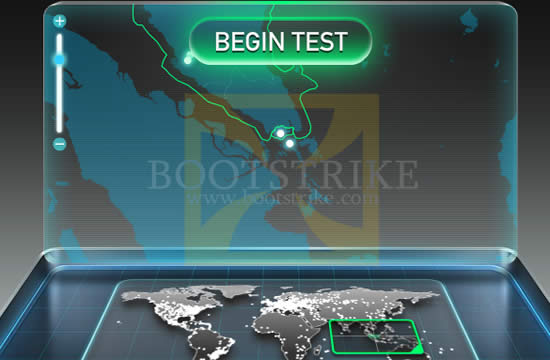
Partial SpeedTest.net Screen Shot: Clicking the "Begin Test" works out most of the time
Once the test is done, you get the results:
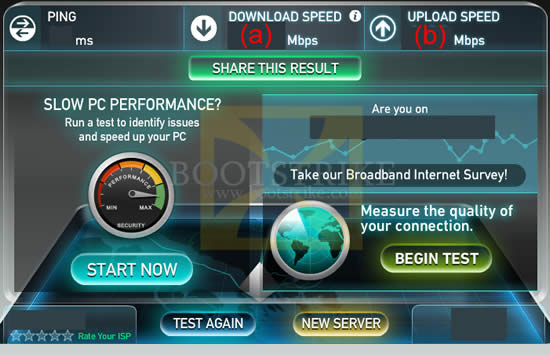
Results of the speed test
Note down the numbers under Download (a) and Upload (b) including the unit; in this case, Mbps. You will need them later.
- Patched TCPIP.sys to allow more concurrent half-open connections. Windows XP SP2 and Vista limits the number of half-open connections to 10.
Windows 7 users: This patcher is NOT required for Windows 7 as there is no such limitation in Windows 7.
NOTE: This step has been generally found not to make any improvements in Bittorrent speed. In fact, it can even cause problems with certain routers such as auto-restarting and stalling of internet access. Do this only as a last resort.
To increase the limit, there are two freely available patchers:
Lvllord Patch - ONLY for Windows XP Users (NOT Vista/Windows 7 users, see next step for Vista users)
UPDATE: There has been a recent Automatic Update (MS08-001) released on January 8 2008 that addresses some network security concerns.The below has NOT been tested with the latest TCPIP.SYS (v5.0.2195.7147) file.Update:The patch has been tested with KB941644 (an automatic update) and works perfectly!
- Go to this site - http://www.lvllord.de/
- Click on Downloads.
- Right-click the "EventID 4226 Patcher Version 2.23d (englisch)" link and click "Save Target As" or "Save Link As".
- Save it in your Desktop.
- Open the file and run the program located inside the archive, agreeing to the security warning.
- Some text should scroll by in a MS-DOS window, after it ends, type C.
- Enter 100 for the number of concurrent half-open connections and press Enter.
- Type Y and the file should be patched. Cancel any Windows XP warnings that should appear, it is part of Microsoft's way of ensuring its files are not tampered with (the utility tampers with them on purpose to change the limit).
This patcher works for both 32 and 64 bit Vista and XP versions.
- Go to this site - http://half-open.com/download_en.htm.
- Download the EXE file in the link titled Half-open limit fix 4.2 (as of July 2014)
- Open the folder where you saved the file and run the file you downloaded
- Under 'New value', set it to 100 (if it is not already set)
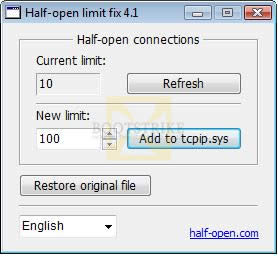
Set the new value to 100 - Click 'Add to tcpip.sys'
- Click OK.
- Click OK again. Cancel any Windows warnings that may appear, it is part of Microsoft's way of ensuring its files are not tampered with (the utility tampers with them on purpose to change the limit).
- Restart your computer.
- If something is not working right (e.g. Internet access does not work anymore) and you want to undo the changes, run the software again and click "Restore original file".
- A BitTorrent software client - We recommend uTorrent. This guide uses uTorrent for the tutorial.
- And finally, some torrents to kick off a download. A sample torrent file will be provided later.
Download
As of July 2014, the latest Windows version is 3.4.2. For MAC users, some of these tips do not apply to you. Please see the FAQ below.
Getting to the file:
- Click on this download page - http://www.utorrent.com/downloads/win
- Click the big green image (NOT the orange button) that says "Download Now".
- A dialog box should pop out. Choose to RUN it.
- If any security dialogs appear, click Run as we know this is a safe file.
Configuring uTorrent
Now you see the full uTorrent window in full glamour.The configuration part is where most people mess up. Most of us will just click through the dialogs accepting the default values. This may apply to some of us, but not the majority. The below installation guide uses uTorrent Version 3.4.2. Older versions may have some steps missing.
- Run the program. Ignore the security warning if any appears (Click Run) - we know perfectly well that the file is legitimate.
User Account Control (UAC) may pop up to ask whether to allow uTorrent ("Program Name") to make changes to your computer. If so, click "Yes".- You get the welcome screen when it runs:
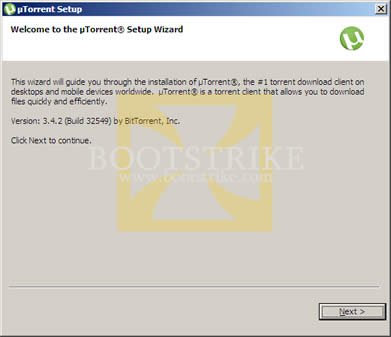
Welcome screen (note: version number may be different if you have a newer/older version)
- Click Next. A scam warning will appear as many people have been tricked into paying for utorrent which is supposed to be free in the first place.
Anyway, click Next.- New to utorrent version 1.8.3 onwards - a license agreement! This used to be as a link in the Install location.
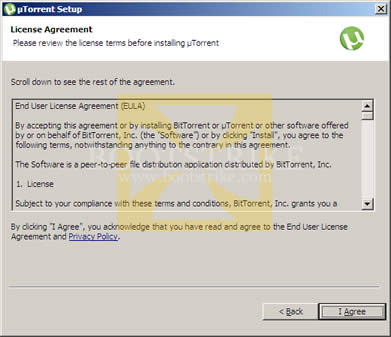
License Agreement
Read all the legal mambo jambo (yea right!). Click I Agree to continue.- It will give the following dialog:
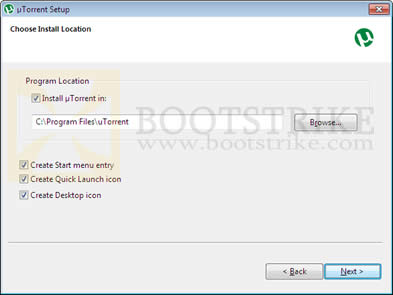
Choose Install Location
You want the program to be easily accessible, don't you? Click Next > with the default options and uTorrent shortcut s will be created in your desktop, quick launch and start menu, as well as installing it to a permanent location.- uTorrent Setup asks your permission to start automatically. Prior to version 2.0, it will ask for permission to associate with torrent files too.
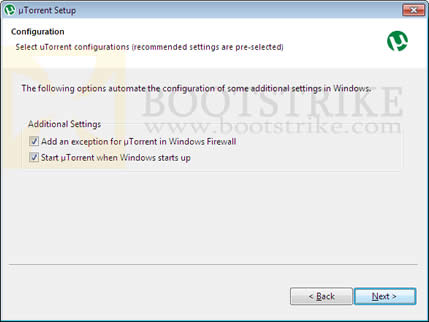
Configuration
All are fine except perhaps for the last one - 'Start utorrent when Windows starts up'. This used to be optional but with version 1.8.3 onwards, utorrent is set by default to start along when Windows starts. This may irk some users, especially if you pay for Internet Access by the megabyte. How? If you close uTorrent after you are done with it without deleting the torrent and restart your computer, utorrent starts in the background and continues seeding the torrents.
Bottom line? Uncheck the last box unless you want uTorrent to be always running and 'seed' your torrents.- The latest releases of uTorrent may now come with some free download. We got The Internet's Own Boy documentary "free" download in our trial run as below.
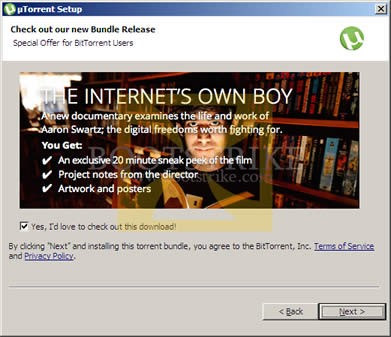
FREE, or is it really?
This is NOT required, 100% optional and will NOT affect your download/upload speeds. Then why is uTorrent including this? Because it gets paid for every installation and is a means of revenue for the company.
Make your choice (tick or untick the box) and click Next >
- The latest releases of uTorrent now come bundled with Spigot's Search Protection ((previously was uTorrent Browser Bar or Ask.Com Toolbar) or some other adware
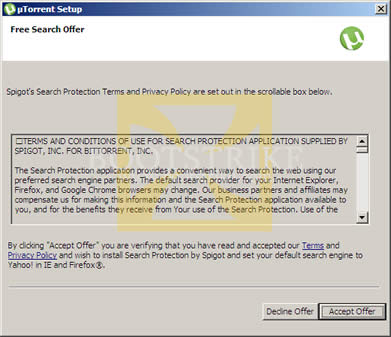
Spigot's Search Protection
Once again, this is NOT required, 100% optional and will NOT affect your download/upload speeds.
Then why is uTorrent including this? Because it gets paid for every installation and is a means of revenue for the company. So it is entirely up to you whether you want it. If you find that you don't like it later on, you can remove the software from Add/Remove programs later on without affecting uTorrent.
Click the desired button.- Yet another bundled "free" software. The latest releases of uTorrent now come bundled with PC Speed Up software
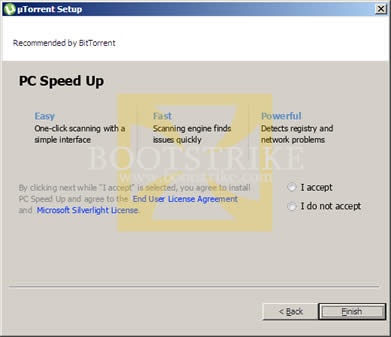
PC Speed Up
Once again, this is NOT required, 100% optional and will NOT affect your download/upload speeds.
Then why is uTorrent including this? Because it gets paid for every installation and is a means of revenue for the company. So it is entirely up to you whether you want it. If you find that you don't like it later on, you can remove the software from Add/Remove programs later on without affecting uTorrent.
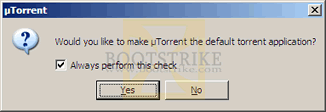
Click the desired choice and then click Finish.- This step only applies for versions older than utorrent v1.8.2. It ensures that utorrent is set to handle all torrent files automatically.
Making uTorrent the default application for torrent files
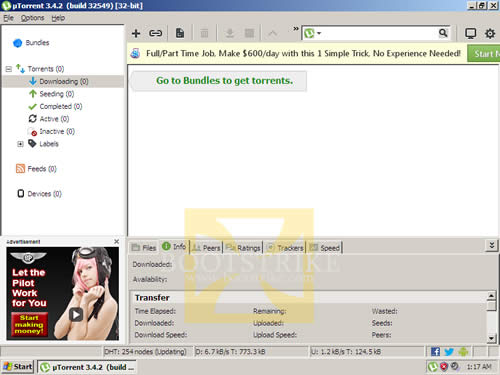
Click Yes. On current versions of uTorrent, this is done automatically.- You now see the full interface of the uTorrent window. If you had opted for the free downloads and softwares, it may take some time and the full interface with the torrent torrent will also start downloading as shown below.
The full interface with the free torrent starting- Go to Options > Setup Guide.
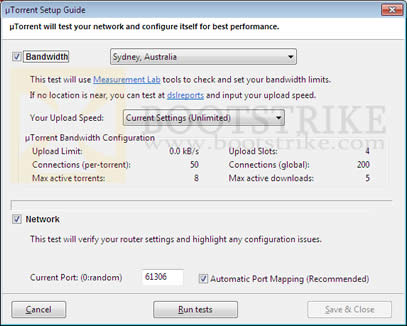
uTorrent Speed Guide (v2 redesign)
Uncheck 'Bandwidth' since you already know your Internet connection speed limits from the Speedtest.net tests above. We do not recommend using uTorrent's bandwidth tests as the servers are not as globalized as Speedtest.net.
Now the value that we are interested in right now is the dropdown labelled 'Your Upload Speed', which is using the unit of kbit/s (kilobits per second). If you have trouble understanding your speed, consider this: Internet Explorer shows download speed as KBps when you download a file.
There is a big difference between 5Kbps (kilobits) and 5KBps (kilobytes). Make sure you got the right values in kbps (not kBps, the cAsE of 'b' matters) . Use Google Calculator if you need help with conversions. .- Click the 'Current Settings - (Unlimited)' dropdown box
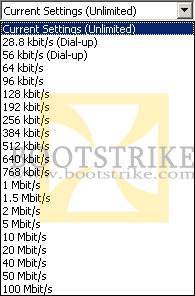
Preset Speed Settings on clicking Current Settings
The authors of uTorrent have been very helpful in providing a list of predefined values. Your connection should be near to one of the above categories. Each value (e.g. "28.8kbit/s (Dial-up)") means that your download is unlimited and your upload is limited to the number indicated there (e.g. 28.8kbps, which is 3.6KBps by Google Calculator).
With your results of the speed test you did above, select the closest upload speed from the list. Select a value lower than your upload speed. For example, if your upload is 31.6 kbit/s, you would select 28.8kbit/s. Once you select a value, uTorrent instantly adjusts the "uTorrent Bandwidth Configuration " area with recommended values for your upload speed. 1Mbit (1 megabit) is equivalent to 1024kbit (1024 kilobits) by Google Calculator.
We're not finished yet.
Note: The default download speed in utorrent is Unlimited. Even if your download is limited in some way, it is always better to leave it at unlimited to get maximum download speeds. However, if you need to limit your download speeds, right-click the utorrent icon on the system tray (bottom right), click Download Limit and set accordingly. You can also set this in the Preferences dialog.
Note: uTorrent randomly generates a port number in Current Port. This guide assumes the port number to be 55641 - but you can substitute it with the number uTorrent shows.
Click Run Tests.
- Port forwarding is important. After you click on "Run Tests", uTorrent will advise you of possible issues that could impact your download speed. If you have trouble running the test (e.g. receive results similar to "Results: Port is not open (you are still able to download)" or "Neither NAT-PMP nor UPnP is enabled. Please check your preferences.", it could be due to one or more of the following reasons:
- Home Router
If you are running a router (sometimes called wireless access point) at home, you will have to configure it to route all TCP / UDP BitTorrent traffic to port 55641 to your computer. If so, visit this page for a guide on how to port forward. Note, you do not need to download any software from them. Click the router you are using, then the model number in the next page and then the uTorrent application and follow instructions. When following the guide and the router asks for a range of ports to forward, simply specify 55641 to 55641 (remember to substitute it with the actual port number you are using). Take care not to download any software from the site as it is not required- Personal Firewall
If you are running a firewall software such as Norton Internet Security, Norton 360, Kaspersky, Outpost Firewall, ZoneAlarm, etc, then configure your firewall such that uTorrent has access to port 55641. This is normally accomplished by starting up utorrent. The firewall should spring up an access alert. Simply select the option to "Always Allow" to allow the program to access the Internet. Messages such as "utorrent wants to act as a server" or "utorrent is attempting to listen for connections" must be allowed as well. In fact, if the program in question is utorrent, you should always check "Allow" no matter what request it is.
Windows Firewall Users
uTorrent will automatically configure Windows Firewall for you so there is no action needed from you.- Corporate Firewall
Are you running this software in a corporate network? Bad news - you have to inform the admin that you want the port to be forwarded to your computer. The good news - you can still go by without port forwarding, but speeds will not be optimal.- Utorrent.Com Port Forward Function Website has a problem
Yes, especially if you are accessing the Internet through a transparent proxy that your ISP forces you to use. This simply means that the website is checking for open ports at the wrong computer. To verify if this is the case, uTorrent port checker runs an alternative port checker at port 16000, which you can access by using the form below:
Sometimes the utorrent port checker server may be down - you may get 'page cannot be displayed' or a blank page 'unable to connect' if this is so. If this is the case, the only way to check is to run the actual torrent.
Having done all the above, if the website still says that it has problems accessing the port, the ultimate test will be when we do a test torrent download. For now, click on Save & Close. If the button is disabled, reselect the upload speed value and the button should enable again.
Starting a simple torrent
We need to start a simple download, and the one that will be using is a 650MB file of Ubuntu! It is a perfectly legal and free file to download so that we wouldn't get into trouble with Dreamhost, Bootstrike's web hosting company. We will be downloading this file purely for testing and delete it later on (as it is of no use to us)
- Minimize uTorrent for now. Notice that it resides on the system tray (bottom right) automatically.
- Click to http://torrent.ubuntu.com:6969/.
- Look at the column labeled "complete". Find the row with the largest value. A quick way is to scroll down and scan for a 3 digit figure in that column. Or perform a search for the string 'desktop-i386.iso' and look for a filename that starts with "ubuntu-" and ends with "desktop-i386.iso".
- Now download the torrent - click the link in the 2nd column of that row
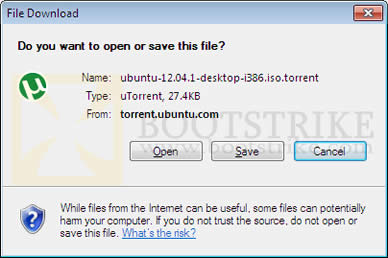
- You should get this dialog:
The IE8 "Save As" Box for torrent files
This is the metadata file, it contains information on the file you want to download eventually. That is why the file size is so small. We want uTorrent to automatically start downloading it, so click Open.
NOTE: The "Name and Type" may differ on your system. This is normal, as Ubuntu is frequently updated
NOTE: If the Open button does not appear, save the file in your desktop. Then start utorrent, File > Open torrent and open the torrent you saved. Delete the torrent file in the desktop as uTorrent automatically makes a copy of it.- If you get the below warning, simply click Allow
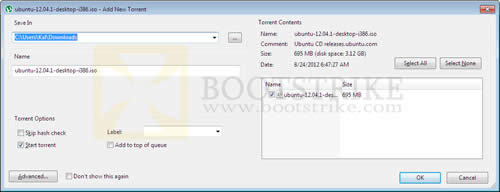
A website wants to open web content using this program on your computer- The file opens with uTorrent which automatically pops up this dialog
Add New Torrent dialog box
All values are automatically filled in for you. Under Save In, select where you want to download the files to by clicking "...". Optionally, under Torrent Contents, select files that you don't want to download - if the download has many files which in this case does not.
All looking good, click OK.

Progress of the Download
Click on the Ubuntu torrent (the only item in the list) to view more information on it and click on the Info tab below. You will see all the values at the bottom suddenly burst with activity!
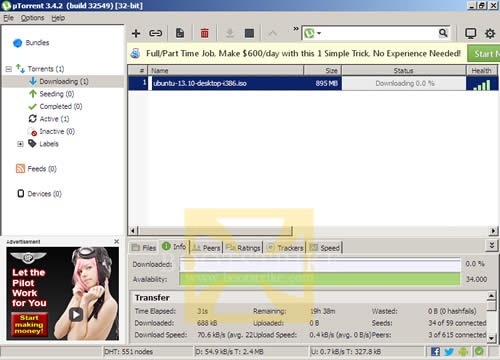
uTorrent with one torrent downloading (plus another torrent for the free content)Looks like the torrent has a total of 59 seeds and 615 downloaders (also known as leechers). 59 seeds is a lot (but some torrents can have 10000+ seeds, depending on popularity). The higher the number of seeds vs the number of leechers, the faster you can expect your download!
A seed is a term used to refer to peers whose computers are only sharing the complete file with no downloading activity.However, after running for 5 minutes, the speed refuses to go above 20 KB/s, which is not possible for a highly seeded torrent. Could it be our ISP throttling?
Enabling Protocol Encryption, uTP (UDP Packets) and Increasing Speed Via Max Half Open Connections
uTorrent by default disables protocol encryption. We need to enable this so that the ISP's packet shaping hardware will detect our BitTorrent traffic as normal traffic and hopefully let it pass.
- Click on Options, Preferences.
- Click on BitTorrent in the left column
- You should get a dialog similar to one below
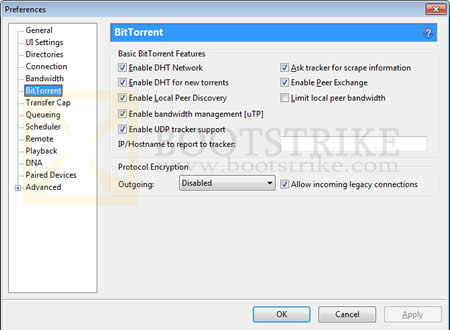
Bittorrent Preferences Dialog Box- The one we are concerned about is Protocol Encryption. Set the Outgoing to Enabled.
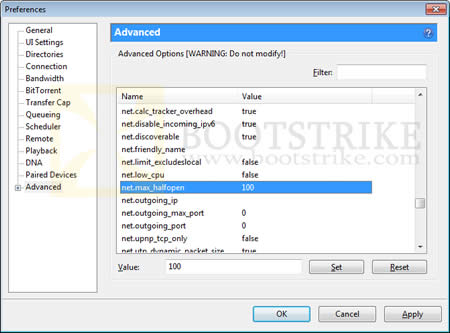
- Click on Advanced on the left column.
- If you did NOT patch your TCPIP.sys to allow more concurrent half-open connections above, SKIP this step.
Advanced Settings Dialog Box
Change "net.max_halfopen" value to 50 by selecting the line, modifying the value at the bottom to 50 and clicking Set.
NOTE: It is normal for a asterisk(*) to appear. This is to indicate that the value has been changed from the default value.From uTorrent version 1.8.3 onwards, a new UDP protocol named uTP was introduced which sends UDP packets as well as TCP packets. The main benefit is that it provides a new avenue of bypassing ISP throttling limits resulting in.. what else? SPEED!
- At the same Advanced screen, Change "bt.transp_disposition" value to 255 by selecting the line, modifying the value at the bottom to 255 and clicking Set.
- Click OK. Stop all torrents (red stop button on toolbar on top), wait 10 seconds, and Start the torrent (green play button on toolbar). Now let's watch the speeds.
Hopefully, the above changes will improve speeds. Ultimately, it depends on the number of seeders and peers with high upload rate. Remember, you must upload to enjoy good download rates, but not so high that it affects download speed. Experiment.
Bonus Tip!
This part only applies for public torrents. It is useless for private torrents as they specifically prohibit sharing with other trackers.
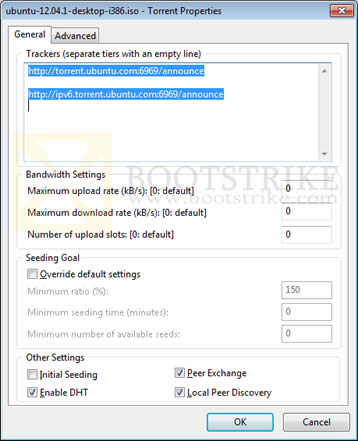
The tip: Look for more public tracker servers that have the file. However, this tip does not work for torrents that are private i.e. the DHT Tracker shows 'not allowed' for the torrent.
Before:
Only one tracker under TrackersAfter getting the same torrent from torrentz.com (a site that consolidates multiple trackers into one torrent file)
Many tracker servers!Needless to say, the speed increased tenfold! Now the question: how do you find more torrents of the same kind? There are several ways, via Torrentz and... Google! Here's how to make your search easier.
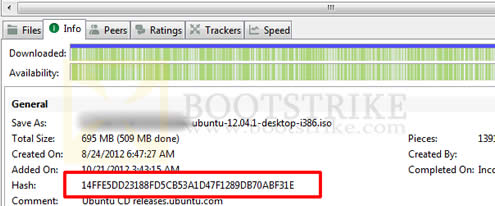
- Highlight the row of the torrent by clicking on the torrent name
- Click on the Info tab at the bottom of the window
- There should be a field labeled Hash near to the bottom with a string of 40 alphanumeric characters. Right-click the value of this field and click Copy.
Hash value of a torrentNow you have the hash value of your torrent. With this hash, you can perform searches to find the exact torrent with additional trackers at most torrent sites. There can be many versions of a torrent with some differences. You cannot combine different versions (with different hashes) of a torrent into one torrent. This is why we are using this hash to get the exact same torrent with hopefully more unique trackers.
Finding More Trackers Via Torrentz.com
- Go to Torrentz.com
- Paste the hash into the search box. To paste the value, right-click the search box, and click Paste. Click Search.
- You should be automatically be brought to the torrent page, if Torrentz has a record for it.
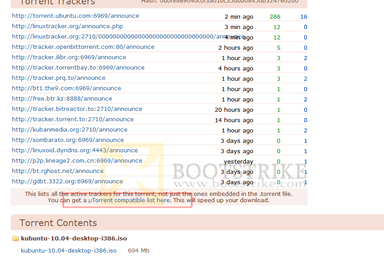
- Find the keyword 'You can get a µTorrent compatible list here' at that page.
Click the link highlighted in the red box above
- Click the link it points to. You should get a list of trackers.
- Right-click any of the text. Click 'Select All'
- Right-click any of the selected text again. Click 'Copy'
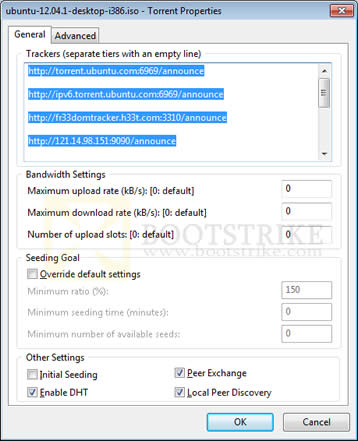
- Go to uTorrent and double-click the row of the torrent that want to add the list to
- In the box that pops out, go to the General tab (if it isn't already there)
- There should be a text box there labelled Trackers. Place the cursor at the end of this box and hit Enter to add a new line
- Right-click the new line and click 'Paste' to paste the list of new trackers. Don't worry if there are duplicates.
- Click 'OK'
For the more determined, you can also search Google with the torrent hash to find more trackers.
Bonus Tip 2!
Optimize your TCP settings. Speedguide.net provides free utilities to make this step as easy as cake. We also have a mirror of the file.
Optimize TCP settings for Windows XP, Vista and Windows 7
TCP Optimizer Main WindowSteps to optimize your internet connection.
- First, download or visit the official site here and extract the files to any folder.
- Double-click on the TCPOptimizer application in the folder to launch it
- At the bottom of the window, click "Optimal"
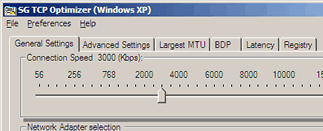
- At the top of the window, drag the slider to select your connection speed. If you are not sure, run the speed test. Use the value that you get for the Download field (which is in kb/s) and set the slider to it.
- If you are using ADSL, check with your Internet Service Provider whether it is based on PPPoE or PPPoA. You may also be able to obtain the information via your router's homepage. If your connection is based on PPPoE, tick the PPPoE box.
- Under the "Network Adapter selection" box, select the network adapter you use to connect to the Internet. If you are unsure, go to Start > Control Panel > Network Connections. Your connection should be listed there. Most of the time, it is Local Area Connection. Select the entry and the status bar at the bottom should display the network adapter name.
- Click 'Apply Changes' at the bottom of the window.
- Ensure that 'Backup' is checked and click OK at the next confirmation box that appears.
- Once the changes are done, reboot your system
This would have optimized your settings according to your internet connection you have.
Further Tips You Can Try For Optimum Speed
Tweaks that can improve your speed:
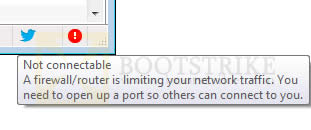
- There should be a green tick at the bottom, not a exclamation mark as below.
Unconnectable situation
If uTorrent keeps showing this or "No incoming connections - Unless the icon turns green, it could indicate a problem with your network configuration" even after 5 minutes, check the possible causes.- To get more peers, right-click the entry on the list, and click Update Tracker (if disabled or grayed out - you need to wait for some time). Do this especially if you are on a private tracker before you exit the application, so that your ratio is maintained.
- Check the Availability column for the torrent. If it is less than 1, chances are that the torrent is new and the original uploader is still uploading. However, if it remains at a value less than 1 (eg, 0.98) for more than a day, either the torrent does not have seeds or it is a fake. (Thanks TTbarDJ)
- Exit uTorrent. Reset your internet connection by switching off and on the modem and router (if applicable) and then firing up uTorrent again.
- Download the latest network driver, uninstall the current one and install back the latest network driver you downloaded by using Device Manager in Start > Control Panel > System > Hardware > Device Manager. This CAN cause your internet to break if you update with the wrong drivers, so be careful!
- Make sure you did not set a download limit accidentally! Many people unknowingly set the download limit when they actually intended to set the upload limit in the right-click menu of the tray icon. To check, Options > Preferences > Bandwidth > Global Download Rate Limiting > Set to "0" > OK
- The following software are known to cause problems with uTorrent: Nvidia Firewall, Forceware Network Manager, BitDefender, Avast, Spyware Doctor 5, Kerio Personal Firewall, Sunbelt Personal Firewall, Norton GoBack, McAfee Firewall, SpamPal, Norman Personal Firewall, CyberSitter, V-Com System Suite, V-Com Fixit Pro, MSN Desktop, WinZIP Quickfind, Roxio Media Manager, Nero Scout, Google Desktop, Norton AntiVirus and McAfee Anti-virus. If you have any of this software, you may want to read this page.
- The following routers are known to cause problems with uTorrent: Linksys WRT54G, Linksys WRT54GL , Linksys WRT54GGS and D-Link DI-514 . If you have any of this routers, you may want to read this page. As of August 2010, the linked page does not show any of the incompatible hardware (it did in the past) and has been removed for some reason.
- Exit uTorrent. Power off your router and modem and power it on back after about 30 seconds. This has made improvements in speed for some people.
Tweaks that can improve or LOWER your speed:
- Some people have reported speed increases using an older version of utorrent, specifically utorrent version 1.6. You can download it from our servers at Bootstrike.com and try that instead.
- Setting a high upload can sometimes slow down a fast torrent. For example, in our ADSL connection, if we upload at 10KB/s we can get up to 350KB/s. If we upload at 30KB/s, the download speed gets limited to 200KB/s. The total upload available to me is 60KB/s.
This is where you have to experiment by setting a low upload rate (from 10 at Options > Preferences > Bandwidth > Maximum upload rate) and watching if the speeds increase for 5 minutes, especially if the torrent is heavily seeded.
But remember, you must upload in order for peers to share their downloaded data with you. It is possible to set a very low upload, but the chance of peers sending you their data will decrease, pulling down your download speed.- Some people have reported speed increases by setting the peer.lazy_bitfield setting to false in Options > Preferences > Advanced.
- Change the Options > Preferences > Bittorrent > Protocol Encryption to Forced. This will force encryption on all outgoing packets and will not fallback to un-encrypted mode if the peer refuses to co-operate. Good for connecting to only encryption-enabled peers. Avoid doing this for torrents with low peers/seeds.
- Remove the check for Options > Preferences > Bittorrent > Protocol Encryption > Allow Incoming Legacy Connections. This will make all your outgoing and incoming packets fully encrypted, except for tracker communications. Peers who are using a torrent software that doesn't support encryption are dropped. Avoid doing this for torrents with low peers/seeds.
- Private trackers, especially those that specifically tell utorrent to disable DHT (effectively disabling Peer Exchange and Local Peer Discovery too), can affect speeds negatively. You can tell if the torrent is private by selecting the torrent and looking at the DHT value. If it says "disabled", it is a private torrent.
That said, the main reason private trackers exist is because they enforce sharing rules that tries to prevent a person from downloading a torrent and running off without uploading back the same amount of data he downloaded.
For new and popular torrents on such trackers, you may be able to get good speeds as everyone will be trying to increase their upload/download ratio. Again, experiment. The key point here is the seeds/leechers ratio and the popularity of them in public and private trackers.- Increase the number of connections in Options > Preferences > Bandwidth > Number of Connections. Experiment by increasing the number of global/max connections in steps of 25.
- Some people use software such as Peer Guardian or Protowall to 'protect' from law spy computers. At last check, Peer Guardian blocks about 773,125,915 out of 4,294,967,296 possible IPv4 addresses. That is about 18% of the whole Internet World Wide Web! Which means lesser peers and that means lower speeds! For the protection it claims to offer, speed is a compromise.
- Windows Vista / Windows 7 users! Disabling TCP/IP Auto Tuning helped improve speeds for some people
- Click Start.
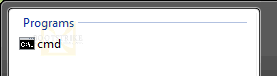
- In the box at the bottom, type CMD and do NOT press Enter. You should see CMD come up on the list as shown below:
CMD shows when you type CMD in the box below- RIGHT-click the icon and click "Run As Administrator"
- A "User Account Control" box should spring up. Click Continue (or 'Yes' for Windows 7)
- Type this into the prompt: netsh int tcp set global autotuninglevel=disable
- You should get a "Ok." response.
- Restart your system.
- If you have a proxy server such as a local ISP's one, using it has helped many people improve their speeds. Go to Options > Preferences > Connection. Under 'Proxy Server', select the Type as HTTP and specify your proxy and port. Check the box 'Use proxy server for peer-to-peer connections'. Press OK and restart uTorrent.
- UTP has been reported to cause problems. To fully disable UTP, go to Options > Preferences > Advanced and set bt.transp_disposition to 5.
Note that the setting overrides the "Enable bandwidth management" setting in Options > Preferences > BitTorrent.- The automatic TCP rate limiter can also cause problems. To disable this feature, go to Options > Preferences > Advanced and set bt.tcp_rate_control to false.
- Disable UTP by going to Options > Preferences > Bittorrent > Enable Bandwidth Management [uTP] > UNCHECK > OK.
- Scan your system for spyware and malware with SuperAntiSpyware . It's free.
Good luck! It all boils down to Experimenting.
Readers' Suggestions for Improving Speed
The following tips were posted in the comments below and found to be useful for some readers. You can try them out too.
- Jen says: If Utorrent is really slow on Vista (on my computer everything was really slow... I.E, Outlook) try disabling IPv6. Go to Control Panel > Network and Sharing Centre. Click on view Status for your connection, then properties and uncheck Internet Protocol Version 6 (TCP/IPv6) then OK it etc. I didn't need to restart Utorrent or do anything else. The download I was on jumped from 5k right up to 200.
- Jen says: Another one and it's really simple! I spent many an evening trying like hell to get my torrents to run faster and wasn't getting anywhere. a couple of weeks ago my ex was trying to download at 8pm and he was getting DL speeds like a 512 connection trouble is he's on an 8mb line. We couldn't figure it out and quite randomly whilst trying to figure it I checked the TOC for his ISP it turned out they restrict bandwidth at certain times, in his case 6pm to 9pm. Obviously I checked my ISP and mine is set 7pm to 10pm.
- Geeman says: I noticed drastic increased speed by increasing the disk cache size (Options > Preferences > Advanced > Disk Cache > Override automatic cache size > (set to higher number)
- Masterkio says: Change the following in the Advanced tab of uTorrent preferences peer. disconnect_inactive_interval from 300 to 600. You should be able to get a little bit more speed by doing this.
- ColdBurn says: Download only a single torrent at one time. At uTorrent > Options > Preferences > Bandwidth, set 'Global maximum number of connections' and 'Maximum number of connected peers per torrent' to 375.
Frequently Asked Questions (FAQ)
1) What is the best port to open for uTorrent?
There's no "best port" or good ports . All ports are suitable for use with uTorrent, unless you are running a program that is using the port. Some recommend a port number more than 1024, but it does not matter as long as the port is not used by any other program.
However, feel free to change the default port of it by going to Options > Preferences > Connection and adjusting the "Port used for incoming connections" as necessary. Remember to re-adjust your port forwarding settings in your firewall and router too.2) I have tried all the above and my speeds are still slow! In fact, it got worse! What can I do?
Try downloading a different torrent. A high ratio of seeds to leechers (Eg 2000 seeds to 10 leechers) will make a big difference in speeds. Make sure there is a green light at the bottom or check the possible causes.
Verify your speed by running a speed test from different locations to ensure your connection is fast to the major locations in the world. For example, if you are downloading Chinese torrents, you should select a download location from China (or somewhere nearby) in the speed test.
Finally, try enabling Forced encryption and performing the extra things outlined here. If speeds still do not improve, we are also not aware of the cause. Perhaps your ISP has managed to break encryption in BitTorrent traffic and is limiting bittorrent connections (e.g. Comcast), especially if they are in this list of Bad ISPs. Or your ISP is limiting your connection speeds (Try a speed test to a local server to verify this). Do let us know in the comments if you have found a way to solve your problems even with the suggestions above.One more thing - it has been reported that reinstalling the network driver has made speed differences for many people. To reinstall, go to Control Panel, Network Connections and locate your network connection - most of the time it should be "Local Area Connection 1". Right-click the icon, Properties and note down the name under "Connect Using". There are two ways to update drivers:
AUTOMATICALLY: Click Configure > Driver > Update Driver. Allow the system to connect to Microsoft Online to check for drivers. Only manufacturers who send their drivers for WHQL certification can be updated using this method.
MANUALLY: Locate the latest driver for this device by going to the official site and downloading and installing it. Blizzard also has a nice guide here. WARNING: Installing an incorrect driver can cut off your internet! If unsure, call the technical helpdesk (e.g. Dell / HP / Acer ) and request for assistance on updating network card drivers.
3) How do I reset utorrent settings?
Note that this will delete all saved torrents and settings. For Windows XP users: to your C:\Documents and Settings\<username>\Application Data folder. For Windows Vista and Windows 7 users, go to C:\Users\<username>\AppData\Roaming\. Delete the utorrent folder
To reset the max half open connections, run the lvllord utility again (for XP) or run the undopatch.bat (for yaronmaor Vista patcher) or run the half-open software and click "Restore original file" (for Vista half-open patcher). For enabling auto tuning back, the command is: netsh interface tcp set global autotuninglevel=normal4) Does this guide apply for the BitTorrent application as well?
Yes - the application has just a name change so it is safe to use this guide. If you compare utorrent vs BitTorrent, both are almost the same in features with the differences being the naming, branding, icons and some additional links. There may be additional 'features', but all features from utorrent are there.5) I am unable to surf the Internet or my Internet gets cut off when uTorrent is downloading?
First, try reducing the upload speed. Next, reduce the number of connections in Options > Preferences > Bandwidth > "Global maximum number of connections:" in steps of 25 and see if it helps. Finally, impose a download speed limit under "Global Download Rate Limiting".6) Do I still need to port forward if I am on a wired connection to the router? Wireless?
Yes. You do need to configure port forward if you are connected to a router via wired or wireless. But if you are connected directly to a modem (and not a router), you don't need to port forward as the modem automatically forwards all packets to one computer.7) How do I undo the TCP Optimizer changes?
For the Windows XP / Windows Vista / Windows 7 version, open TCP Optimizer > File > Restore Backup Settings.For the old Windows Vista / Windows 7 version, run the CMD file again as Administrator, and type d and press ENTER.
8) Is there any way of finding an open port in my system besides port forwarding?
If your system is behind a router, absolutely no port will be forwarded to you unless your router supports UPnP or the router is configured to port forward.
However, if you are connected to an ISP that blocks incoming connections, you can try GRC's Shield's UP (thanks Sonic_fanrs) to find open ports that your ISP allows. Click 'Proceed' and then 'Common Ports'. This requires to disable your firewall and enable DMZ mode if you are using a router, which can be very *very* risky and we would not recommend this especially if your system is not updated with the latest patches.9) My internet got cut out / restarted / disconnected, and when it was restored, why did the speed get so slow?
First, this is normal. Wait about 10-15 minutes, and if the speeds are still slow, restart utorrent. Right-click the tray icon on the bottom right and click Exit. Start uTorrent again.Everytime you restart utorrent, it reconnects to the DHT network and obtains a new set of peers from the tracker and DHT. Although utorrent caches the peer list in your computer, there is a possibility that it may drop good speed peers. There's a way around this.
When you are experiencing good download speeds with a torrent, locate the good upload peer by clicking the torrent row, and clicking on the Peer tab. You will now see a list of peers that you are connected to. Look for the row whose Down speed is extremely high that the majority. Right-click that row and click 'Copy selected hosts'. Paste this good peer in some notepad file.
When utorrent needs to restore, click the torrent row again, click on the Peers tab, right-click any row and click "Add Peer..." and paste your good peer here. uTorrent will then attempt to establish connection to that good peer provided it has free upload slots (not choked).
10) My port forwarding still does not work! uTorrent still shows a yellow/red icon at the bottom. Help!
For users from Singapore, we can help you configure port forwarding. See our computer service site. For international users, you can contact me through e-mail, letting me know your Skype account and time range you are available. Rate will be US$20.Otherwise, there's still light at the end of the tunnel. uTorrent v2 onwards supports UDP hole punching via UTP. Basically, what this means that uTorrent tries to work around port forwarding by having another peer to help you setup the connection between two other peers. Make sure UTP is enabled above for this to work by going to Options > Preferences > Advanced and setting bt.transp_disposition to 255.
11) Does port forwarding make my computer more vulnerable to security attacks?
Simple answer: Yes, but as long as you keep your Windows and uTorrent updated, it should be of low concern. Remember, if every peer in a torrent does not have port forwarding enabled, no one can connect to any one. Port forwarding allows you to receive more connections from other peers and this means more speed.Most modern routers have UPNP (Universal Plug and Play) built in where utorrent is directly able to communicate with the router to automatically setup the required ports.
Another example, when you host a DOTA multi player game, you need to port forward. If you didn't have to, it means your router supports UPNP where port forwarding is automatically setup.
12) Does this guide apply to the Apple Mac version of uTorrent?
Unfortunately, we are not familiar with the Mac version of uTorrent. However, we believe the guide still applies except for the following: (a) Installation Process (b) TCP Half-open Patches / Optimizer13) I was downloading at high speed then suddenly I get an error "Disk overloaded 100%" and my download slows down?
This error appears when uTorrent attempts to write the downloaded data to your hard drive and then got severely delayed by other processes waiting to read/write data as well.To prevent this problem from occurring again, minimize hard drive activity such as copying large files or starting an application that requires a long loading time especially when uTorrent's download speeds are reaching a high level that requires high speed reading and writing.
If despite the attempts to minimize disk activity still results in the problem, it may be that you are downloading too fast for your hard drive to catch up. Try defragging (Start > Programs > Accessories > System Tools > Disk Defragmenter) or use another disk drive to save your download. As a last resort, you can limit your download speed at Options > Preferences > Bandwidth > Global Download Rate Limiting.
14) The uTorrent site reports that my port forwarding works, but I still have the red icon appearing at the bottom?
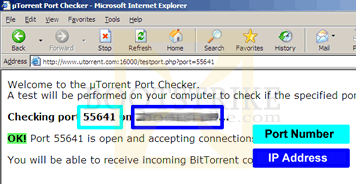
There is a possibility that the tracker is identifying an incorrect IP address. First, locate the IP address that the uTorrent port checker page reports. You can run the checker here.
Port Checker Page
Copy that IP address to the uTorrent > Options > Preferences > BitTorrent > IP/Hostname to report to tracker field. Restart uTorrent and check if it works better now. If not, change the field back to blank to allow uTorrent to automatically detect your IP Addrss.Note that if you specify the IP address field and you ever restart your modem or your IP address changes somehow, you will need to change this field everytime if not the red icon will be back.
15) Sometimes I get the message "Attention - this torrent contains files that may harm your computer. Upgrade to uTorrent Plus to protect yourself from viruses hiding in torrents"?
This is uTorrent's attempt to get you to pay for their paid version of uTorrent. Simply ignore the message. But do make sure that you have security software running on your system to scan all your downloaded torrents!
Change Log
Probably a little late to start a change log, but better late than never
- August 2009: Added ColdBurn's tips, Added proxy tips
- July 2009: Added utorrent UTP UDP packet optimization tips. Added Bittorrent test tool link
- Jan 2010: Updated uTorrent version, added port forward security FAQ and Mac version compatibility. Added router incompatibility problem
- Feb 2010: Updated for uTorrent v2.0, added more tweaks
- May 2010: Added alternate method to add more trackers
- July 2010: Updated TCP Optimizer for Windows Vista / Windows 7
- August 2010: Updated uTorrent version
- September 2010: Updated Speedguide Utility. Bandwidth management tip. IP address tip.
- December 2010: Minor revisions and updated uTorrent version
- October 2012: Refreshed images and text with latest uTorrent version
- July 2014: Refreshed images and text with latest uTorrent version
Errors? Omissions? Need Help? Know something? Post your queries in the comments below.
| (SEND to paypal at bootnospammystrike dot com - take out the word nospammy) | Have we been of Help? Some donation, no matter how small, is appreciated If the guide has helped you, consider donating. No amount is too small. |
This document is Copyright(©) 2006-2014 by G.Ganesh. Do not copy without written permission.
Related: Creating [Private] Torrents using uTorrent
Please do not post unsuccessful incidents in the Comments below. If it does not work, we're sorry, We tried our best. Instructions to undo everything is provided above (in FAQ #3). If you found out how to workaround your problem, let us know below and we will include it in the guide crediting you as well.
| new post | [ expand all ] |
753 comments
Page: Prev 1 2 3 ... 4 5 ... 35 36 37 Next Show All
Page: Prev 1 2 3 ... 4 5 ... 35 36 37 Next Show All