Home > Articles > Dell Laptop/Notebook Tips and Tricks
Dell Laptop/Notebook Tips and Tricks
Version 1.113
This guide lists some tips and tricks that you can use with the Dell XPS, Inspiron, Latitude and Studio line of products such as M1210, M1330, M1410, M1530, M1730, and M2010 models notebook to give you a richer experience.
Many of these tips can also be applied to other laptop brands such as HP, Lenovo, Acer, Gateway, Sony, etc.
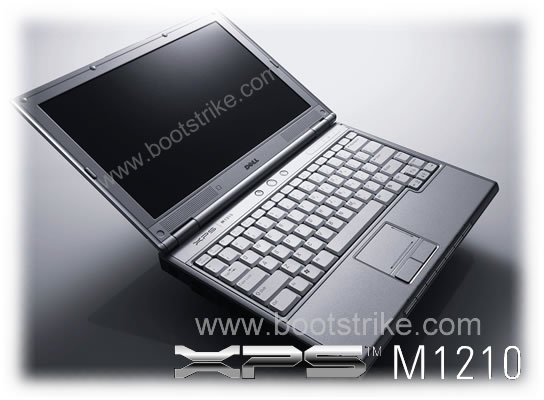
A Mini Review of my Dell XPS M1210
Good Things
Star Performer
Dedicated buttons for music playback that can be used with Winamp (see tip below)
Batteries can last up to 6 hours with Internet usage and low brightness using 9 cell
Quiet operation with Quiet Acoustics mode
Excellent quality display, although reflections can get in the way with low brightness
Excellent Tech Support, never had to wait for more than 1 minute for my calls to be answered
180 Degree Rotatory WebCam (Actual about 100, since the top part is blocked)
7200rpm HDD customizability support
Huge Customizability Options when purchasing (who needs 4GB RAM anyway?)
MediaDirect
A few things that surprised me
It is Heavy and Thick (with a 9 cell and the Geforce Go 7400, the weight comes to 2.4kg)
The built-in speakers
suck.
The screen is too bright even at the lowest level (when all the lights are off)
MediaDirect is actually a variation of Windows XP. It does not save any power. I expected it to be a one-button touch to play media. Well, it is, but not the battery power saver kind I expected.
There are no protective covers for the once-in-a-while used VGA port.
The Media Buttons are not exactly easy to press, but then, it could be because they were meant to be like that
The Webcam (camera) sucks power even if you are not using it. Dell Support says that this is by design. You will notice that it gets noticeably warm even though its not used. BIG waste of battery.
The laptop gets hot and fans spin even under light usage (just surfing web). No amount of meddling with the clock speed could stop the fans from spinning up every once and then.
Not able to underclock the graphics card to save power. The nVidia applet keeps telling me that tests fail when I try to apply the settings.
"Integrated Sound Blaster® Audigy™ HD Software Edition" .. the software edition was added later so early birds who opted for it were surprised to find that it came with a Sigmatel sound card instead of a Creative one.
Tips to Maximize your Dell Laptop Portable's Performance
All downloads mentioned are free!
Monitor temperatures and Control Fan Speeds (For Dell laptops)
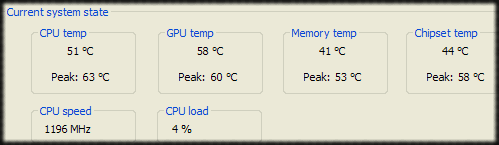
Download I8kfanGUI. You can view all temperatures, including CPU, RAM, chipset, hard disk and even the fan speed. Heck, you can also increase/decrease the fan speed and set it blasting away at full speed!
Speed up loading times
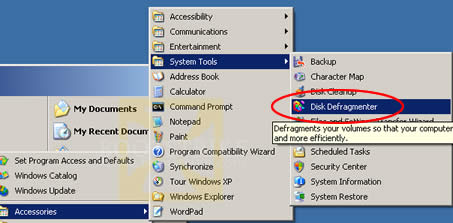
Defrag your hard disk regularly. Disable unnecessary services (run > services.msc), items in Startup folder and items set to auto run (run > msconfig) on Windows startup.
Force the CPU to work slower if you don't need the power
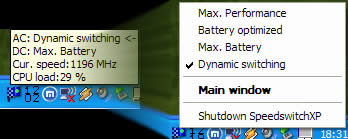
Use SpeedSwitchXp to force the CPU to a lower speed to conserve power, or force to high speed for highest performance. It can even automatically switch depending on whether battery or direct AC is being used!
Use the latest BIOS version available
As of this writing, the latest for XPS M1210 is A08 (or A07 if it causes problems) for M1210. REMEMBER TO USE AC POWER with BATTERY as any hiccups during the flashing process can render your laptop unbootable!
Enable Performance Mode in BIOS
Go to BIOS Setup, Performance, enable Performance mode for HDD Acoustics. Note that this will cause the HDD to be noisier, so you will need to decide if performance or noise is more important to you.
Face the Reality (For Dell XPS M1210 laptops)
Even though it claims to be a 256MB Geforce Go 7400, in reality, it is only 64MB dedicated, with the rest shared from the main memory pool. That is the meaning behind TurboCache. Just FYI.
Reformat, Reinstall and Enjoy a Ad-Free Installation
Dig out the Windows CD that came with the laptop and reinstall the operating system, deleting all partitions (this will also destroy MediaDirect, recovery partitions and all data on the hard disk including documents and programs that came pre-installed. If you want to save the recovery partition, simply format the drive that Windows is on using the Windows Setup CD).
Of course, you will need to reinstall all drivers and all necessary applications again - you have the CDs don't you? But now you have a choice on what you want to install as new laptops are known to come with many unnecessary software.
If you need MediaDirect functionality, you will need to leave unallocated space of 1.5GB for the MediaDirect files, which you can install from the Dell MediaDirect Repair CD. Have the technical support on the phone before installing Windows if you are not sure how to proceed.
Enhance the fonts of your display (for XP users)
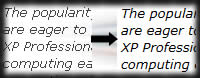
Use ClearType tuner to smooth the fonts of your display. Works wonders when surfing the net!
Use the display at its native resolution
Use your display at the optimum resolution - 1280 x 800 (for XPS M1210 users) - for the best quality. Try to play games at this resolution, as this is the native resolution for this LCD. Any lower, and it will be scaled to fit the LCD and image quality suffers considerably.
If you don't want the image to be stretch, this can be disabled in the BIOS setup. Instead, non-native resolution images will be displayed with black borders on the sides.
Enable Media Buttons to use in Winamp
Media buttons not working with Winamp? Download this plugin! UPDATE: Simply enabling Global Hot Keys in Winamp Preferences already work. Thanks to Shaun from the comments below.
Control your laptop from your desktop. Use TeamViewer and you can even control your desktop from your laptop (whenever there is Internet). Alternatively, UltraVNC is another 100% open source tool.
Automatically Shut Down Your Laptop at a pre-defined time
Have your laptop shutdown at a specified time! Get Switch Off and you can force all applications to close down. Great if you like playing videos/music when sleeping or watching DVDs.
Make use of your laptop's gaming powers!

Yearning for some shooting actions? Make good use of your Geforce card and download Unreal Tournament 2004. Or if you have a more capable system, try Race Driver GRID. All unlimited demo versions free!
Reduce the Gamma For A Vibrant Display (for nVidia cards only)
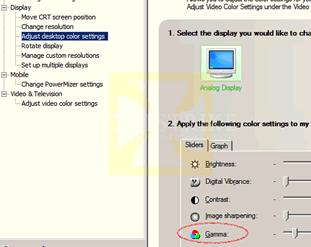
Access the NVIDIA Control Panel by right-clicking anywhere on the desktop and clicking it. Go to "Adjust desktop color settings". Drag the Gamma slider to the most left. Like it? Hit Apply and enjoy! If not, just click Restore Defaults at the top and settings will be restored.
Note that doing this will reduce image details and make images appear darker as well. Personally, I switch it to normal when playing games, viewing lots of photos or watching videos.
Use the latest drivers for your portable
Download the latest XP/Vista chipset, audio, nVidia or intel graphics drivers, etc all here. Choose to enter your service tag, enter your service tag and you are presented with the list of latest drivers. NOTE: The latest version of the nVidia driver for Geforce 7200 for my XPS M1210 actually increased battery power by 25%. It also gave many problems. See update below. Use the driver that came in your Dell CD.
Tips to Minimize your Notebook's Power Usage
All downloads mentioned are free!
Disable anti-virus, anti-spyware and firewall when not connected to a wireless network
This will save some CPU usage and make your system respond faster. Be forewarned, if you connect to any wireless network, you should enable them back.
Also,if you are doing risky activities such as using a friend's thumb drive or installing a program from dubious sources, be sure to enable your anti-virus
Defrag your hard disk
As mentioned above, defrag saves the hard disk from going all over the place to retrieve a file. When defragging, use AC power as it is a hard disk throttling process.
Disable unneeded programs from starting up
Using Start > Run > msconfig. Some programs may be essential, but most others just take up memory and CPU cycles; i.e. more power
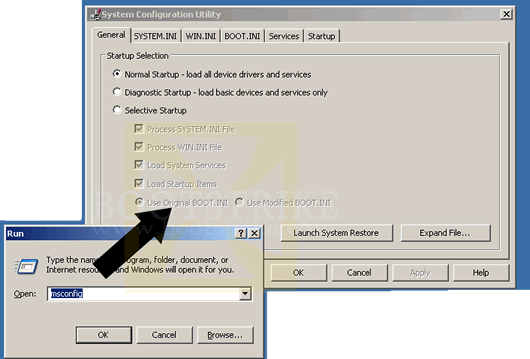
Yet another more powerful utility is AutoRuns. Autoruns allows you to explore in more places where a program may start up, such as Services (Start > Run > services.msc).
Remember, if you are unsure, Google. Don't just disable programs. Disabling programs may cause some features to not work. One example is Bluetooth. I disabled the Service from starting up automatically. The tradeoff is that I had to manually create shortcuts in the start menu to load the required software when Bluetooth needs to be used.
Disable and/or remove hardware devices that you don't need
Except for the webcam - it sucks power
even if you disable it in Device Manager. You can manually remove the DVD-ROM (or writer) to lighten the laptop as well as to save a bit of power there.
You can disable the following devices that you don't use in Device Manager (Start, Control Panel, System, Hardware, Device Manager)
DVD-RW drive (manually remove it to lighten the laptop)
Bluetooth devices
Modem
Network card
USB ports
However, I can't assure you that disabling the devices saves considerable battery power. The best way is to physically disconnect it from the system, which is what I recommend for the DVD drive. The other devices are built-in and are harder to physically remove.
Stand by the system rather than using Hibernate or Shut Down
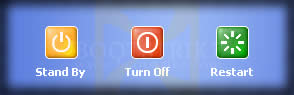
If you are very likely to use the system again in the next 3 hours, I would suggest to put the system in standby mode. While in standby mode, only the following devices are turned on
CPU (in a very low power state)
Memory
Power LED indicator
That is all to the best of my knowledge. No hard disk spins. No fans. LCD is turned off. Booting up your system requires lots of CPU and hard disk activity. By the way, a quick shortcut for XPS M1210 to standby is to hit the Fn and Esc keys on your keyboard
Switch off Wireless and Bluetooth when not needed
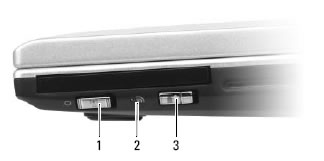
XPS M1330 Wireless Switch (1) indicates the wireless switch, (2) is LED indicator, while (3) is Wi-Fi Catcher
The above image shows the Dell XPS m1330 wireless switch on the right side towards the front. Similar switches exist for the other laptop models. Simply push the switch to the off position and the power to the wireless card will be cut off.
Enable PowerMizer (for nVidia card owners)
Access the NVIDIA Control Panel by right-clicking anywhere on the desktop and clicking it. Click 'Change PowerMizer settings' under Mobile. Make sure PowerMizer is enabled as well as 'Extend battery charge by using less power for the display'. This will reduce refresh rate to 50Hz and may cause problems with games or 3d graphics applications but does extend battery life.
Standard Stuff That Doesn't Need to be Said (Or has been mentioned above)
Run minimal programs. For example, when you are done with Outlook, close it. Don't minimize it to the system tray or taskbar.
Use SpeedSwitchXP to force throttle the CPU to the lowest speed when on battery. Relying on Intel's automatic SpeedStep may cause the CPU to go to full speed without you knowing and taking up additional power.
Avoid using CPU intensive applications like games and encoding tasks when running on batteries.
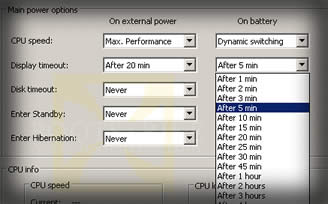
Use the lowest LCD brightness where possible. When display is not needed, either close the lid or set SpeedswitchXP to switch off the display in one minute. Or use MonOff to manually trigger the LCD to be switched off.
Problems With My Dell XPS M1210 So Far
UPDATE 12 May 2007 - Random Problems
Having major problems with the Dell Logitech QuickCam that is integrated into the laptop. Ever since I have got this laptop, I have had these intermittent problems:
gets stuck with a black lit screen after the Windows XP logo shows with a blinking activity LED
refuses to show the screen after closing and opening the lid.
activating the webcam can freeze the whole system (with new webcam drivers)
sound and usb does not work sometimes on booting up (with new webcam drivers)
After countless power off's, installing of logitech software and updating drivers, I have just disabled and removed the webcam device in Device Manager. As of now, the first and last two issues are not there. Will update this section on how it goes with the 2nd issue.
UPDATE 25 May 2007 - Webcam Found out that it was a webcam problem after installing XP to the second partition and the problem persisted. Dell offered to replace the webcam for me and it has been working properly for now. I wonder whether the time I use this laptop affects the life of the webcam, since the webcam is always-on whenever the laptop is on.
UPDATE 27 Jan 2008 - 99% CPU Usage
New problems! The system boots up with the System process at 99% CPU usage. This does not occur if I switch off the wireless before powering on. Even enabling the wireless after switching on the laptop brings the System process to 100 percent. Does not always happen though. Disabling the webcam seems to be resolving the issue for the past 3 days. Monitoring...
UPDATE 31 Jan 2008 - Random Hanging
The problem came back! Even when the webcam is disabled. Now I disabled the "Dell Wireless 355 Module with Bluetooth 2.0 + EDR Technology" in Device Manager and the problem seems to be gone again. Monitoring...
UPDATE 15 Apr 2008 - Webcam Torture
Restarting the laptop is a risk. Why? Everytime the XP progress bar disappears and just before it switches the LCD resolution, about 75% of the time, it will hang there. Tried replacing the webcam, same result. Disabled Logitech Webcam and Quickcam Microphone. Same result. Living with it for now, now rarely shutting down my laptop and leaving it on stand by.
UPDATE 8 May 2008 - Bluetooth Culprit
Narrowed it down to either a rusty bluetooth module (the left side where the screw is, is rusted) or a wireless switch that turns itself on depending on the stable environment. Dell replaced/fixed both without much questions. Now the system is working fine and stable.
UPDATE 9 July 2008 - No Stereo Mix
It has been rumored (confirmed with my XPS M1210) that Dell laptops using the Sigma audio chipset (that includes XPS models) are missing a "Stereo Mix" aka as "What You Hear" recording source so users are not able to record whatever that is coming out of the speakers due to RIAA influence.
Also, another rumor is that Dell’s XPS M1330 and M1530 laptops using the Geforce 8x line of mobile chipsets have a high rate of failure.
UPDATE 3 October 2009 - VGA output to projector fails
Recently, I had been having problems outputting the display to an external projector with my XPS M1210. The funny thing is, when I went back home and tried it on a CRT display, it worked without any problems. Perplexed, I thought it is the motherboard problem and Dell replaced it for me without much questions. The problem still persisted. Morever, I noticed the battery usage is much faster than before (3 hours vs 5.5 hours on 9 cell), with the fan almost always spinning.
Today, with the goal of getting to the bottom of this problem, I did some troubleshooting with the projector. Long story short, turns out that the latest nVidia Geforce Go 7400 driver was the cause. Installing the nVidia driver from my Dell CD solved the issue, and the fan started spinning less frequently. A case where updating drivers can make things go wrong. For those having this problem, the driver I used can be downloaded from Dell's site here (or from our site here). Note that this is ONLY for XPS M1210 with Geforce Go 7400 cards
UPDATE 24 November 2009 - Electric Shocks from Webcam and Back cover
Despite multiple replacements of the Logitech webcam and back cover, I still get electric shocks when touching the back of the LCD, especially the back of the webcam. This happens only when connected to a direct power source. The laptop is now out of warranty, but even if it was, I would not asked for repairs.
The issue has been brought up to Dell multiple times and each time they would replace the webcam or back cover. However, the issue still exists. Living with it for now...
Questions, Errors and Queries?
Please post any queries you have in the Comments below.
Hi from Spain!! My DVD unit was always very slow (when recording). I had the option to send it to DELL but was a bit lazy about it, plus didn't feel like being with no computer (they did not allow just sending the unit, had to send the whole PC), so I just lived with a slow DVD recorder. Does anyone know how to replace the DVD?. I just bought a Lightscribe compatible DVD drive unit, and I´d like to install it in the system. Thanks!!
I already did it, it was very straight forward, and now my computer´s DVD unit not only works faster, but aldo has Lightscribe. the total upgrade including shipping was about 40$ from ebay. I guess I was a bit pessimistic about finding the Service Manual but found it with no problem. In case anyone else is interested in the Service Manual, here is the link: http://support.dell.com/support/edocs/s ... /index.htm
Great site ..Thank you for your efforts .. I recently aquired a nvidia motherboard to replace the original Intel board as I would like to use open gl shaders in some 3d projects. Is it just a case of replacing one for one or are there other issues I need to be concerned about?
Just in case anyone is interested ..I did .. and it worked just fine ..Did not have to re install windows or even a little mini -mac os x 86 I have on the side just a bit of fiddling with drivers and presto! G' Luck H
Thanks for your recent update regarding the GeForce Go 7400 VGA output problem. I had the same problem for a long time. I just installed the previous version (v.156.83-xp WHQL, A05, release on 14/12/2007 from Dell) and the issue is solved. You don't need to go back to the first version (v.84.29 A00, 08/06/2006).
BTW, I have the electric shock problem as well. Live with it...
Regarding the webcam issues, I recently upgraded to Windows 7 and have found that the webcam no-longer heats up even though it's not being used. The webcam is functioning properly when I use it with Skype or a standalone application, so it would seem that the power issue relates to software rather than hardware.
I purchased dell m 1210 in may 2007 ... From last may I am facing a problem that after sometime let say 2-3 hours after the laptop is on .. when I am trying to talk using voip softphones i am hearing distorted sound ... if i do make the call just after turning on the laptop sound quality is great. I also got the heat sink replaced but laptop was getting too hot earlier. Now i am unable to guess why it's happening like this. Any clues
If some of you guys have WEIRD problems like screen blanks after hibrenate, or external monitor not working, slow, random hangs etc.. This is due to the use of the LATEST drivers... make sure you dig out the original drivers disk that comes with the XPS and use that.
I spent alot of time trying to fix this.. hope this is useful for anybody that re-install and tried to download the latest and greatest drivers from DELLL.
When I pressed the button the first times, the Mediadirect ouside the windows caused the blue screen (after it transitioned from displaying the "color" Mediadirect logo to displaying the searching message of "black & white" Mediadirect.) In order to shut down I must to remove the power. Then, when I pressed the button again the notebook transitioned from "color" Mediadirect logo to Vista. The Mediadirect popped up inside the Vista. How do I repair this problem?
I have recent problem that my Nvidia settings auto revert to 800x600 on return from standby or on startup. I reset them every time to 1280x800, but upon return from Standby, the setting goes back to 800x600 and must be rest. no other problems
Thanks for all the help. I installed the AO8 BIOS flash and then "re-installed" the latest NVidia drivers on the Dell support site. Now seems to work as it should.
I'd suggest using a AC cable retention device whenever you have your laptop plugged in. Too easy to damage the fragile power pin if you pull on or tug the cable accidentally. Personally I like the JerkStopper kit I found at my local laptop shop.
I have DELL XPS M1210 purchased November 2007 and have same problem. All the buttons are propoery lighting up but nothing coming in screen. It is look like the same prolem that experience by Jason. Can any one help!!
I have the Dell XPS M1210 purchased JUN2006 and have recently started experiencing this same problem of computer hanging after XP boot screen in about 50% of boots. very annoying. Have been living with it as travelling overseas, but will approach Dell for advice.
hi guys, i just bought a xps m1330 last month, it works great. but i have one problem. the dell media direct sucks big time, i want to uninstall it and make the dell media direct button to activate other player. but even after i uninstall it, the button remains inactive. how can i configure it to work for other type of media player? for example, i want real player, TT player, or window media player to be on when i press the button. is there a way to do this?
I have DELL XPS1210, XP, 2GB RAM, GEFORCE 7400 VIDEO. I rently had a problem while running a racing game. Video froze up, and it kicked me to safe mode. I tried to fire it back up, and all my wording is now in some crazy language. By BIOS at boot up says it is at A8.
I went and bought a new hard drive, decided to upgrade anyway. Poped her in, installed XP, and started to install my drivers. When I got to my NVIDIA GEFORCE DRIVER, I EXTRACTED, RAN AND MY LAPTOP WENT HAY WIRE. BASICLY WENT BLANK. I SHUT HER DOWN AND TRIED TO FIRE IT BACK UP, CAN HEAR EVERYTHING RUNNING AND LOADING, BUT NO VIDEO....Is this a virus issue I had, that attacked the Enternal Video Card on the motherboard, or what....I need help!!
if this happens again, try using your dell reinstall dis. Have it boot from the dis instead of HD. Two option U can do from this point is : A- roll back driver (using winblows driver) B- reinstall driver. also included is a driver/ hardware software tools included when (and IF U purchased the XPS from Dell) Run a systems check would be a good idea
Had a M1210 for the past year now, and can relate to many of these problems. (especially the camera one). But my question is does anyone actually know where to get a M1210 motherboard with the geforce 7400 attached?? If not i don't suppose anyone has a motherboard for a M1210 for sale as i 'accidently' melted my onboard graphics.
hii,
i have a xps m 1530..and i formatted and reinstalled my vista in it.nw the problem evn after installing all the drivers needed and provided by the resource CD, i nw also m nt able to use my bluetooth. earlier thr was n option of bluetooth in control panel for bluetooth settings, bt nw i dnt find it..
plz do show me the way as i want to use my bluuetooth device..
thank u
I have a Dell XPS M1210, 2GB RAM, GeForce 7400 and running Vista Ultimate. Everything works great if I do not connect an external monitor. I have an Dell 24 inch monitor and when I connect it, it works good for a little while and then it the laptop gets progessively slower until it is unusable and I have to reboot.
Does anyone have any idea what the issue may be?
I am running the latest Bios as well as latest dell nvidia drivers.
you will need to change the whole motherboard as the nvidia geforce 7400 comes with the motherboard. The RAM can be easily upgraded at any notebook shop though.
You do this at your own risk. I have done this on three laptops regularly with out problems. But things could go wrong.
Get vaccum under fan slightly to the side and turn on, you will spin the fan and a large amount of dust will come out may want to do this with the laptop upside down for gravity to help. Beats opening the laptop.
Remove the widcomm bluetooth driver and use the microsoft one. Widcomm doesn't like the m1210 one little bit. The new sound drivers suck too, get the ones from mid 2007
i am running fedora 8 on my m1210. everything works. integrated webcam/mic, skype, sound, wireless (yes even wpa-psk) nvidia, dvd ripping, dvd/cd burning, playing vob, avi, mpeg, etc. world of warcraft runs with wine. everything i could get done in vista/xp, now works in linux. it took some time to get everything going, but, it was well worth it. compiz-fusion blows vista away. i love this goddamn laptop! i may end up getting an m1330 just for the hell of it. about time for a new toy.
Hi. I am having some problems with the WiFi Switch. If it is on and then I switch it off...then try to switch it back on it does not turn back on! Has anyone else had this problem. It is kind of frustrating because I have to put the lap top to sleep or hibernate to get it to turn back on! IIt sucks!
I had the same problem with the camera, so I actually cracked open the case and disconnected it using the technician's manual. As for the screen not coming back on after closing the lid, hit the CRT/LCD key once or twice, this brings it back for me.
My biggest beef with the machine is the font readability at that pixel density. I'll give that cleartype tweaker a try (wish me luck, I'm on Vista).
i was talking with some guy from dell support and he told me its possible to upgrade the video card because the xps m1210 use pci express slot to connect the nvidia geforce go 7400 but they wont give support to upgrade ofcourse the problem is where you can buy a video card pci express for a notebook anyone have any ideas?
Hey. I was having the same exact problems with XP. Tons of BSOD and black screens on boot up. I read from the Dell forum that this machine is no longer supported by Dell on windows XP, so I had to cope with Vista and that they were totally aware on crashes with XP. After installing Vista it never had any problem at all again. Runs like a charm on Vista.
Help? Every time I put a DVD in the machine, it jumps and stutters through the film. Loading music is fine, and I have been through all sorts of Dell help FAQ's but no solution.
I had the same problem also with DVD and audio. Installing the latest firmware for the DVD-player (TSST corp DVD+-RW TS-L632D)(update was available on Dell site).
Hey guys whats up. My specs are 1g, 2.16Ghz, Nvidea card, bluetooth, 160GB 54rpm. I wanted to upgrade my harddrive to a 200GB HD. It does exist cuz dell was offering it just like last month before they discontinued it. and I wanted to change my processor from a 2.16 to a 2.33. Is there any possible way that I can do this? I kno im gonna spend $$$ but I dont care lol. Just let me kno guys plz. Thank you. If anything just hit me up on aim @ BxE718. Thanks
ok there has been so many people have problems with the xpsm1210 lately my laptop caught on fire so they sent me a new one my friends his broke and i read of some many other problems lately with them but i still love my xps m1210
Hi there,
that was really a useful article, I've bought the machine and it was super. but I'm still facing some difficulties installing the bluetooth driver after downgrading to WinXP. I've searched the Dell support sites and download several drivers but none of them worked.
I read every cooment on this page... HAS NO ONE EXPERIENCED MAJOR STARTUP ERRORS??? Since buying my XPS M1210 (2g 7200 rpm, 2g ram, 7400 nvidia) and after reformatting the OS, i've had nothing but problems with its startup. It will often stall at the Windows XP startup page and CPU activity stops. I haveto either hold down the power button or pull the battery to turn it off and try starting up again... Its been reformatted 3 times, once with a DELL technician's instructions over the phone... Its been looked at by a Dell technician, the motherboard replaced - but as soon as i install 3rd party programs (nothing that should cause problems - AVG, Zonealarm etc. and Windows Updates) the laptop sh*ts itself and every few reboots, fails to startup. About had it - any suggestions before demanding a refund??
i am having the exact same problems with my xps m1210, consistent startup problems necessitating hard shut down and reboot. it starts up eventually, after a few tries. have you found any solutions?
I experienced problems with the Startup of the XP system, so the machine freeze, even if I pressed the ON Button for I while were unable to shutdown, so have to retire the battery, After use Dell diagnostics, and found nothing wrong with the hardware, I tried start in Safe mode, and works. go to the device manager, and deactivate the Packet Scheduler miniport#4 on netwok adapters, and problem fixed. Don´t know if you´r situation, but work for me
I had this problem too. I narrowed it down to one of two things:
I have disabled the microphone. It shares an IRQ with the webcam so it's one or the other in XP.. you can't have both. An external mic does work.
Also, I have to flip the external switch for the Bluetooth/Wireless to OFF before standing by or shutting down or the API fails.
This might help. I had the same problem with the downgrading but the bluetooth now works fine. I found the solution on another forum and it seems to be caused because you turned off the adapter while working on vista so the BT card was disabled (that was I undestood). What you have to do is the following:
On startup go to the BIOS and look for the Bluetooth options and disable the BT radio. Startup Windows and download the bluetooth installing app from the Dell Support Site and restart your computer again.
Go to the BIOS and turn the setting of the BT radio ON and boot Windows. Now you should see the BT indicator lighted up and install the driver with the app as required.
Hope it'll work for you or for anybody else having this problem. I spent a whole saturday evening and night looking for a solution and I SWORE i'd help with this issue so use it and I wish you luck!
I love my XPS!
7-bits
Couple things to mention with the m1210 are that the CPU and GPU temps can go up to about 78 celcius (as a maximum), and average at about 68-75 when doing games and the like. As mentioned above, with the m1210, I've experienced the hard drive being too loud (where it'll click rapidly like it's loading something, but wayyy louder than it should). Something to note that can improve your performance (slightly) is tampering with the settings of the graphics card in the Nvidia panel, in order to increase performance and reduce quality (the quality doesn't actually go down, and performance slightly increases). The light leakage is kinda' unbearable (at times), and the media direct playback quality (on DVD's) kinda' sucks, :-P. For an internet browser, if using Vista, definitely download firefox (the default microsoft internet explorer is so buggy it's unbearable).
Regarding the heating problem try cleaning the dust, this worked for me after removing a thick layer of dust from the ventilation It hasn't heat up again even while gaming
i am getting a random clicking noise on my m1210...it has a 160GB scorpio western digital hard drive...is this normal? there are a couple reports of this, but i've been hard pressed to find a solution...apparently this was an issue with smaller drives, and they had a fix for those, but not for this particular model...do i have a dud? send it back?
Having serious issues with the audio quality while using skype. The sound breaks every 4-5 seconds for the party listening.
Seems to be caused by the audio driver. Dell support is extremely bad (at least from Switzerland), just a waste of time. I have windows XP prof. with a Geforce Go 7400.
Any suggestion is really welcome, would prefer de-re-installing drivers...Thanks
For problem with Skype try disabling AEC in settings for audio in webcam. Have this laptop since January (2.3 gig processor/2 gig RAM), its the greatest. Absolutely no problems and it is in heavy usage daily.
Guys, how to disable AEC in web cam’s audio settings? I see just two choises: “Cancel Echo” and “Suppress Background Noise” and both are unchecked. My M1210 came with Vista preinstalled, and from the beginning I have a 100% processor overload a few minutes after I start a video call. Is not just about Skype, it does the same for MSN Live. This is driving me crazy. I clean installed Vista a few times with the latest drivers from Dell’s website but still the same.
I have a microphone problem with this Dell XPS M1210. Since I reinstalled Windows XP over Windows Vista, my microphone has not been working at all. I've tried everything I could including downloading some drivers on Dell website, changing some configurations with the sound device, etc... Does any one have the same problem? I've been searching on the internet but have not found the answer yet.
Thanks for your reply. However, my laptop does not have mic and web cam built in. I did everything I could trying to change the configurations and such. Nothing helped :-(.
none that I am aware of, also, the video card is part of the motherboard, not like an add-on card on the desktop so you will need to replace the whole motherboard which is manufacturered exclusively for Dell
I also have struggled to get the Web Cam working without crashing my system.... It took me two days and three re-installations of XP before I finally gave up. I am suprised Dell has not pushed forward a better driver (V10 has the same problem). It's a logitech camera... but none of the generic logitech drivers will recognize this camera.
This M-1210 is not that good after I load the program such as firfox and netscape with IE use together. The Hard drive continue to run and no stop no matter you using this notebook or not. The problem is slow down the CPU performance, eat a lot of the battery and shorten the Hard drive life.
I think the problem is some of the program not compatible with this Vista. Finally I remove Vista and install XP. So I believed Vista is not reliable, also Dell did not consider this problem too. According to their customer service (in China) said they do not know how to resolve my problem since this is not the hardware problem. But they choice Vista for M-1210 to offer to the market.
I too got mine with Vista, and was concerned about the constant hard drive slamming it was doing. This is actually caused by a service called SuperFetch, which basically caches bits of your hard drive into RAM. All the time.
To get your half-hour of battery life back, just disable the SuperFetch service. Vista will tolerate this nicely, but load times (especially in World of Warcraft) will suffer. Framerates will improve, as will battery life.
just disable the transparency effect in vista and World of Warcraft should work like a charm. I play it on 1280x800, normal quality with around 40-50 fps
nice review. got one of these bad boys back in august myself. already follow all the tips you gave and they do indeed help. only thing i wanted to mention is that for winamp you DO NOT need any extra plugins. winamp ALREADY comes with a built in feature to support the media buttons, EVEN when winamp is not the progam currently in focus. just go to Options>Preferences>Global Hotkeys and enable them. thats it. might as well cut back on all bulk possible. cheers.
Here's another: download PC-Decrapifier to uninstall all the Dell "crap" that is pre-installed.
Another great tool is Notebook Hardware Control which does what some of the software you described and more, but all in one program.
I do disagree however with the reformatting. I find that the CTRL+F11 function on startup is great to restore the original image with all the drivers etc. It doesn't take up all that much space, and is great when you are in an emergency and don't have the time to format and reinstall everything. This is a great option, especially for newbies, to whom I suggest to keep everything as is.
Aww...come on. How's a newbie supposed to learn anything if people keep telling them 'dont touch'. I dont know about you but if you havnt 'broken' a computer at least half a dozen times in your life, you're unlikely to learn anything useful at all. Newbies....back up your computer in its original config and then go play, you might actually learn something useful for next time.
Great work. Great site. I used your tips. I found a m1210 on the Dell Outlet for $1200 with 2gb ram, big battery, nvidia card, and camera. Worst thing for me is the battery jiggles. Drives me nuts. Also the screen started scrambling. So I had to unistall the video driver use Driver Cleaner Pro and it has worked fine since. Could be the hazards of Outlet shopping.
Page: Prev 1 2 3 Next Show All
I have a disk stuck in the optical drive, other than taking it all apart any suggestions?
BTW, I have the electric shock problem as well. Live with it...
OS: Windows XP SP2
I spent alot of time trying to fix this.. hope this is useful for anybody that re-install and tried to download the latest and greatest drivers from DELLL.
Best regards!!!
i tried reinstalling xp the other time but was the same. im trying now with ubuntu and vista.
I went and bought a new hard drive, decided to upgrade anyway. Poped her in, installed XP, and started to install my drivers. When I got to my NVIDIA GEFORCE DRIVER, I EXTRACTED, RAN AND MY LAPTOP WENT HAY WIRE. BASICLY WENT BLANK. I SHUT HER DOWN AND TRIED TO FIRE IT BACK UP, CAN HEAR EVERYTHING RUNNING AND LOADING, BUT NO VIDEO....Is this a virus issue I had, that attacked the Enternal Video Card on the motherboard, or what....I need help!!
i have a xps m 1530..and i formatted and reinstalled my vista in it.nw the problem evn after installing all the drivers needed and provided by the resource CD, i nw also m nt able to use my bluetooth. earlier thr was n option of bluetooth in control panel for bluetooth settings, bt nw i dnt find it..
plz do show me the way as i want to use my bluuetooth device..
thank u
Does anyone have any idea what the issue may be?
I am running the latest Bios as well as latest dell nvidia drivers.
Thanks.
Get vaccum under fan slightly to the side and turn on, you will spin the fan and a large amount of dust will come out may want to do this with the laptop upside down for gravity to help. Beats opening the laptop.
My biggest beef with the machine is the font readability at that pixel density. I'll give that cleartype tweaker a try (wish me luck, I'm on Vista).
Good tips! Thanks!
Disable the SigmaTel Micorophone driver. It conflicts with the Logitech Quickcam.
I also flip the physical switch for the Bluetooth/Wireless before closing the lid. This allows the hibernate/suspend API to work properly.
that was really a useful article, I've bought the machine and it was super. but I'm still facing some difficulties installing the bluetooth driver after downgrading to WinXP. I've searched the Dell support sites and download several drivers but none of them worked.
are anybody facing this issue?
Did anyone of you have any idea?
Thanks.
I had this problem too. I narrowed it down to one of two things:
I have disabled the microphone. It shares an IRQ with the webcam so it's one or the other in XP.. you can't have both. An external mic does work.
Also, I have to flip the external switch for the Bluetooth/Wireless to OFF before standing by or shutting down or the API fails.
On startup go to the BIOS and look for the Bluetooth options and disable the BT radio. Startup Windows and download the bluetooth installing app from the Dell Support Site and restart your computer again.
Go to the BIOS and turn the setting of the BT radio ON and boot Windows. Now you should see the BT indicator lighted up and install the driver with the app as required.
Hope it'll work for you or for anybody else having this problem. I spent a whole saturday evening and night looking for a solution and I SWORE i'd help with this issue so use it and I wish you luck!
I love my XPS!
7-bits
PS: Thanks for the BIOS tip was on version 4
Seems to be caused by the audio driver. Dell support is extremely bad (at least from Switzerland), just a waste of time. I have windows XP prof. with a Geforce Go 7400.
Any suggestion is really welcome, would prefer de-re-installing drivers...Thanks
Thanks in advance if anyone could help.
I think the problem is some of the program not compatible with this Vista. Finally I remove Vista and install XP. So I believed Vista is not reliable, also Dell did not consider this problem too. According to their customer service (in China) said they do not know how to resolve my problem since this is not the hardware problem. But they choice Vista for M-1210 to offer to the market.
WindowsVista/topavoidvista.html
To get your half-hour of battery life back, just disable the SuperFetch service. Vista will tolerate this nicely, but load times (especially in World of Warcraft) will suffer. Framerates will improve, as will battery life.
Life's a tradeoff!
Thanks.
Here's another: download PC-Decrapifier to uninstall all the Dell "crap" that is pre-installed.
Another great tool is Notebook Hardware Control which does what some of the software you described and more, but all in one program.
I do disagree however with the reformatting. I find that the CTRL+F11 function on startup is great to restore the original image with all the drivers etc. It doesn't take up all that much space, and is great when you are in an emergency and don't have the time to format and reinstall everything. This is a great option, especially for newbies, to whom I suggest to keep everything as is.
Cheers!
Page: Prev 1 2 3 Next Show All