
How to Clean Install Windows XP (With Pics) New PC or over Windows Vista / XP / 2000 / ME / 98
Version 1.02
This document outlines the steps of how to perform a clean install of Windows XP in a computer no matter what operating system is currently installed. Basically, this tutorial shows you how to format the hard disk, partition the hard disk and clean install Windows XP in your computer with example screen shots. Looking for Windows Vista Clean Install?.
Is this document intended for you?
- You want to install a fresh copy of XP in your system erasing whatever there was previously
- You are completely fine with all data (documents, pictures, videos) completely gone from your computer
Assumptions
- You are holding a Service Pack 2 version of Windows XP. If you have an earlier version, it is recommended to slip stream Service Pack 2 into it and create a new CD for security reasons.
Step By Step Guided Installation with Screen Shots
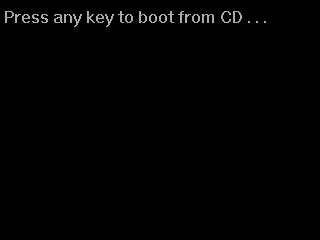
Insert the Windows XP Installation CD and restart your PC. Look for the prompt. When it appears, hit the ENTER key on your keyboard. |
 |
|
Windows Setup begins and starts loading all the essential drivers. |
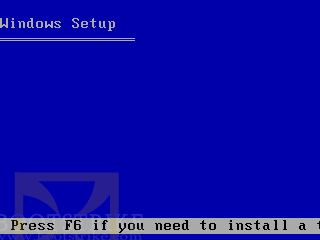
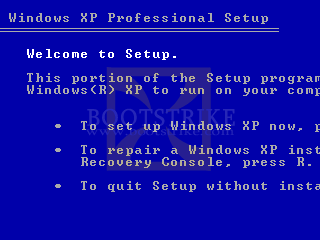
Finally, after about 3 minutes of waiting, depending on your drive speed, you will see the welcome screen. Hit ENTER at this screen to set up Windows XP. Depending on your XP edition, a licence agreement screen may appear. Hit the F8 key on your keyboard to accept if it does. |
 |
|
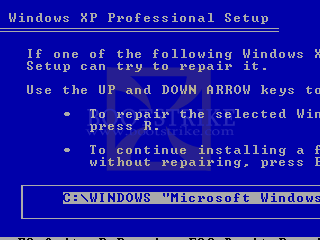
IF your system already has Windows XP in it, this screen may show. Hit ESC to continue installing XP. |
Now we get to the formatting part. What we need to do here is to delete the C Drive if it exists. This will erase all data in the C Drive so be sure before you proceed! If there is only "unpartitioned space" listed, skip the next step. |
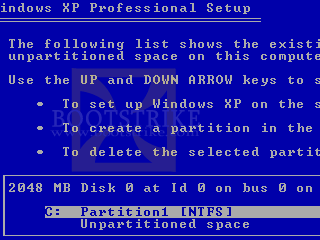 |
|
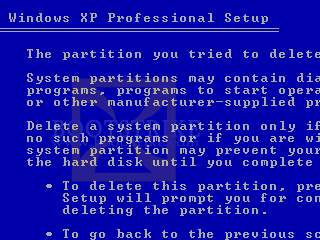
A warning like this may appear when you attempt to delete the C partition. Go ahead and delete it. |
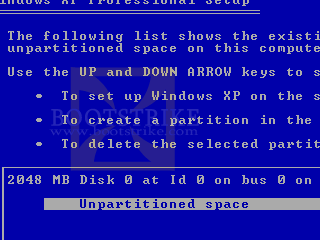
And we get an unpartitioned space to install to! Select the drive and hit ENTER to install XP! Choose to "Format the partition using the NTFS file system (Quick)" in the next screen that appears. |
 |
|
And the setup procedure starts copying files. All the remaining steps should be automatic now! |
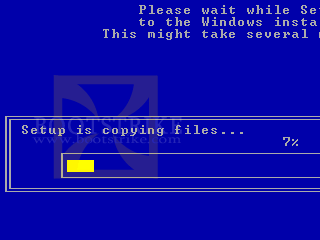
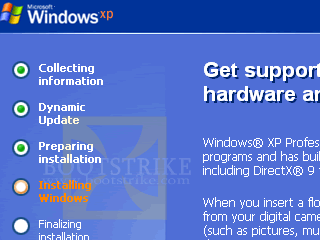
After a restart, we get a beautiful GUI to continue the installation of the operating system. |
 |
|
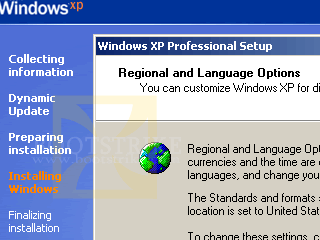
You may be prompted for your regional settings. Hit the Details button and change your settings according to your country and preferences. Hit Next to continue and enter your name and organization details. Hit Next again to enter your Product Key. You will be prompted for Computer Name and Administrator password. Click Next on this screen if you are unsure. Date and Time. Correct it if necessary and click Next and Setup will continue. |
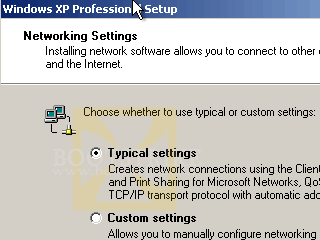
After a while of installing network drivers, Setup will prompt you with this screen. Again, if you are unsure, leave it at Typical Settings and click Next. Same goes for Workgroups in the next screen. Click Next if unsure. Windows Setup starts to perform some configuration, building start menu items and registering components. After you restart again, hit OK for a better display resolution and Yes. |
 |
|
Here's the welcome screen Click Next. Tick "Help protect my PC by turning on Automatic Updates now" and click Next. You will be prompted for Windows Activation. If activation fails for some reason, simply call Microsoft directly when you are reminded again to activate. Note that registration is entirely optional. Registration and Activation are two different things. Activation is mandatory while registration is not. |
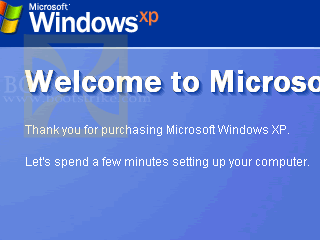
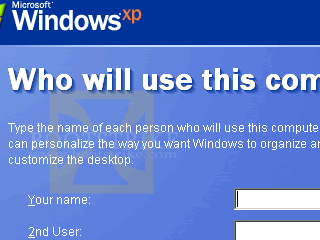
If you are the only user of the PC, simply enter your name for the first box. Enter any other users name if you have more users. You can always create more users in Start > Control Panel > User Accounts. Click Next and be done! |
 |
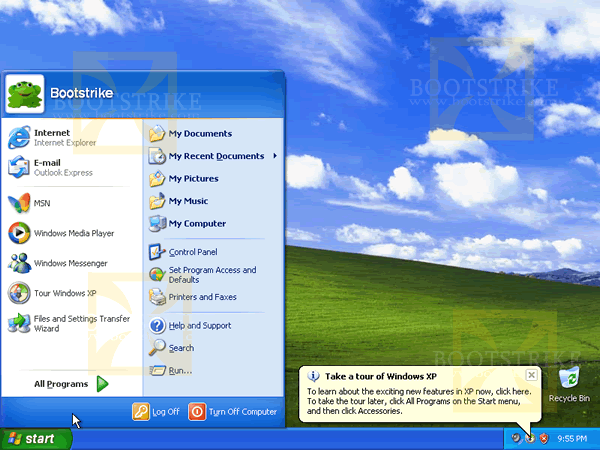
It's Not Over Yet!
- Install Chipset, Video, Sound drivers to utilize the full performance level of your PC. It should have come in a separate CD with your system.
- Install Anti-Virus and Anti-Spyware applications. A firewall is good, but not required - as XP SP2 already comes with one.
- Visit WindowsUpdate.Com and download the latest patches
Revisions
- July 10 2007 - v1.00
- First Release to the public in Bootstrike.Com
Errors? Omissions? Need Help? Know something? Post your queries in the Windows XP Discussion Forum.
You may be interested in our other Windows XP guides. including a comprehensive FAQ, dual booting with Windows 98 and how to dual boot with formatting.
This document is Copyright(©) 2001-2008 by G. Ganesh.
| new post | [ expand all ] |
21 comments
Page: Prev 1 2 Next Show All
Page: Prev 1 2 Next Show All