
Solving the nVidia NV_DISP.DLL Error
Version 0.54
This article provides a summary of what to do to solve this annoying problem. Most of the times, it is a hardware issue. For the one time it occurred for me, I found that it was caused by an automatic update.
The problem started on the day I bought a new graphic card. I installed it and reformatted the PC for a ultimate clean environment. Installed all latest drivers and all updates and the system ran fine with normal applications.
But when I started playing any 3D games, they will run for some time before either freezing most of the time or giving an nv_disp.dll error. This is what I did to pinpoint the problem:
Try installing the latest driver
Reinstalling the latest driver fixes the problem for many users.
- Enter Windows XP's Safe Mode by doing the following
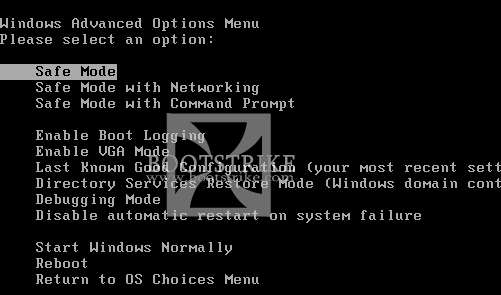
- Keep hitting F8 when your system boots up, till you see a menu appear
- Select Safe Mode and hit ENTER
Select "Safe Mode" in the menu and hit Enter- You should see a long list of file names scroll by.
- After some time, a login screen should appear. Click Administrator.
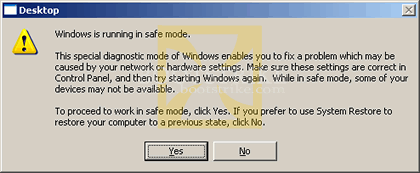
- A Safe Mode Warning will appear. Click Yes.
Safe Mode Warning. Click Yes to proceed- Uninstall the driver via the following steps
- On your desktop or Start Menu, locate My Computer and Right-Click it
- Click Manage
- Click Device Manager on the left. It is located under System Tools.
- Under Display Adapters, Right-Click the nVidia card and click Uninstall . Click OK to the warning.
- After uninstallation is complete, restart your PC.
- Download nVidia's latest driver for your video card from nVidia's site.
- Install the file that you have just downloaded.
- Restart your PC again.
If the problem still occurs, keep reading.
Try swapping the video card or switch to the built-in one
Another major cause is that the video card may be malfunctioning. This could be due to several reasons, such as blown capacitors or bloated capacitors.
So if you have an alternate video card, try swapping to it and see if the problem persists. If it doesn't, chances are high that the video card needs to be replaced.
Still having the problem? See if this post helps out.
No go? Then we have to go by the investigative way:.
1. Find the quickest way to reproduce the error
The best way for me to reproduce the error was to run 3DMark in a loop till it hangs. But if no BSODs or screen freezes still occur, you will need to try to find some other way to reproduce it for the steps later on.
If you still do not get any errors even after running 3dmark for 1 hour, try to see if you can reproduce the problem in other games. You will then be able to rule out that it is actually the game having the bug if the error does not appear in other games.
2. Ensure the hardware is not malfunctioning
The only way to verify this is to install a clean copy of XP into ANOTHER drive (partition). You will NOT lose any data on the partitions as long as you select to install XP into your other partition and choose not to format the drive.
There's a small issue with this - it is against the EULA as you are illegally installing 2 copies of the OS. However, since we are not going to use the 2nd OS for longer than a week, you do not need to activate it. You're given a 30-day grace which is more than enough for our testing.
3. Install only the chipset/video drivers from the CD
System Restore will be your best friend. Make a Restore point after installing the basic drivers - the latest chipset and video drivers. Do not install your audio drivers. Not even the keyboard/mouse drivers. NOTHING ELSE.
4. Try to reproduce the problem
Use the method you discovered in Step 1 to reproduce the problem. Install 3dmark or any other program that you need to reproduce the error. If there is no NV_DISP error at this point, things are getting more complicated - as it is most likely a driver/software or even an automatic update (as it turned out for me) that caused the problem!
If you got the error again, it is very likely a hardware issue - most likely your video card is malfunctioning. The best way to verify is to swap out the video card with another card or to use the integrated video card that most motherboards come with. Another possibility is that your Power Supply Unit (PSU) is not outputting enough power.
5. No Error? Create a Restore Point
Start > Accessories > System Tools > System Restore to create a restore point. From here on, install the rest of the drivers and run test to see if the system crashes. Continue on this way, creating a restore point at each step and testing to reproduce the error (Step 4)
- Install the latest driver for the chipset, video and other hardware drivers.
- Install all the latest updates from Automatic Update or Windows Updates <-- this is what caused my problem - an automatic update
- Install software that normally runs in the background - e.g. Motherboard Monitor, Norton Anti Virus, ZoneAlarm
- Install everything else that you may have missed
Yes, this is going to be time consuming - but unless you are willing to pay a software/hardware specialist (who will be doing basically the same), you can attempt this.
6. Good Luck!
Do let us know in the Comments if this guide has helped you. Good luck!
This document is Copyright (©) 2001-2008 by G.Ganesh. Visit Bootstrike.Com (http://bootstrike.com).
Last Updated 20th September 2008.
2 comments