
Top 34 Web Design Mistakes
Version 1.01
This article lists common usability web design mistakes that many website designers tend to make. Web usability refers to the ease of use when trying to accomplish a task at a website.
Overview
These are not in any specific order. Each of them contributes about an equal amount of inconveniences to a web site so it is hard to order them.
- The use of JavaScript
- Spelling and Grammar Mistakes
- Flash, Shockwave, Director and Java
- Use Separate Thumbnail Images to Link to Larger Images
- Animations with Flash and GIFs
- Background Music / Mp3 / Wave File
- Splitting content into many pages / Slide Shows
- Breaking FAQs into multiple pages
- Use High Contrast Text Colors
- Screen Size Width (Design resolution)
- Font Usage
- Small Font Sizes and Making Text Resizable
- Standard Consistent Layout
- Optimizing Images
- Title, Meta and Keyword tags
- Attaching Labels to Form Objects
- Organizing Forms with Fieldset and Legend tags
- Image Alt Attribute and Link Title Attribute
- Splash Images
- Feedback Links and Processing E-mails in the server
- File Naming
- Lumping Text in One Big Paragraph
- Disabling Right-Click and Selecting of Text
- Usage of Frames
- Underlining Links
- Proprietary Documents Types and Extensions
- Pop-Up Windows
- AJAX (Asynchronous JavaScript)
- Not Setting a Background Color
- Usability Testing
- Not Being Accessibility Friendly
- Mandating Requirement of JavaScript
- Not Providing a Print View
- Not Providing a Basic Search Function
- Use Semantic HTML code
Detailed Explanation
1. The use of JavaScript
JavaScript is such a great technology - it allows much more interactivity with a website. But it should only be used when it is needed. A simple example
<a href="javascript:goToLink('index.php');">Go to Home Page</a>
produces this
Now try doing a right-click and Save Target As on the above link. See what you get? This is how it should be coded
<a onClick="javascript:goToLink('index.php');return false;" href="index.php"> Go to Home Page</a>
produces this
Now try doing a Save Target As on the above link. You get the Save As dialog. There's also the added advantage of the search engine being able to index the linked page.
Recommendation
This is a very simple example of how an innocent looking code can affect users interacting with it in other ways. Other common misuses of JavaScript
- As the main navigation system, sub-sections are fine as long as the main pages have links to the sub-sections in HTML code. Some newer navigation menus now have the ability to display a simple navigation menu when a visitor's JavaScript is disabled, this is fine as long as the page layout does not mess up in such as situation.
- To trail a snippet of text or image wherever the cursor moves around the page
- To display a document within a page with custom JavaScript scroll bars, breaking the usual way of scrolling, disabling mouse wheel scrolling and inability to scroll to a certain point of the page. Designer sites love to use this, especially to display News Updates.
- To disable right-click or disable selection of text or some more-considerate-webmasters disable right-click on certain parts of the page, like the images. More on this below
2. Spelling and Grammar Mistakes
Face it, we all make spelling mistakes sometimes when we type. Normally we leave that burden to Microsoft Word Spell Checker.
But, the web editor you use may not be as feature rich as Microsoft Word. It may catch spelling errors but not grammatical ones.
See an example of the problem.
Recommendation
Proof-read the page manually.
Scan the document through Microsoft Word by opening a copy of it as it tends to change the HTML code unnecessarily. Yes, that means you have to copy every change manually to your web editor.
3. Flash, Shockwave, Director and Java
Flash is cool. Java, cooler. Director, awesome! But it brings a host of disadvantages to a site using it:
- Bad for Search Engine Optimization (SEO) - This is especially for sites that are fully based on Flash, search engines will have trouble indexing them with the exception of Google - which does its best to index but always turns out much worse than a non-Flash site.
- Big download = Long Wait - If you are using a Flash movie as a splash image, place a "Skip Introduction" link outside the Flash in HTML code, not in the movie itself, as it will bar users without Flash from entering. For sites fully based on flash, visitors will need to wait more time to see something on your site.
- Mobile Compatibility - There is a ultra high probability that PDA devices and mobile phones will either have trouble viewing or even loading the flash elements of the site. Heck, even an Apple iPhone 3GS or iPad can't view such sites.
- Totally New Interface - For full Flash based sites, it breaks the standard interface of the browser such as the Back, Forward, Refresh buttons and inability to interact with the page like a normal HTML page (e.g. cut, copy, paste, copy link shortcut, right-click options). Users will have trouble bookmarking a particular page of the flash. Some developers have worked around this by creating anchor links for every link clicked on the flash movie but many other usability problems still remain.
Flash sites look awesome, but as you can see, there is a high price to pay for it. If you have to develop a Flash site, cater a HTML version for Flash impaired visitors. And don't forget, place the link to the HTML version outside the flash movie.
Examples of good usage of the above technologies
- As a movie the user expects (eg. an introduction movie, Youtube videos)
- An animation of a process flow diagram
Examples of bad usage
- A website fully based on Flash. A big no-no.
- As the main navigation bar in every page. This will prevent users who don't have the Flash plug-in unable to navigate to any of your pages). Search engines would also not be able to index your site properly as they are unable to 'see' any links on the page.
- As an animated logo in every page. See Animation (Including Flash).
- As an static image with background music or sound effect, especially when the user is not expecting it (Imagine a 2 second Whoosh sound repeatedly playing from the top left logo while you are reading this article or when you navigate to any page)
4. Use Separate Thumbnail Images to Link to Larger Images
A common mistake many new designers make is placing a 800 x 600 image in a webpage resized to 32 x 32 manually (i.e. setting the width and height attributes to a much smaller number).
By doing this, the user has to download the whole 800 x 600 image, just to view the 32 x 32 image fully.
Recommendation
There are free programs, such as Easy Thumbnails, IrfanView, Picasa and GIMP that allows you to save a smaller version of the image. Use the smaller image to link to the bigger one and you cut down the time the user has to wait for your page to load.
5. Animations with Flash and GIFs
Animations serve to distract. That is why advertisement banners are animated (or even in Flash animation).
For example, falling snow flakes are better used for one short page (preferably only during a special occasion) rather than on every page. Likewise for page transitions - limit to one page.
It goes without saying that animated GIFs should never be used as backgrounds.
Animations are good when used as a user expects - introduction movie, a Flash movie, an animated diagram, advertisements or greeting cards.
Now, wasn't reading this text hard with the animation on the right? Click the Stop (thanks IE!) button if it is annoying in this as well as in other pages. Unfortunately, it does not work for Flash and other types of non-GIF animations.
6. Background Music / Mp3 / Wave File
Here we are enjoying The Reason by Hoobastank and suddenly a Mortal Kombat music fires on entering a page drowning the song. Thankfully, IE allows users to stop the music by hitting the Stop button.
The worst case is having a MIDI file on every page.
Recommendation
Don't put music files to run in the background on a web page, unless it is specifically requested by the user (eg. he intentionally clicked on a link to sample the music).
If you must use a MIDI music on a website, put the code on a frame (like a navigation frame bar) and allow the user to stop it by providing player controls.
This way, the music continuously plays throughout the visit (instead of changing for every page) and the user has a choice of stopping it.
7. Splitting content into many pages / Slide Shows
| Pages: 1 | 2 | 3 | 4 | 5| 6 | 7 | 8 | 9 | 10 | 11 | 12 | 13 | 14 | 15 | 16 | 17 | 18 | 19 | 20 |... 42 pages |
Many long articles on the web are split into multiple pages. Compare the following two scenarios:
User starts reading article. Reaches end of page. Moves the pointer to the "Next Page" link, Click the link. Wait for the page to load. Tries to remember where the article left off. (repeat for each page)
Compare with
User starts reading article. Reaches end of page.
Which is faster and saves more time?
The main reason behind splitting articles is because banner ads could only be shown once on every page. Having multiple pages, would mean that the user would see more ads.
And the feeling that long pages discourages the user - It does - but not for articles. Users expect articles to be long, but not simple product or home pages.
Recommendation
Put the whole article on one page. Avoid any kind of "Image Slide Shows" in HTML - it is a variant of paging too.
If you must split into many pages, consider implementing a Printable Version (with the ads removed) so that users who want to print your article don't have to print one page at one time.
8. Breaking FAQs into multiple pages
| EXAMPLE |
|---|
| 1. What is your company about? (links to page A) 2. What services do you offer? (links to page B) 3. How do I contact you? (links to page C) |
Similar to above, this "technique" is used by many designers. Each FAQ question's answer is a link that points to another page. To read the entire FAQ, the user has to perform a click on each link, read the text and a back button click for each FAQ.
For an entire FAQ of about 10 questions, that relates to 20 clicks. What about the time spent to wait for each page to load?
Recommendation
Place entire FAQ questions and answers in one page. Put anchor links for each FAQ question to the answer for easier navigation. Some designers add a "Expand All" feature to automatically expand all answers. Some also integrate a non-Javascript browser tolerant design by automatically showing all answers for users with JavaScript disabled browsers.
Don't make answers to appear only when the question is clicked on. If you want to do this, put a "Expand All" link that allows all answers to be shown.
9. Use High Contrast Text Colors
| Can you read me? Imagine how hard it is to read with one long paragraph of text especially with a textured background as compared to a background of solid color. |
Ensure your text is readable without the users having to strain their eyes. There's nothing worse than to get a dark gray text on a black background when a user surfs with images disabled.
The text on the right may be easy to read on a small scale, but on one whole page, it'll cause the user to hit the Close button. Thankfully, modern browsers allow you to hit Ctrl+A (Select all) to make the text more readable.
Recommendation
Choose colors that give a good contrast balance to the text and background. Avoid textured backgrounds that contain a mix of bright and dark colors.
If you are having trouble thinking of colors, check out this Colour Scheme Generator.
10. Screen Size Width (Design resolution)
Design your site for the minimum - 800 x 600. Designing higher than that produces a horizontal scroll bar for users using 800 x 600 display resolution. Users don't like scrolling horizontally when on a website.
Although the vast majority (as of 1st Jan 2006) of users use 1024 x 768, there is still a significant number using 800 x 600, probably with old computers or resized windows.There are also some people who prefer to open websites at 800 x 600 in their high resolution display, browsing two sites side-by-side at a time.
Recommendation
Follow a liquid design (also known as fluid design) of layout. The basic principle of achieving this is by using percentage values for table widths. This allows the text to fill in the entire available space in the browser - like Bootstrike.Com does. Some designers prefer to use DIVs rather than tables, but ultimately, the end presentation should be user friendly.
If you need to have a fixed width design, consider having different versions for an 800 x 600 and 1024 x 768 users.
11. Font Usage
Use a common font in your pages. If the user does not have the font, the browser will render the page using its default fonts and would not be what the designer intended it to be. This is an important aspect of readability in web design.
Please, don't use Times New Roman. This font is more appropriate for print documents, which is why if you have a "Printable Version" of a document, it should use this font mainly.
Recommendation
Use common fonts from this list of core fonts in Wikipedia. Most sites use Arial.
You can also specify multiple fonts instead of one single font. For web usage, it is recommended to use "Arial, Helvetica, sans-serif" so that the browser will use Helvetica if the user doesn't have the Arial font.
Likewise, for print layouts, it is recommended to use "Georgia, Times New Roman, serif".
12. Small Font Sizes and Making Text Resizable
Small fonts are great for small snippets of text like copyright notices. But for long articles, the user gets tired of the small font and gives up eventually. Most users do not use the Text Resize feature of the browser. In fact, the feature doesn't even work with some websites. |
It is becoming a "cool" factor for websites to use small microscopic fonts like the one on the right. Plainly put, it is fine for short snippets of text. Use it on a long article like this, and the user gets frustrated. Try reading this article with a smaller font size (View > Text Size > Smaller).
Internet Explorer has a feature (or bug?) preventing font size changes (via Edit > Text Size) when websites use pixel (px) units to specify the font size. Keep in mind that a large percentage of users still use IE (with Firefox and Opera gaining on).
Recommendation
Try to keep font sizes above 0.8em.
Use font size units like EM and % to specify font sizes in CSS style sheets. Users are then able to use the Text Size functionality to modify font sizes as desired.
13. Standard Consistent Layout
- Home - About Us - Products - Services - Contact Us |
Use a standard layout on every page. This means keeping the navigation bar, colors, fonts, link styles and other web elements consistent in every page.
Every page should have an effective website navigation bar, either on the top or on the left. Don't place the main navigation on the right - users are accustomed to left or top navigation links.
If you must place links on both sides, try to keep the left/top area for the main links.
Place the logo near to the top left which should always link to the home page. Use Favicons to add an icon to your site for better branding. Internet Explorer and Firefox now automatically show your Favicon at the address bar and Favorites if the user adds your site to their Favorites.
The top right can also be used to place a search box.
Reserve the footer to place your copyright notices and links to pages such as the site map, a privacy policy and a email form.
Recommendation
Use a basic template for every page that contains links to the main sections of the site. Avoid using DHTML (Dynamic HTML) JavaScript Navigation Menus as search engines will not be able to access the links in them. The newer CSS Navigation Menus are Search Engine Optimization (SEO) friendly, but cause layout problems if the browser does not support JavaScript.
Highlight the current active page in the navigation whenever possible so that the user is aware of where he is currently at. At Bootstrike, we show this as "Home > Articles > Top 34 Web Design Mistakes" above.
14. Optimizing Images
For example, JPG photo files can be reduced in file size with only minor sacrifices in quality. GIF files also have a Loss and Number of Colors property that can reduce file sizes.
Recommendation
Unless the photo is for users to save and print, don't place the original unaltered 4 (or more) megapixel photo on a page. Resize it to a comfortable size (eg: 800 x 600) which in turn reduces the disk space and download time.
Provide a direct link to the full megapixel resolution image if you believe the user may want to print the image.
15. Title, Meta and Keyword tags
Many websites could have made it higher in their search engine ranking (SERP) if they had thought about replacing those "Untitled Document" titles (take a look) with more meaningful ones. Placing meta keyword and description tags also help search engines to index your site.
Google has also begun to take advantage of the META DESCRIPTION tag. Sometimes it will display the content of this tag for the site description in the search results. Keep in mind though - there's a limit to how much text Google is willing to index for this tag so don't make it too long. You can view our article on Search Engine Optimization.
Recommendation
Perform a search for "Untitled Document" in your whole website. Replace them with meaningful titles.
To make your pages more search engine friendly, define the meta description and keywords tag in every page.
<meta name="description" content="Description of less than 160 characters. Avoid long words. ">
<meta name="keywords" content="keywords separated by commas. Keep it within reasonable limits ">
16. Attaching Labels to Form Objects
If you think we are referring to the words describing each form input element, you are wrong. Try clicking on the word Male on Form A on the right. Now try doing the same in Form B.
It is more beneficial when used in radio boxes and checkboxes, as the clicking area for them are much smaller than the other inputs. By attaching a text label to it, the user can also click on the text to select the radio button.
In fact, this is how normal Windows GUI applications work.
Recommendation
This is the HTML code for Form A's "Male" radio button
<input name="sexRadio" type="radio" value="radiobutton" checked> Male
To attach the text "Male" to the radio button, we give an id to the form object and wrap the Male text with a label.
<label for="radiobutton"><input name="sexRadio" type="radio" id="radiobutton" value="radiobutton" checked>
Male</label>
17. Organizing Forms with Fieldset and Legend tags
Sometimes, forms can get very big. One option is to use tables and organize them neatly.
The other is to use Fieldsets and Legends. Fieldsets draws a frame around the form objects. It allows you to specify a name for the frame by using the LEGEND tag.
Recommendation
This is the HTML code for Form A's "Male" radio button
<input name="sexRadio" type="radio" id="radiobutton" value="radiobutton" checked>
<label for="radiobutton">Male</label>To surround it with a fieldset
<fieldset><legend>Personal</legend>
<label for="radiobutton"><input name="sexRadio" type="radio" id="radiobutton" value="radiobutton" checked>
Male</label>
</fieldset>
18. Image Alt Attribute and Link Title Attribute
Provide the alternate (alt) text of an image whenever possible. You don't have to provide this for every single image such as your spacer and sliced images, only those meaningful ones. For the other images, just leave the alt attribute blank as the attribute is required to be specified.
For example, if your navigation uses images, consider adding the textual description to each navigational image. The Home image would label Home, the Products as Products, etc.
Similarly text links can also have the title attribute set to better describe the link.
It helps the disabled and folks who disable images or use text browsers when surfing. This is also done for search engine optimization purposes, since they are unable to read images.

19. Splash Images
This point was highlighted above, and is being said again on a more general context - Put a separate "Enter Site" link outside the Flash move/shockwave/applet application so that the user can enter the site without needing the plug in.
Avoid splash pages with one "Enter Site" link at the center. If splash pages are needed, consider placing the main section links along with the splash image.
20. Feedback Links and Processing E-mails in the server
It is good practice to put a link to a feedback e-mail form on every page of the site.
Keep in mind that a majority of users use web-based email such as GMail, Hotmail, Yahoo and Lycos. Try clicking on the link below.
To e-mail George, click here.
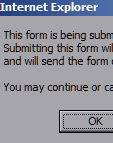
An e-mail box opens up. For some users, the Internet Connection Wizard starts up. This is because they are using free web mail services and not a software mail application.
To e-mail George, users would have to extract the mail address from the Outlook form, fire up their webmail website, compose a mail and paste your e-mail address there. Most users aren't familiar with this process hence it makes them confused and unable to e-mail you.
Recommendation
Put a simple web form that submits to a server side script such as PHP/ASP, which e-mails the form directly to you instead of relying on the client's e-mail ability.
Forms should submit to a server side script to process the mail. Scripting languages such as PHP/ CGI / JSP / ASP server side programming can be used to process the form input.
Do not use forms that that uses the "mailto" syntax to send a mail. There are free scripts which can assist to send the form for you if your host does not allow programmable scripts or you are not familiar with the technical stuff.

21. File Naming
Most servers support spaces in filenames, but avoid doing so. Always use a lowercase filename and folder name without any special symbols (including spaces but not "_") in them.
Windows based HTTP servers usually are not case sensitive but the more common and cheaper Unix servers are.
Recommendation
If your server is hosted in a Unix server, avoid usage of capital letters in the file and folder names. This helps a user remember the page URL easier if he or she decides to return on a later time.
22. Lumping Text in One Big Paragraph
| This is a snippet of text. This is a snippet of text. This is a snippet of text. This is a snippet of text. This is a snippet of text. This is a snippet of text. This is a snippet of text. This is a snippet of text. This is a snippet of text. This is a snippet of text. This is a snippet of text. This is a snippet of text. This is a snippet of text. This is a snippet of text. This is a snippet of text. This is a snippet of text. |
Don't pile a block of text all in one big paragraph to create a wall of text. Try to shorten it to 3-6 lines per paragraph and users will have an easier time reading the content.
Don't use the whole browser width for one line of text. Keep it to about 75-90% of the width of the screen, especially when page margins are set to zero.
23. Disabling Right-Click and Selecting of Text
The sole intention of disabling these functions was to prevent viewing the source code and saving of the images. This still works as intended for the casual web surfer but not determined users who would either disable JavaScript or retrieve the file from the cache.
Such a method comes with its share of problems. By disabling right-click, you remove all the capabilities of the right-click menu - some of them do not have their own toolbar icon or menu item in the browser.
And by disabling text selection, you are adding an extra annoyance to the user who has to manually type out the text - unless he/she is savvy and knows how to disable JavaScript.
A common piece of advice comes to mind here - If you want your html / images / text to be private, then don't put it online.
24. Usage of Frames
Frames have generally beenn frowned upon by the web design community. Pages in frames don't get added to the users bookmarks properly, causing problems when the user tries to return to the site.
Recommendation
Avoid frames. Do not use frames for your main navigation, even though it makes updating much easier. Consider using Server Side Includes (SHTML, SSI) or PHP includes.
Do not use frames to add a little header on the top of every external website your site links to. However, if you must do this, ensure that a link is provided to remove the frame as users will not be able to bookmark the page easily.
25. Underlining Links
| LINK EXAMPLES |
|---|
Link that changes on mouse over - Confusing with other bold elements Link that changes only on mouse over. |
Use the underline function for links and links only.
The current conception with many web designers is that underlines look ugly. Instead, many choose to provide a bold formatting with a different color to the links.
Some websites even go to the extent of showing that a link is a link only when the mouse is hovered over the text and some formatting - like a underline, over line or a double underline - takes effect.
This makes it very frustrating for users to recognize links, forcing them to hover the pointer on every word that could be a possible link.
Recommendation
Don't use the "text-decoration: none" CSS tag for links. Change colors to fit the site theme, but leave the underline alone.
Don't underline text which are not links. Use a special tag like Header 3 or Header 4 to place emphasis on it.
Specify a different color for visited links so that a user is aware that he/she has already visited a link before clicking on a link. See Jakob Nielson's article on this.
26. Proprietary Documents Types and Extensions
The purpose of Adobe's PDF and Microsoft's DOC formats are for viewing and printing documents with the intended paging and formatting.
These are big size file formats, taking up much more disk space than a regular HTML file hence a user has to wait for a longer period of time for the document to load. The usual browser interface changes to the interface of the document owner's application (e.g. opening a DOC adds new menus and buttons to the IE window). Finally, the user has to wait till 100% of the document has been loaded before he can view anything.
The newer PDF readers supports dynamic loading; it can render a document as it downloads. But the other usability problems still remain.
Recommendation
Provide a HTML version of the document. Use PDF as an alternate download, indicating clearly that it is a non-html file. Most users would want quick access to the content of the document, and if they want a better version for printing, they will get the printable version.
27. Pop-Up Windows
Don't open entire websites in a pop-up window. Websites are meant to be seen in the default browser window with all the status bars, title bars, toolbars and the other normal user customized add-ons.
Some of the reasons cited by designers for this tactic are to prevent source viewing and to provide a full customized interface to the user, Both of these reasons are not valid - by right-clicking the page, or hitting Ctrl-N (thanks IE!), a user can view your whole site source and images.
Provide a customized interface? What about the normal browser buttons? Where do we enter a new URL to go to another site?
Recommendation
If you are worrying that the user's browser may be too wide for your site, simply center the table design in the page.
Do not use advertising companies which rely on pop-ups and pop-unders. They will chase away your visitors, and most of them don't work due to most browser's built in pop-up stoppers.
Consider doing a liquid layout.
28. AJAX (Asynchronous JavaScript)
The first issue is that JavaScript is required. Secondly, it also requires ActiveX to be enabled in Internet Explorer 6. Yes, IE6 is ancient, but it still takes up 7% of the market. Many corporations disallow ActiveX controls to run for security reasons, and websites that force the use of AJAX have to forego such users. And lastly, some implementations can disable the browser's Back button.
Check out GMail, which provides a AJAX powered web mail interface that works with the Back button. It even supports basic HTML mode!
Why is ActiveX Required?
Technically, it is because Microsoft has placed the XMLHttpRequest under the ActiveX branch, which is why attempting to initialize the object will result in a error even when JavaScript is enabled.
It is worth a note that the latest Internet Explorer 7 fixes that - placing the XMLHTTP object natively.
Recommendation
If you want to use AJAX, be sure to provide an alternative non-XMLHttpRequest way to access your application. Till IE7/Firefox gets hold of the market, that is.
29. Not Setting a Background Color
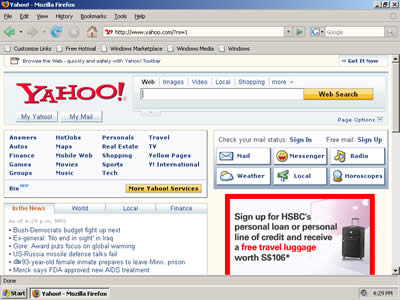
Do not assume all users use the default background color of white. This is how Yahoo.Com looks in our browser:
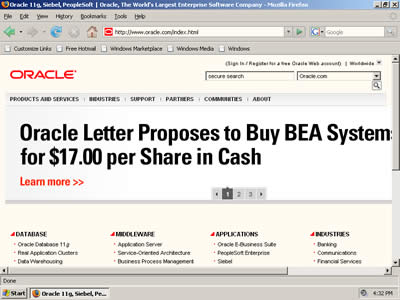
Notice that the background defaults to the user's default background color, which was not set to white. Now see Oracle's website:
You can see how the artifacts in the Oracle logo are showing through. The fix for this problem is very simple - simply set a background color for every page in the BODY tag or style sheet.<body style="background-color:#FFFFFF">
30. Usability Testing
Test your website as in many different environments and settings as possible. Some suggestions:
- Firefox
- Opera
- Above browsers with images turned off
- Above browsers with the images renamed/removed (so that the browser will be unable to download them and thus will not know the actual size - to find out if you specified the widths/heights of images)
- Above browsers with images renamed/removed AND JavaScript turned off
Look out for inconsistencies. Find the answers to the following questions
- Does the design still hold even though the images are broken or disabled?
- Can the text be readable when the images and JavaScript are disabled?
- Does the layout appear as intended in Firefox / Opera?
- If it is a framed page, is there some JavaScript informing the user of a framed content so that the user is not lost when coming through a search engine?
- Do all pages have consistent design and titles?
- Are all big blocks of text broken into small paragraphs?
- Is there a feedback link on every page? Search box on every page?
- Do Links have underline?
- Is the Flash Movie Skip link is outside the Flash movie?
31. Not Being Accessibility Friendly
Many users of high resolution monitors force their browser to render text fonts at a larger size than the designer intended. They don't have much choice as LCDs demand that the highest resolution to be used for the best quality (called the 'native resolution') causing the fonts to appear smaller. This is made even worse by designers who commit Mistake #12: Small Font Sizes and Making Text Resizable.
Adding more salt to the wound, some designers unknowingly design their site to 'hang' their browser when an accessibility feature is used. For example, if you try to visit the phpBB Community Forums with IE6 (with Text Size Largest, Ignore Font Sizes accessibility feature enabled), the browser hangs for no apparent reason.
Another example - Oracle's press releases. Viewing it in IE6/IE7 with large font sizes renders it as below:
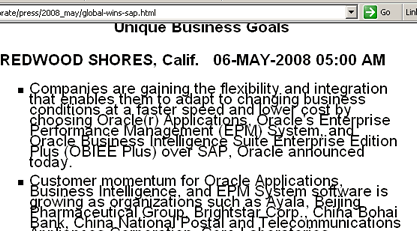
Notice how hard it is to read the overlapping capital letters. A good example of an accessibility friendly site would be BBC, which has spent a considerable amount of money on making its website very accessible.
32. Mandating Requirement of JavaScript
If your site requires JavaScript, make use of the noscript html tag to highlight it to the user. The advantage of the noscript tag is that it is only displayed when the browser has JavaScript disabled.
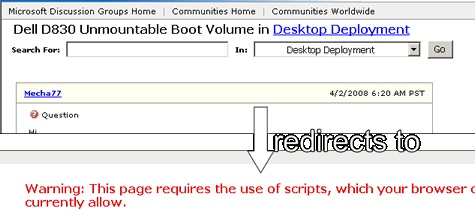
Don't redirect users to another page to upgrade to the latest browser, or a page that specifies that JavaScript is required to browse the site. Try to provide the basic function of the page without requiring JavaScript.
An example would be Microsoft's Communities - try visiting this link with JavaScript (Active Scripting in Internet Options > Security) disabled. Notice that you can't even hit the Back button to view the page after being redirected.
Many users disable JavaScript for speed and/or security reasons. E.g. - the popularity of the NoScript Firefox extension with over 300,000 weekly downloads, which disables JavaScript. So don't make JavaScript redirects for JavaScript-disabled users to browse your site when the page appears fine without it.
33. Not Providing a Print View
Try doing a Print Preview of this document. Really, just try it. You don't have to print it, just see a preview of it.
Notice that the left column automatically disappears? In fact, with the left column removed, the page now has 20% more width (depending on your screen resolution, as the site is liquid designed). And that means less paper is needed for printing.
How is this achieved? Via CSS! In summary, a separate style sheet is created that is used only when printing.
Rather than go into specifics, take a look at some tutorials around.
34. Not Providing a Basic Search Function
Search is one of the important navigators of the web. Almost all of us find websites through search engines such as Google and Yahoo!
Did you know that almost any site can now offer a simple search solution without any scripting required?
And it is even powered by one of the top search engines around - Google! Best of all, it is free! Ad supported, but you can partake in a share of the revenue
It is no other than Google's Custom Search Engine. Bootstrike's Search is also powered by Google.
Recommendation
Place a basic search box in every page in a prominent location such as the top right.
35. Use Semantic HTML code
Presentation wise, this does not make a difference. But it can make a big difference to search engines, who are better able to analyze the layout of the page. For example, headings should use the H1 tag rather than the P tag. sub headings should use the H2 tag and so on.
So rather than doing this...
<p>My Life</p>
<p>Day 1</p>
<p>Today I learnt about some web design mistakes</p>do this...
<h1>My Life</h1>
<h2>Day 1</h2>
<p>Today I learnt about some web design mistakes</p>Recommendation
As stated, it does not make any difference in terms of usability and presentation. However, it can improve search engine rankings as well as provide accessibility-impaired users a more friendly page.
Related Links
- SEO Techniques
- Top Ten Mistakes in Web Design by Jakob Nielsen
- Top Ten Web-Design
Mistakes of 2007 by Jakob Nielsen
If you have any feedback, please feel free to e-mail us .
This document is Copyright(©) 2001-2010 by G.Ganesh. Visit Bootstrike.Com (http://bootstrike.com).
Last Updated 29th August 2010.
| new post | [ expand all ] |
12 comments